

What is the Telegram integration?
The Telegram integration uses a Telegram bot to send a message to your chosen chat whenever a lead is collected on your landing page. Every field from the lead is included automatically, so you get the full submission without any setup beyond connecting the integration. It is a great fit for real-time alerts: notify your sales team in a shared group, send leads to a private channel, or get a personal ping for every new submission.Before you start
You need two things to connect Telegram:- A bot token, created with Telegram’s BotFather.
- A Chat ID, which tells the bot where to send notifications (a personal chat, a group, or a channel).
Step 1: Create a Telegram bot and get your bot token
Your bot is the account that delivers notifications. You create it through BotFather, Telegram’s official bot for managing bots.1
Open BotFather in Telegram
In the Telegram search bar, type 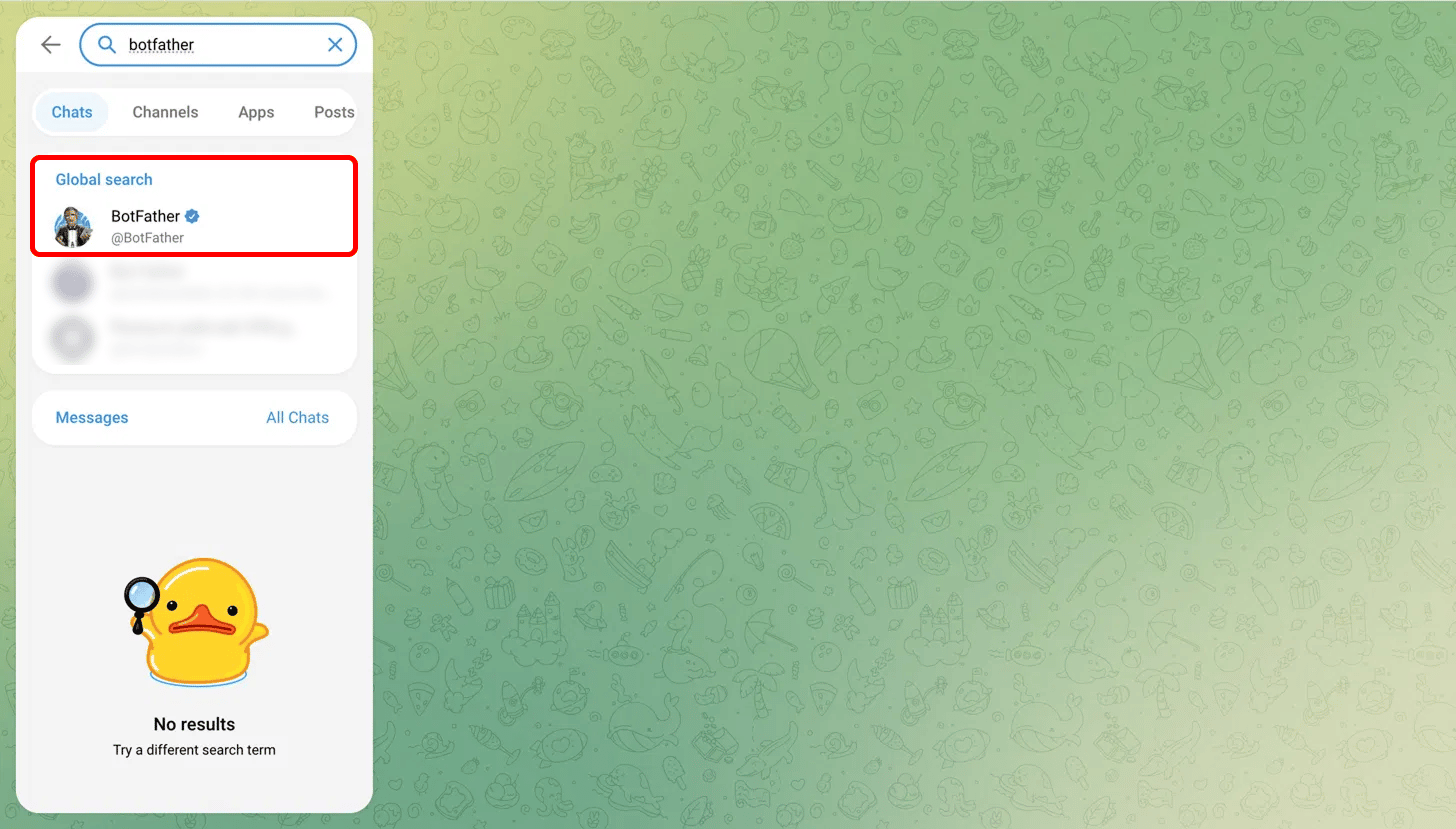
BotFather and open the verified account (the one with the blue checkmark and the username @BotFather).2
Start a new bot
Click Start, then send the command
/newbot.3
Name your bot
BotFather will ask for a name (the display name, anything you like), then a username. The username must be unique and end in
bot (for example, LanderLabdoc_Bot).4
Copy your bot token
Once the username is accepted, BotFather replies with a confirmation message containing your bot token. It looks like 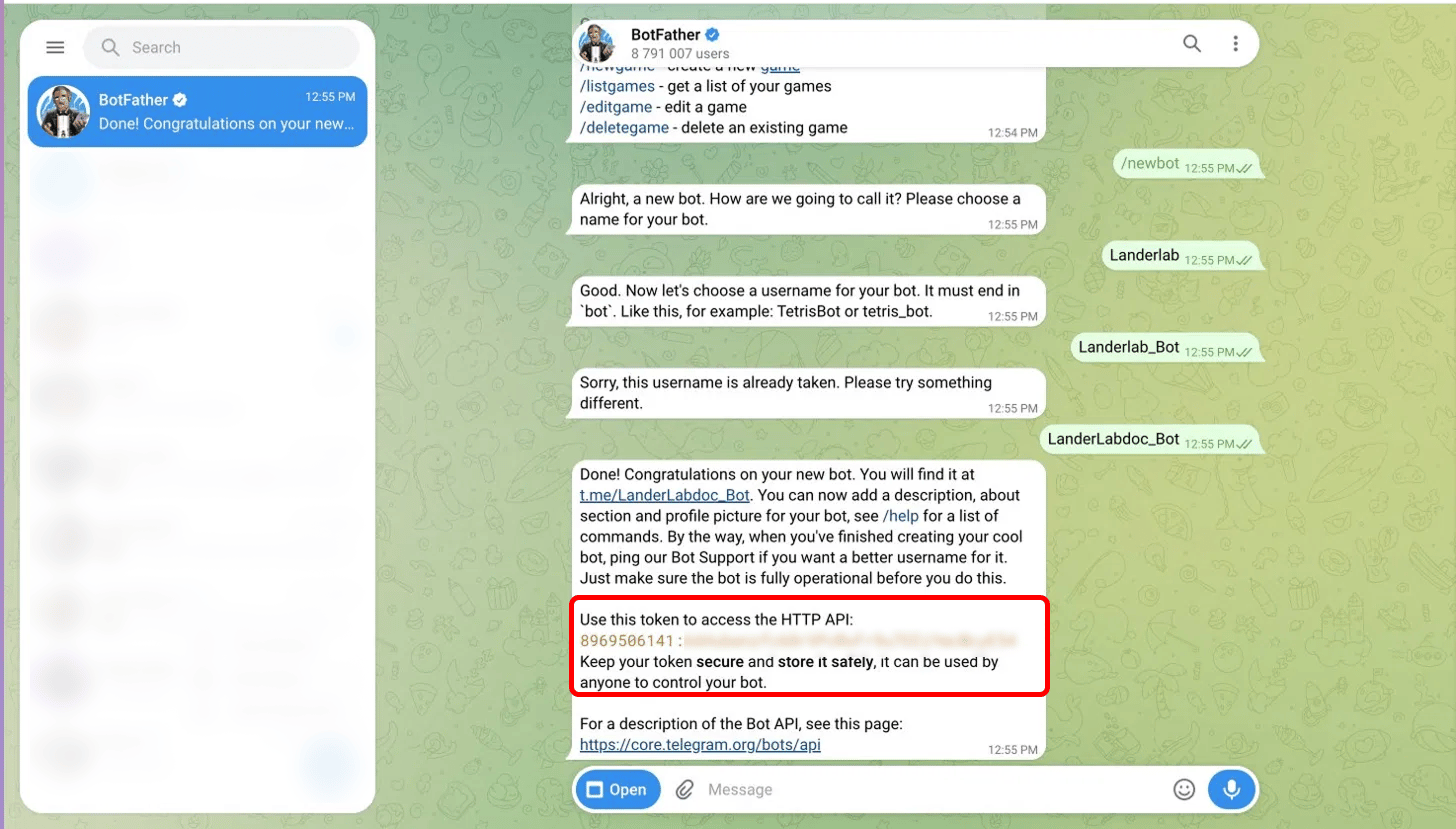
123456789:AAExampleTokenReplaceWithYourOwn000. Copy it and keep it somewhere safe.Step 2: Get your Chat ID
The Chat ID tells the bot exactly where to send notifications. How you find it depends on where you want your leads to go. Pick the option that matches your setup below.Group chat (recommended for teams)
Group chat (recommended for teams)
The easiest way to get a group Chat ID is from the Telegram desktop app.
1
Create a group and add your bot
Create a Telegram group (or open an existing one), then add your bot to it as a member.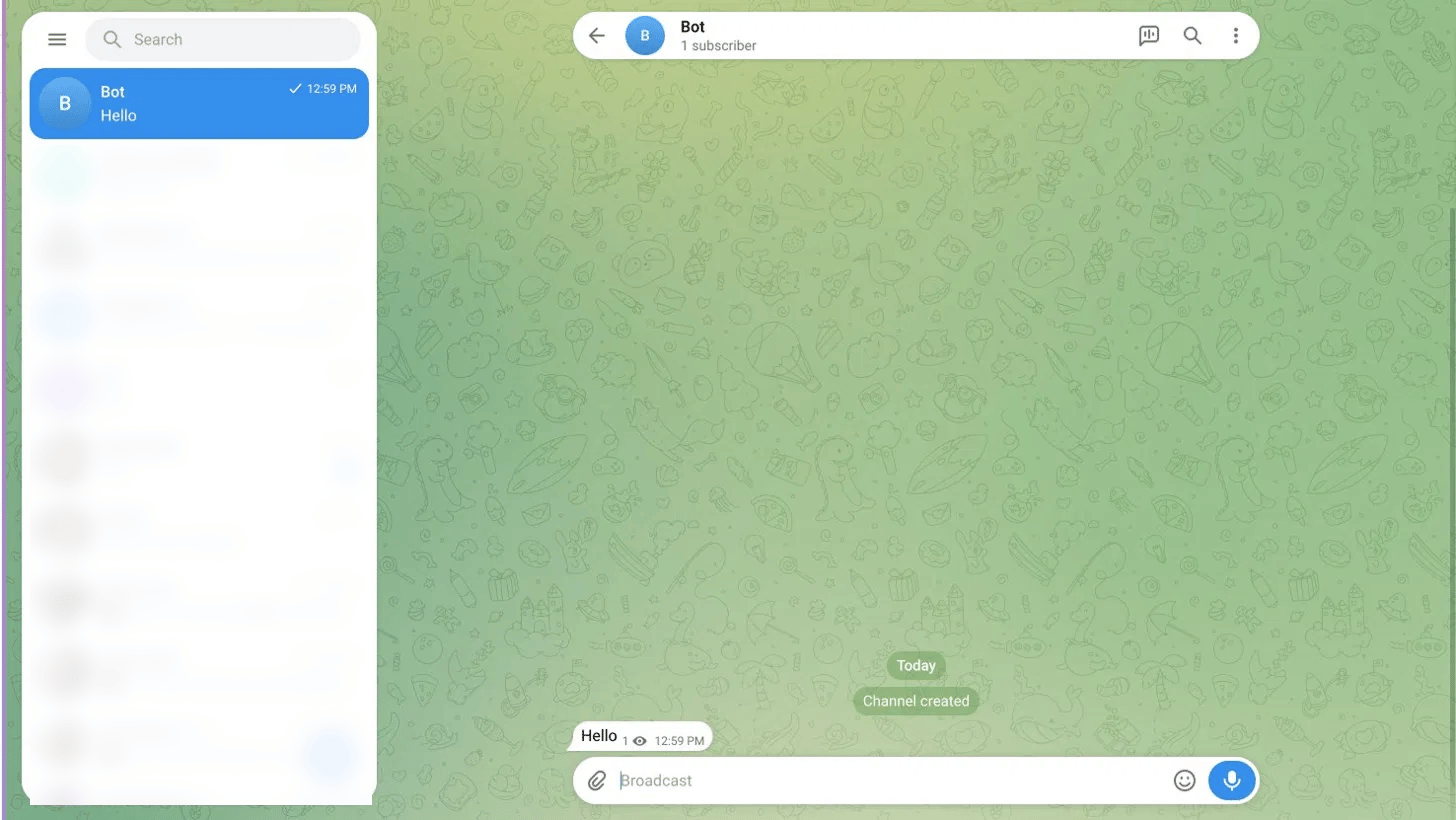
2
Send a message and copy its link
Send any message in the group. Then right-click the message (or long-press on mobile) and choose Copy Message Link.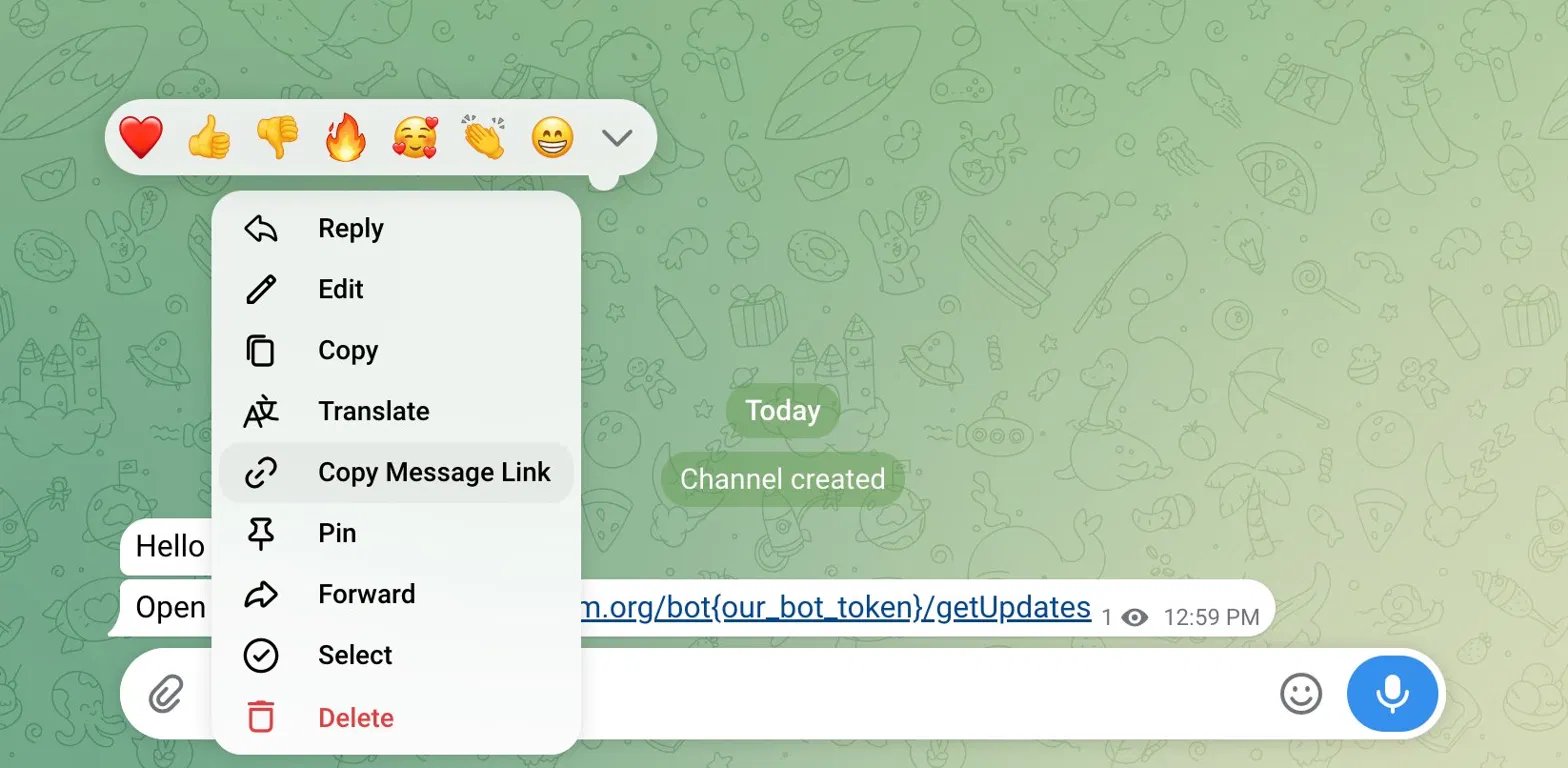
3
Read the Chat ID from the link
The copied link looks like 
https://t.me/c/4302014071/2. The number right after /c/ is your group ID. In this example, the Chat ID is 4302014071.If notifications do not arrive with the plain number, prefix the group ID with
-100. For example, 4302014071 becomes -1004302014071. This is the format the Telegram Bot API uses for groups and channels.Private chat (just you)
Private chat (just you)
Use this when you want personal notifications sent straight to your own Telegram.
1
Start your bot
Open your new bot and click Start, or send it any message.
2
Open the getUpdates URL
In a browser, open the URL below, replacing
<YOUR_BOT_TOKEN> with your token. Keep the word bot directly in front of the token.3
Find your Chat ID
The page returns a block of JSON. Look for the
chat object and copy the value of id. That number is your Chat ID.Channel
Channel
Use this to broadcast leads to a Telegram channel.
1
Add your bot as a channel admin
Add your bot to the channel and give it admin rights, then post any message in the channel.
2
Open the getUpdates URL
In a browser, open the URL below, replacing
<YOUR_BOT_TOKEN> with your token.3
Find your Chat ID
Look for the
chat object under channel_post and copy the value of id. Channel IDs start with -100.Step 3: Connect Telegram in LanderLab
With your bot token and Chat ID ready, you can connect the integration.Add the integration
1
Open your landing page
Go to Landing Pages and click the name of the landing page where you want lead notifications.
2
Open the Integrations tab
Click Add Integration to open the integrations panel, then search for Telegram and select it.
3
Enter a name and your bot token
Give the integration a Name to identify it, then paste your Bot Token from Step 1. Click Add Telegram.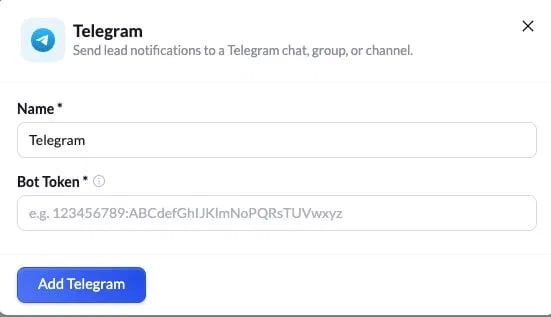
Configure the notification
After adding the bot, a short setup wizard opens so you can choose where notifications go and how they look.1
Enter your Chat ID
Paste the Chat ID you found in Step 2 (for example, 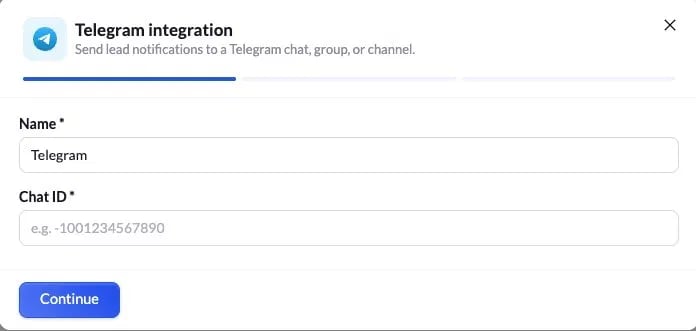
-1004309994071). Click Continue.2
Choose your message format
Pick how each notification is written: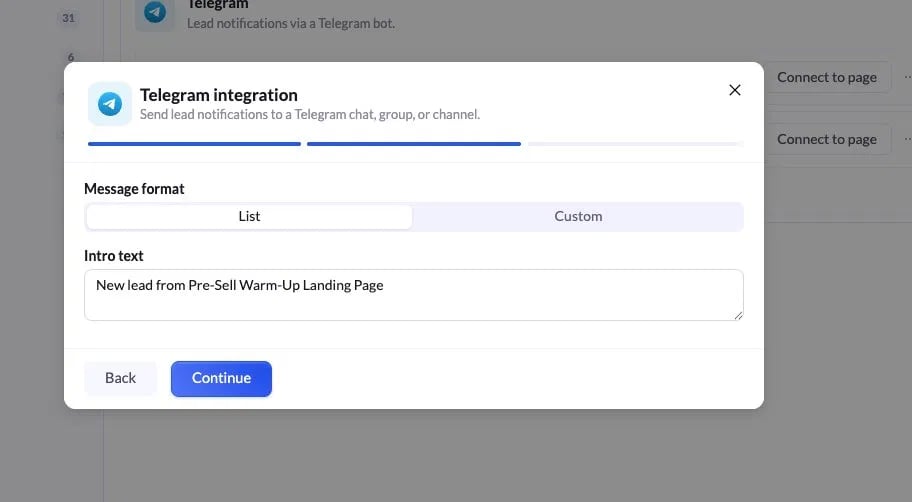
For most cases, List is the quickest option. Add an intro like
New lead from Pre-Sell Warm-Up Landing Page, then click Continue.3
Review and connect
The final step shows a preview of the destination, message format, and intro text. Every lead field is included automatically. If everything looks correct, click Connect Telegram.
If your landing page has multiple A/B test variants, you will be asked to choose which variant or variants this integration applies to before it is added.
Test the integration
Submit a test lead through your landing page form or quiz, then check your Telegram chat. The bot should deliver a message with the lead details within a few seconds.Troubleshooting
No notifications are arriving
No notifications are arriving
Confirm three things: your bot token is correct, your bot is a member (or admin) of the group or channel, and your Chat ID is entered correctly. For groups and channels, try adding the
-100 prefix to the ID.Notifications go to the wrong chat
Notifications go to the wrong chat
Double-check the Chat ID. It is easy to mix up a group, channel, or personal chat. Repeat Step 2 for the exact destination you want.
The bot is not responding
The bot is not responding
Make sure you clicked Start in the bot chat, or sent at least one message to the group or channel. Telegram will not return any chat data until there is activity.