

Connect Slack to your landing pages in LanderLab to get an instant message in your team’s Slack channel every time a new lead comes in. Your team sees each lead the moment it is submitted, without leaving Slack or opening your dashboard.
What is the Slack integration?
The Slack integration uses a Slack incoming webhook to post a message to a channel of your choice whenever a lead is collected on your landing page. You create the webhook once inside Slack, copy its URL, and paste it into LanderLab. It is a great fit for real-time alerts: notify your sales team in a shared channel or send leads to a private channel only your team can see.Before you start
You need one thing to connect Slack: an incoming webhook URL. You create it through Slack’s developer site by making a small Slack app. The steps below walk you through it.Step 1: Create a Slack app
1
Open the Slack apps page
Go to https://api.slack.com/apps and sign in to your Slack account. Click Create an App.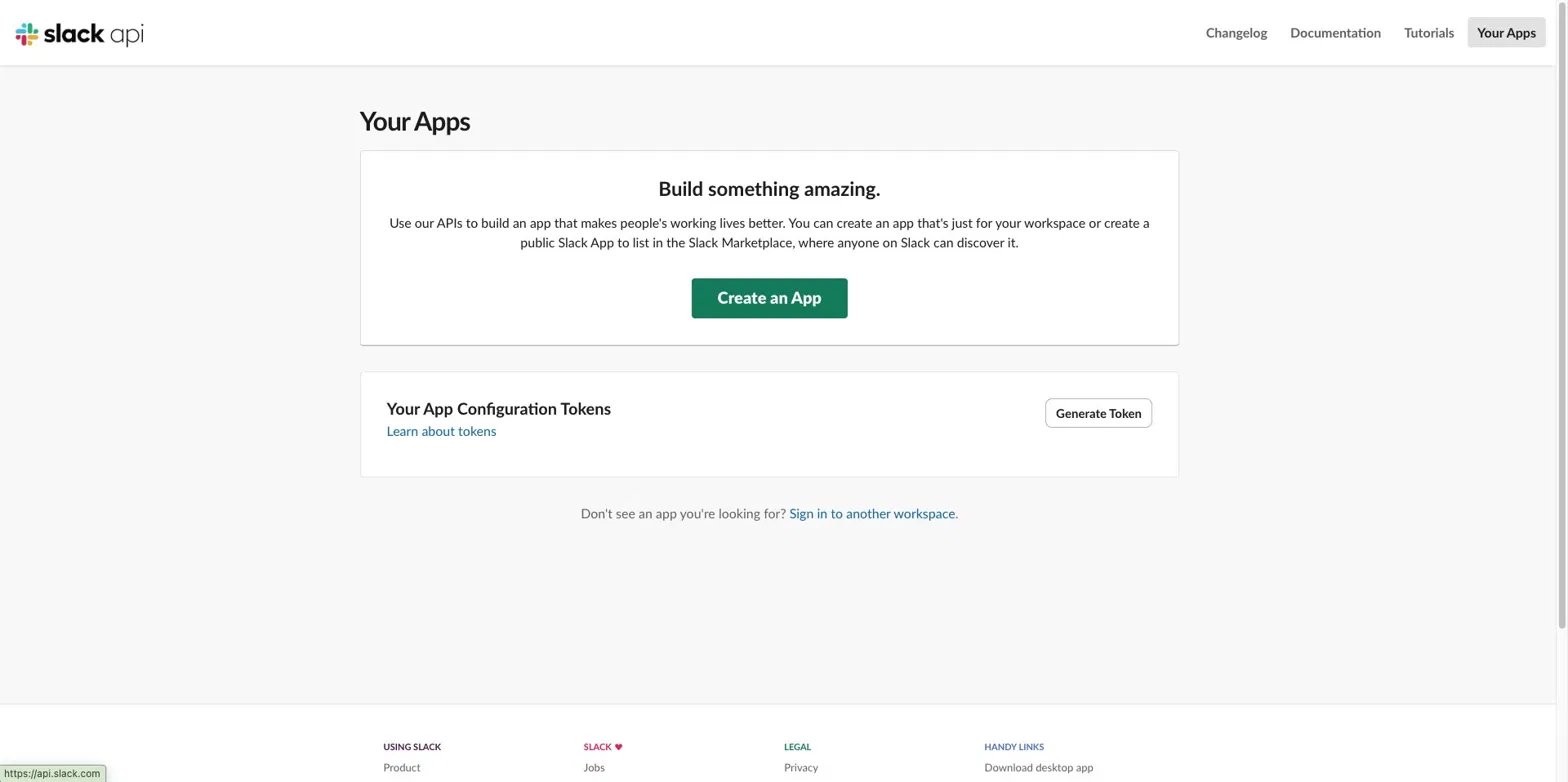
2
Choose From scratch
In the popup, select From scratch.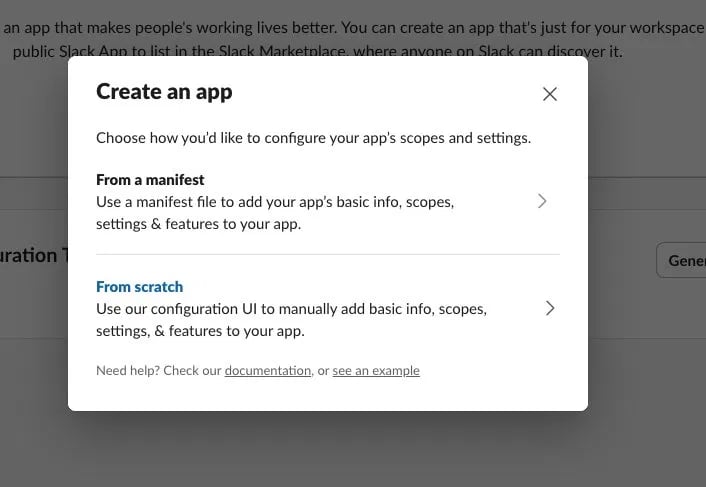
3
Name your app and pick a workspace
Enter an App Name (for example, 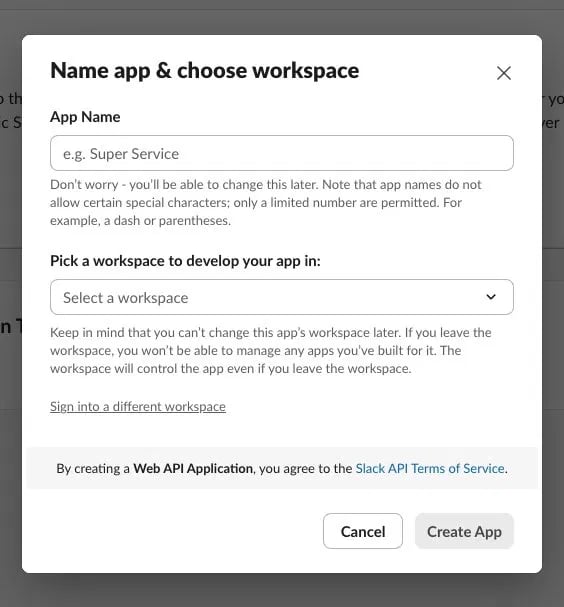
LanderLab) and select the workspace where you want lead notifications to appear. Click Create App.Step 2: Activate Incoming Webhooks and get your URL
1
Open Incoming Webhooks
In the app settings sidebar, under Features, click Incoming Webhooks. Toggle Activate Incoming Webhooks to On.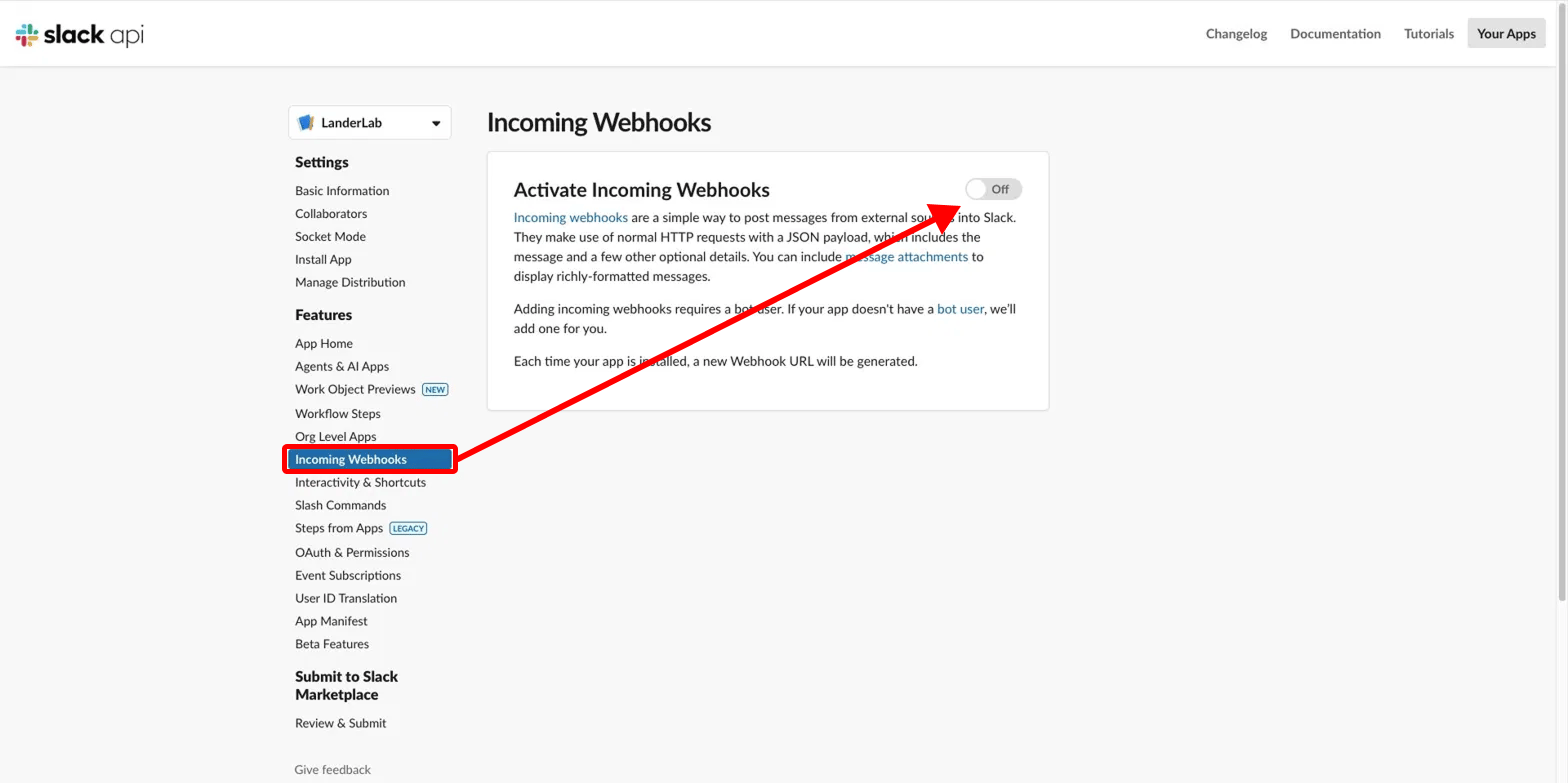
2
Add a new webhook
Scroll to the bottom of the page and click Add New Webhook to Workspace.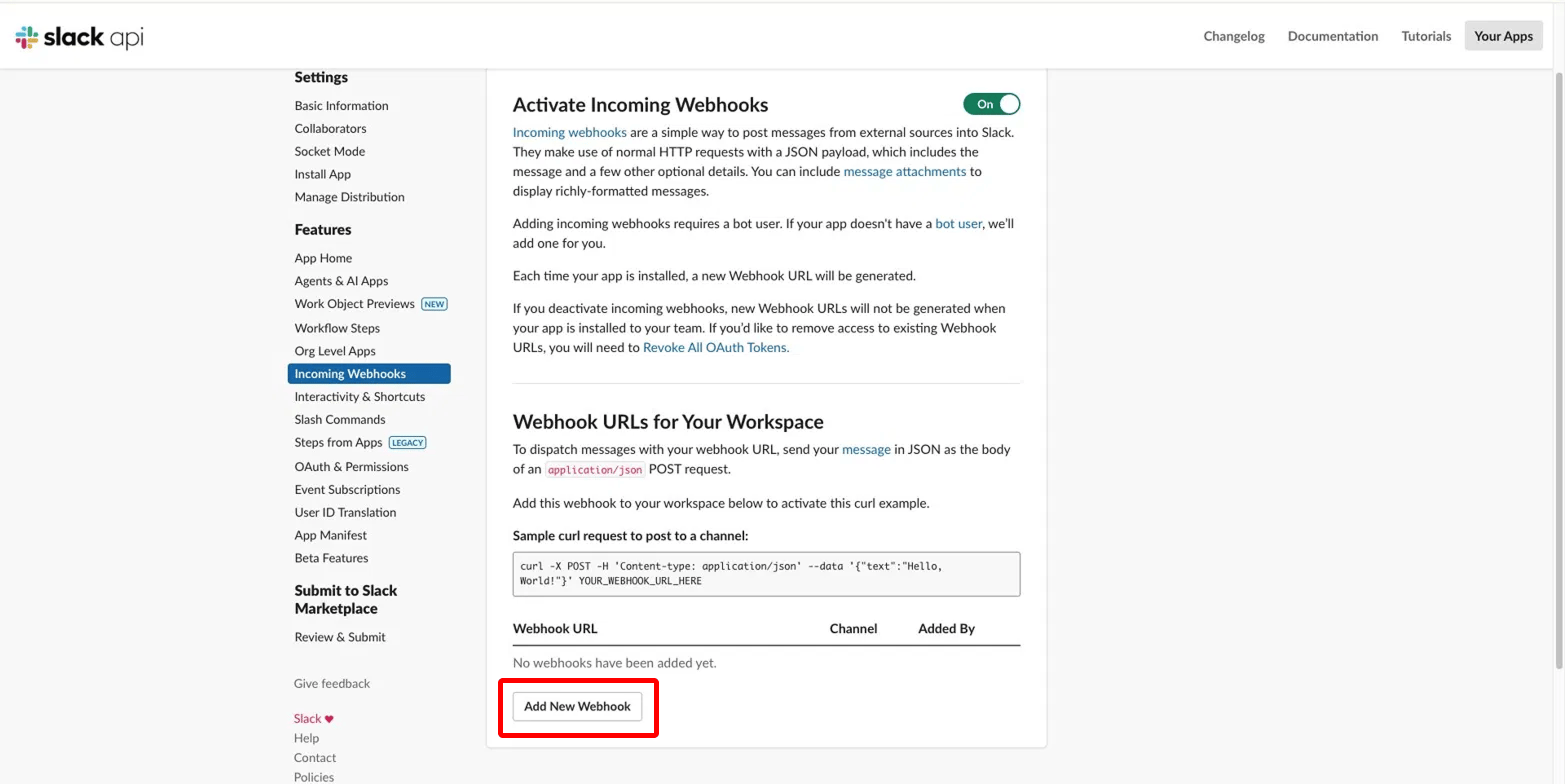
3
Choose a channel and allow access
Select the channel where you want leads posted, then click Allow.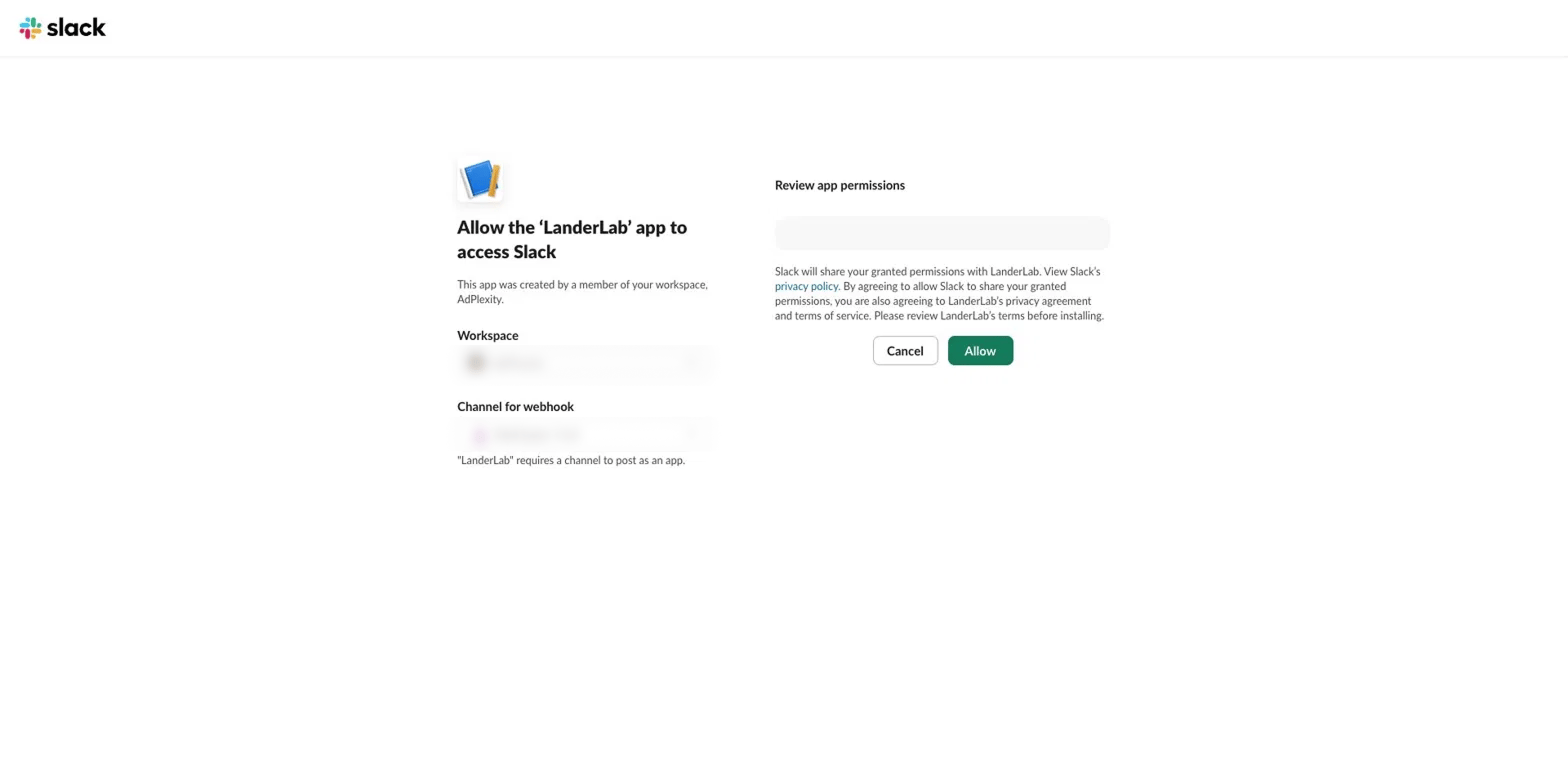
4
Copy your webhook URL
Back on the Incoming Webhooks page, your new webhook appears in the list. Click Copy to copy the URL. It looks like this: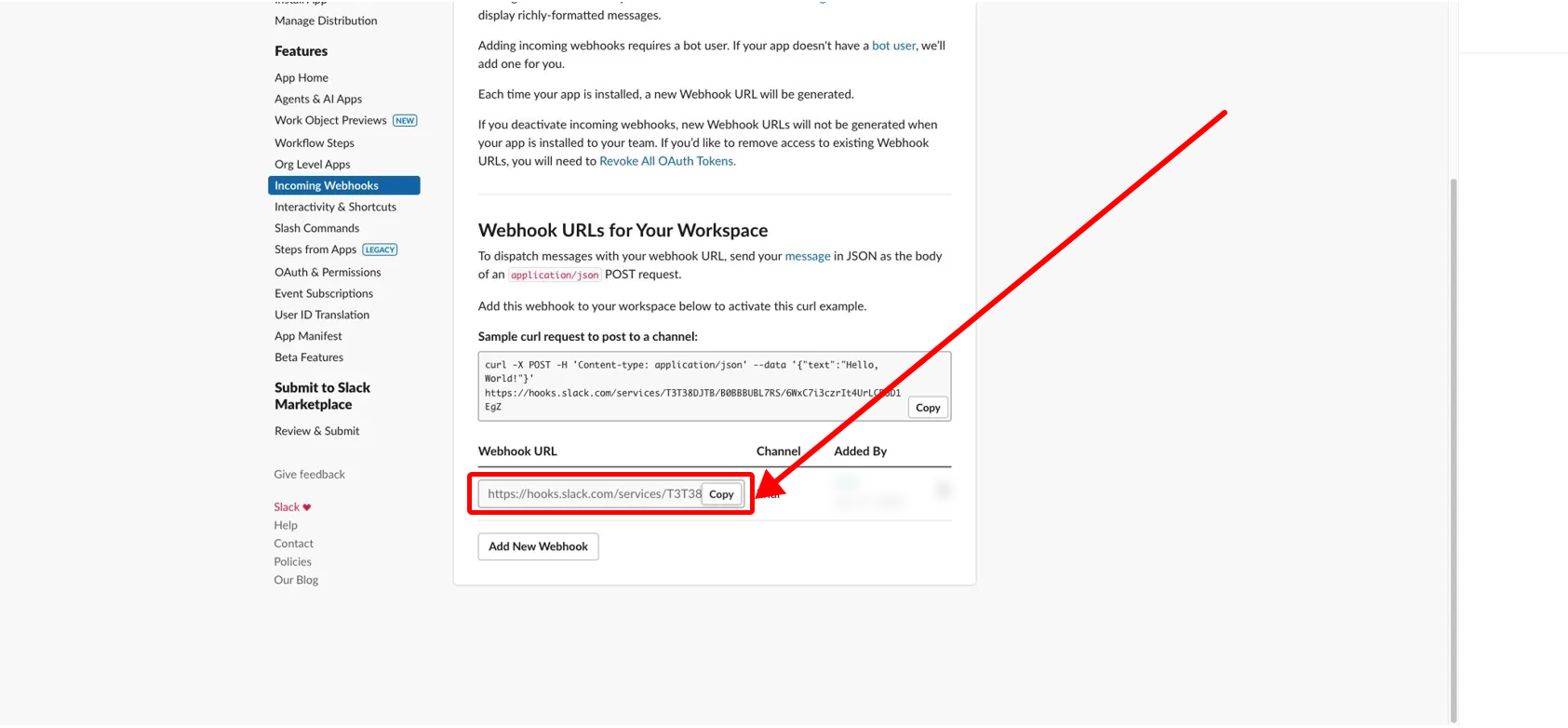
Step 3: Connect Slack in LanderLab
With your webhook URL copied, you can connect the integration.1
Open your landing page
Go to Landing Pages and click the name of the landing page where you want lead notifications.
2
Open the Integrations tab
Click Add Integration to open the integrations panel, then search for Slack and select it.
3
Enter a name and paste your webhook URL
Give the integration a Name to identify it, then paste the Webhook URL you copied from Slack. Click Continue.
4
Choose your message format
Pick how each notification is written. List formats every lead field automatically and only asks for an intro text, while Custom lets you write your own message template. Click Continue.
5
Review and connect
Check the destination channel, message format, and intro text. Every lead field is included automatically. If everything looks correct, click Connect Slack.
If your landing page has multiple A/B test variants, you will be asked to choose which variant or variants this integration applies to before it is added.
Test the integration
Submit a test lead through your landing page form or quiz, then check your Slack channel. The app should post a message with the lead details within a few seconds.Troubleshooting
No messages are arriving in Slack
No messages are arriving in Slack
Confirm the webhook URL was pasted correctly with no extra spaces. Also make sure Incoming Webhooks is still toggled On in your Slack app settings.
Messages post to the wrong channel
Messages post to the wrong channel
Each webhook URL is tied to the channel you chose when creating it. To post to a different channel, create a new webhook in Slack (Step 2), copy that URL, and update the integration in LanderLab.
The webhook URL stopped working
The webhook URL stopped working
If the app was reinstalled or its tokens were revoked, the old webhook URL becomes invalid. Generate a new webhook in Slack and paste the new URL into LanderLab.