


What you need before you start
- A ConvertKit (Kit) account
- A V4 API key from your Kit Developer settings
Step 1: Get your ConvertKit V4 API key
- Log in to your Kit account.
- Click your account name in the top-right corner, then select Settings.
- Go to the Developer section.
- Under V4 Keys, copy an existing key or click Add a new key to create one.
Use a V4 key, not the legacy V3 key. The V3 key is listed separately and is only needed for older third-party integrations.
Step 2: Add ConvertKit in LanderLab
- In LanderLab, open your landing page or quiz funnel.
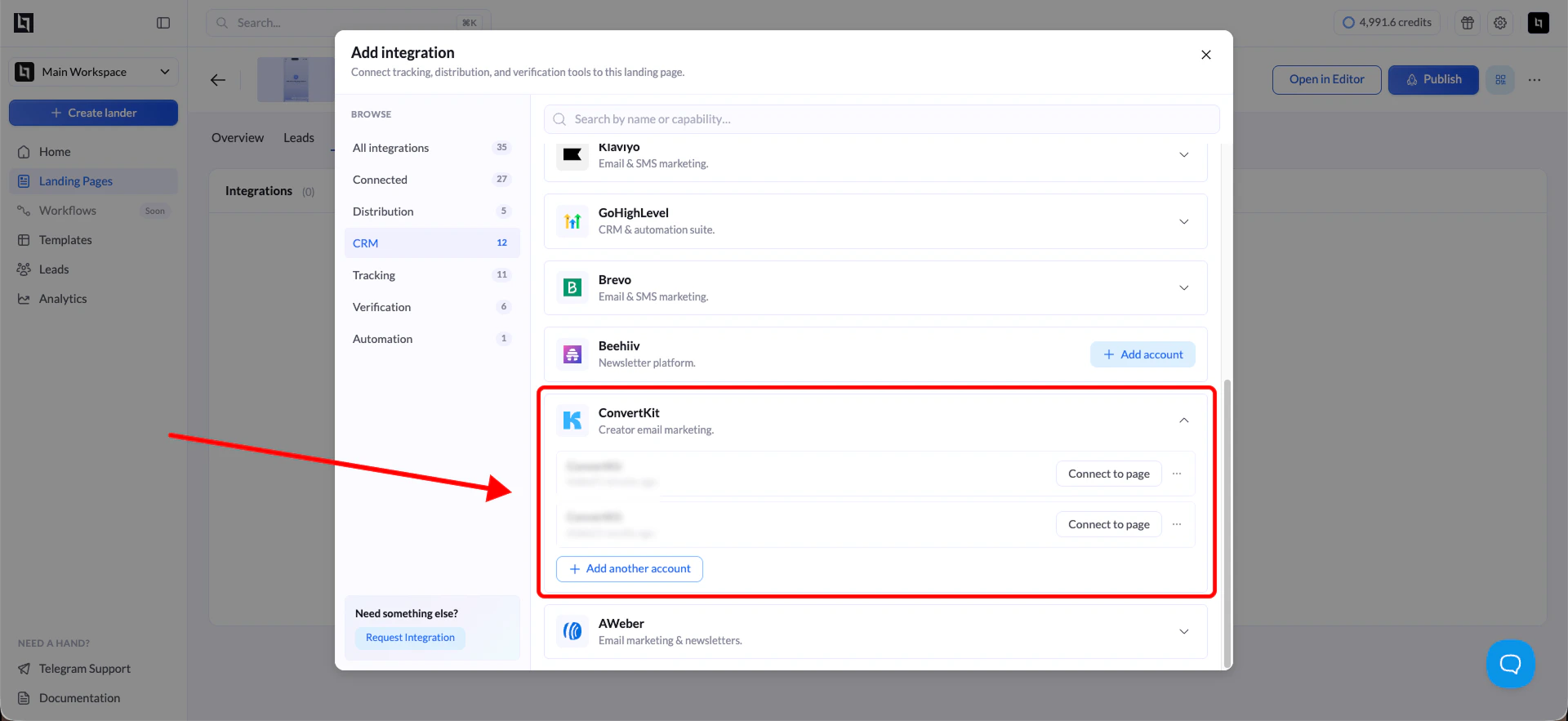
- Go to Integrations and select ConvertKit.
- Enter a name for this connection (for example, “ConvertKit”).
- Paste your V4 API key into the API Key field.
- Click Add ConvertKit.
Step 3: Map your form fields
After connecting, LanderLab loads your form fields on the left and your ConvertKit fields on the right.- For each field you want to send, use the dropdown on the right to select the matching ConvertKit field.
- You must map your Email field to a ConvertKit field to proceed. All other fields are optional.
- Leave any fields set to Select field if you do not want to send them.
- Click Continue when done.
Step 4: Review and activate
LanderLab shows a summary of your configuration before activating:- Form: the ConvertKit form or profile the leads will be sent to
- Field mapping: the fields that will be passed with each submission