You can invite team members to your organization by adding them as users. Each user can be assigned a role and access to specific workspaces depending on their responsibilities.
How to Add a User
Follow the steps below to invite a new user.
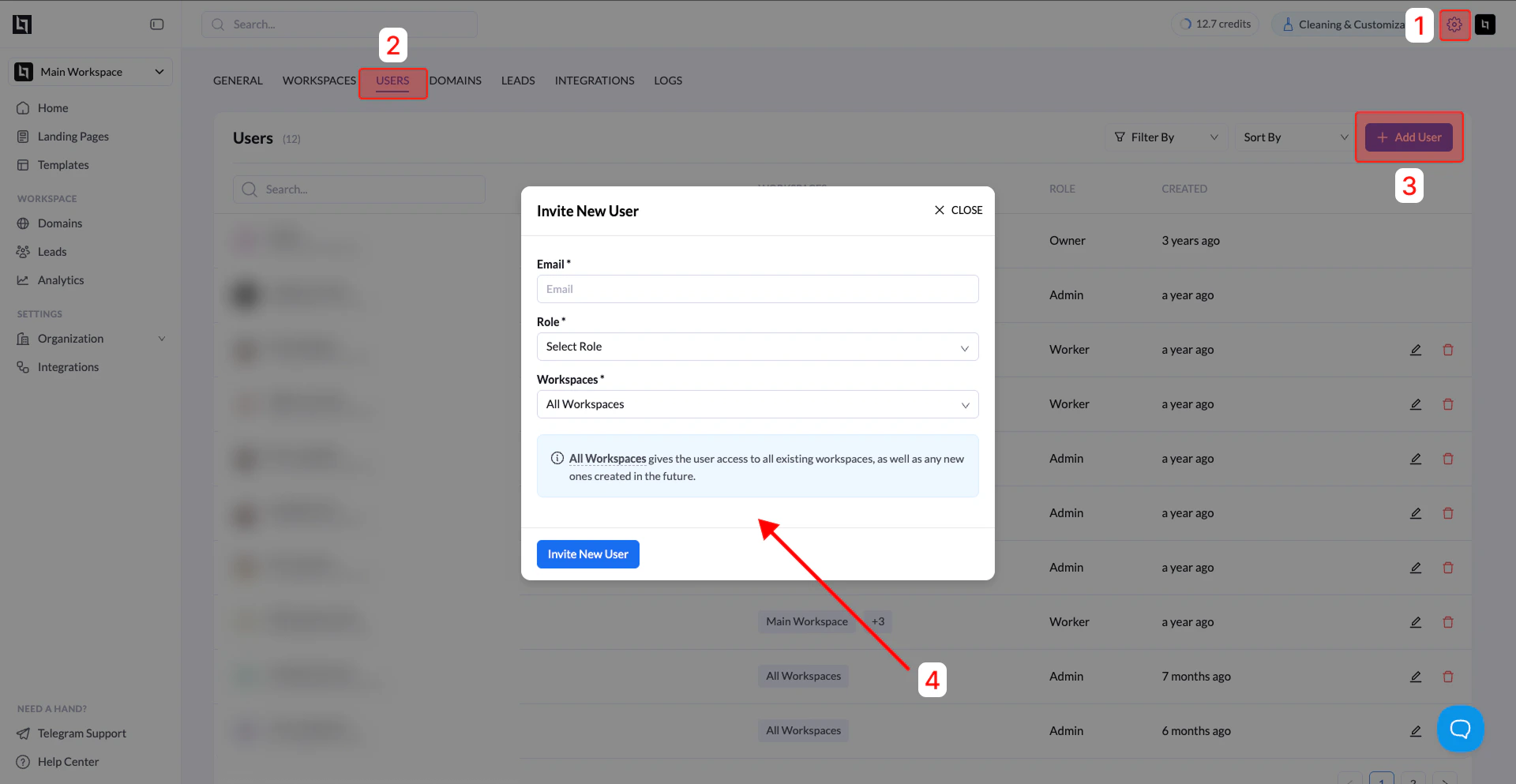
1. Open Settings
Go to Settings from your dashboard.
2. Navigate to the Users section
Click the Users tab.
You will see a table listing all current users in your organization.
3. Click Add User
Click the Add User button.
A pop-up window will appear where you can configure the user’s access.
4. Enter user details
Fill in the required fields:
| Field | Description |
|---|
| Email | Enter the email address of the person you want to invite |
| Role | Choose a role (Admin, Worker, or Viewer) |
| Workspaces | Assign the user to specific workspaces if needed |
5. Send the invitation
Confirm the details and send the invitation.
The user will receive an email invitation to join your organization.
User Roles Explained
| Role | Permissions |
|---|
| Admin | Full access to the organization, including managing users, workspaces, and settings |
| Worker | Can create and manage landing pages but has limited administrative permissions |
| Viewer | Read-only access to landing pages and reports |
Workspace Access
- Admins automatically have access to all workspaces.
- Workers and Viewers can be assigned to specific workspaces.
If no workspace is selected for Workers or Viewers, they will automatically receive access to all workspaces. Last modified on April 2, 2026