

Ways to add context
Click + in the AI Assistant prompt box to see all options.How to add context from another page
Use Add context when you want the AI to reuse something you already built, like a hero section, an offer block, or a winning layout from another lander.1
Open the + menu
In the AI Assistant prompt box, click +.
2
Hover over Add context
A list of your landing pages opens next to the menu.
3
Find the page
Type in Search pages or scroll the list. Hover over a page to see a preview card with its thumbnail, publish status, and when it was created and last updated. This helps you confirm you picked the right page.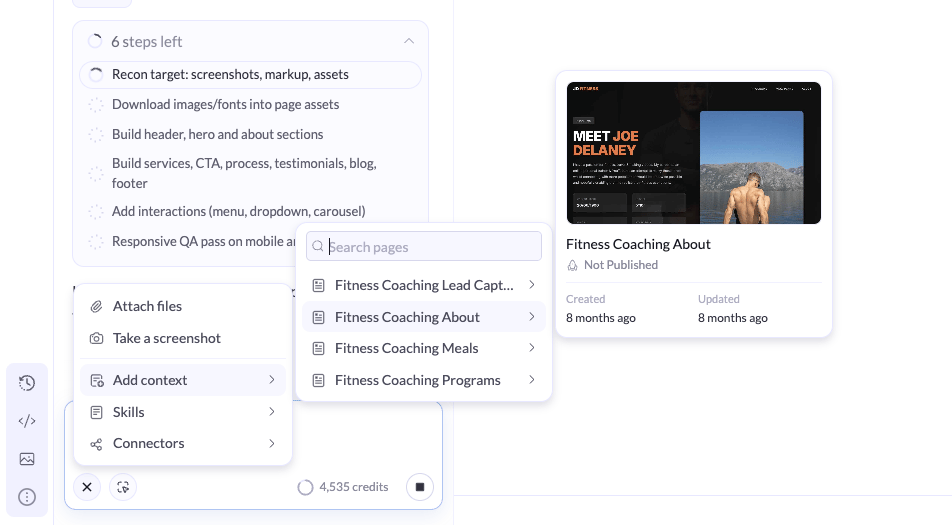
4
Select the page
Click the page to add it to your message as context.
5
Tell the AI what to do with it
Write your request and refer to the page you added. For example:
How to take a screenshot
Take a screenshot to show the AI exactly which part of the page you mean. You can also draw on it to point out the problem.1
Click Take a screenshot
In the prompt box, click +, then Take a screenshot. The canvas switches to capture mode.
2
Select the area
Drag to select the part of the page you want to capture. Use the handles to resize it. The selected size is shown in the corner.
3
Mark it up (optional)
Use the toolbar at the bottom to highlight what matters:
- Rectangle to box an area.
- Arrow to point at an element.
- Pen to draw freehand.
- Undo and Redo to fix a mistake.
- X to cancel the screenshot.
4
Click Attach
Click Attach. The screenshot is added to your message..png?fit=max&auto=format&n=uWHxd5IAWWFP2kM-&q=85&s=55dd3c5cd13857b9cac175c2e1bceab5)
5
Describe the change
Tell the AI what to fix. For example:
How to attach files
1
Click Attach files
In the prompt box, click +, then Attach files.
2
Upload your file
Pick the file from your computer. It appears in the prompt box.
3
Explain how to use it
Tell the AI where the file goes, for example “Use this image as the hero background” or “Match the colors in this logo”.
Tips for better context
- Add only what is relevant. Extra context can distract the AI from the task.
- Name what matters. Point to the exact section, element, or detail in the file or page.
- Mark up your screenshots. An arrow or a box on the problem area removes any guesswork.
- Combine options. A screenshot plus a short instruction is often the fastest way to fix a design issue.
Related
Skills
Save instructions the AI reuses for recurring tasks.
Optimize with AI
Write prompts that produce higher-converting pages.