

What you can do with the Realize connector
Once connected, you can ask the AI Assistant to:- Read your campaigns and ads. List the campaigns on an account, open any one of them, and see its ads with headline, description, thumbnail, call to action, and landing page URL.
- Pull performance data. Get spend, impressions, clicks, CTR, CPC, conversions, CPA, and ROAS, broken down by campaign, by site, or by day. You can also pull a campaign’s change history to see what was edited and when.
- Build a landing page from a live ad. Point the AI at an ad and have it build a lander that matches the ad’s promise, hook, and angle, so your message stays consistent from click to form.
- Create and update campaigns and ads. Create a campaign with its budget, bidding, schedule, and targeting, then add native or display ads to it. You can also update copy, calls to action, and creatives on ads that already exist.
- Organize campaign groups. Read, create, and update campaign groups, including the shared goal, KPI, flight dates, and shared budget.
- Look up targeting options. Search countries, regions, DMAs, cities, and postal codes, plus browsers, operating systems, publishers, audiences, lookalike audiences, and contextual segments.
- Manage audiences and conversion rules. Create pixel audiences, combined audiences, and customer lists, and read, create, or update the account’s conversion rules.
The AI acts with the permissions of the Realize user who signed in. It can only see and change accounts that user can already see and change in Realize.
Prerequisites
Before you start, make sure you have:- A LanderLab account with access to Settings > Connectors
- A Realize (Taboola) account you can sign in to
- Permission in Realize to view the accounts you want the AI to work with
Step 1: Add the Realize connector
1
Open the Add connector window
Go to Settings and select Connectors under Organization, then click Add connector. You can also click + in the AI Assistant prompt box, hover over Connectors, and click Manage connectors.
2
Find Realize (Taboola)
Search for realize, or open the Apps category in the left rail, then expand the Realize (Taboola) card and click Add.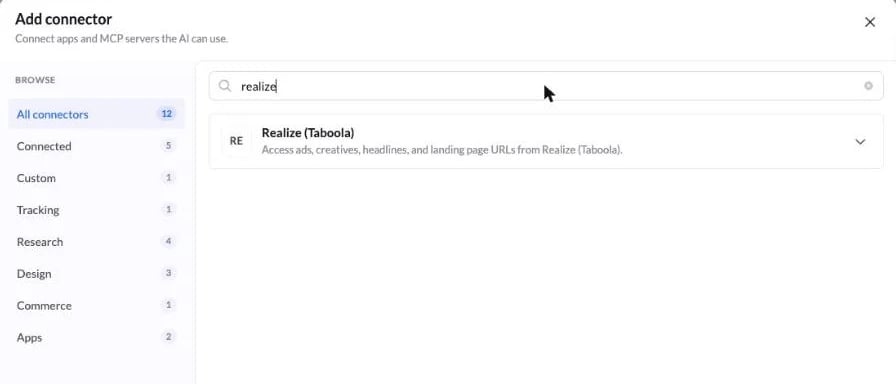
3
Name the connection
Leave the default name, or type a name that tells you which Realize login this connection uses, such as “Realize (Taboola) Agency”. The name has to be unique, so if LanderLab tells you a server with that name already exists, pick another one.Click Continue.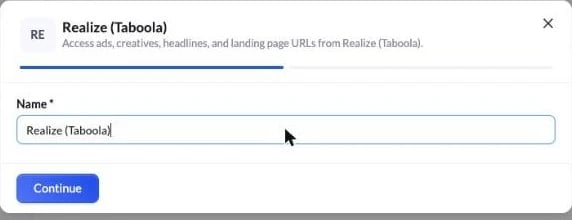
4
Sign in to Taboola
A separate sign-in window opens. Make sure the Realize tab is selected, not Newsroom or Backstage, then sign in with your email and password, a one time link, or your Google account.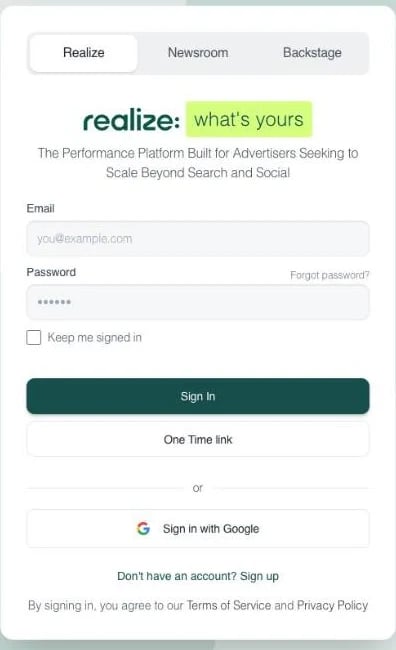
5
Confirm it is connected
Back in Settings > Connectors, Realize (Taboola) now appears under Apps. Expand it to see the connection, the server URL, when it was added, and a toggle to turn it on or off. The … menu lets you rename or delete it.
Connectors are shared by everyone in your organization. Once you add Realize, your whole team can use it with the AI Assistant.
Step 2: Turn it on in the AI Assistant
Open a landing page in the editor, click + in the AI Assistant prompt box, and hover over Connectors. Under Connections, make sure the toggle next to Realize (Taboola) is on.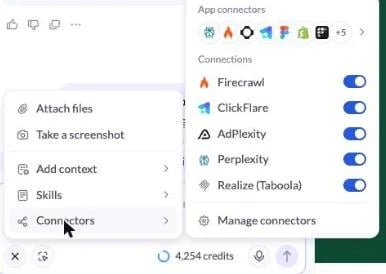
Step 3: Ask for what you need
Name the account you want to work with. If you manage many accounts in Realize, the AI has to find the right one before it can do anything else, and naming it in your prompt saves a round trip. Build a page that matches a live ad:What the connector cannot do
- Nothing is deleted. There is no delete for campaigns, ads, campaign groups, or audiences. The AI pauses, stops, or archives them instead.
- New campaigns start paused. This is deliberate. Review the campaign in Realize and start it yourself.
- Editing an ad depends on its status. Ads waiting for approval can be edited fully. Running and paused ads accept only limited changes. Rejected ads cannot be edited and have to be recreated.
- Reports cover one account at a time. They do not roll up across child accounts, and a custom date range can span at most 12 months.
- Account settings and billing are out of scope. The connector does not touch account level settings, payment details, or invoices.
Troubleshooting
The sign-in window closed and nothing connected
The sign-in window closed and nothing connected
LanderLab shows “Authorization was not completed” when the sign-in window is closed before Taboola hands the authorization back. Open Add connector again, name the connection, and complete the sign-in without closing the window.
LanderLab says a server with this name already exists
LanderLab says a server with this name already exists
Connection names have to be unique in your organization. Either pick a different name, or check Settings > Connectors to see whether Realize is already connected.
The AI says it cannot find my account
The AI says it cannot find my account
Account names in Realize do not always match what you call them day to day. Ask the AI to list your accounts first, then tell it which one to use by the exact name it returns.
Reports come back empty
Reports come back empty
An empty report usually means the account genuinely did not deliver in that window. Ask for a wider date range, or ask the AI to list the campaigns and their statuses. Campaigns that are paused, rejected, or out of flight dates spend nothing.
The AI is not using Realize
The AI is not using Realize
Check that the toggle next to Realize (Taboola) is on in the Connectors menu of the prompt box, and name Realize in your prompt. If the connector was removed from Settings > Connectors, add it again.
Related
AI connectors
Connect apps and MCP servers the AI Assistant can use.
AI Assistant overview
Build and edit landing pages from plain English.
AI skills
Save reusable instructions for recurring tasks.
Taboola Pixel
Track conversions from your Taboola campaigns on your landing pages.