Global blocks stay connected across pages. When you update a global block, the change applies to every page where it appears. If you need a one-off version for a single page, use a regular saved component instead.
How to create a global block
1
Open Global Blocks
In the left sidebar, under Assets, click Global Blocks, then click Add Global Block.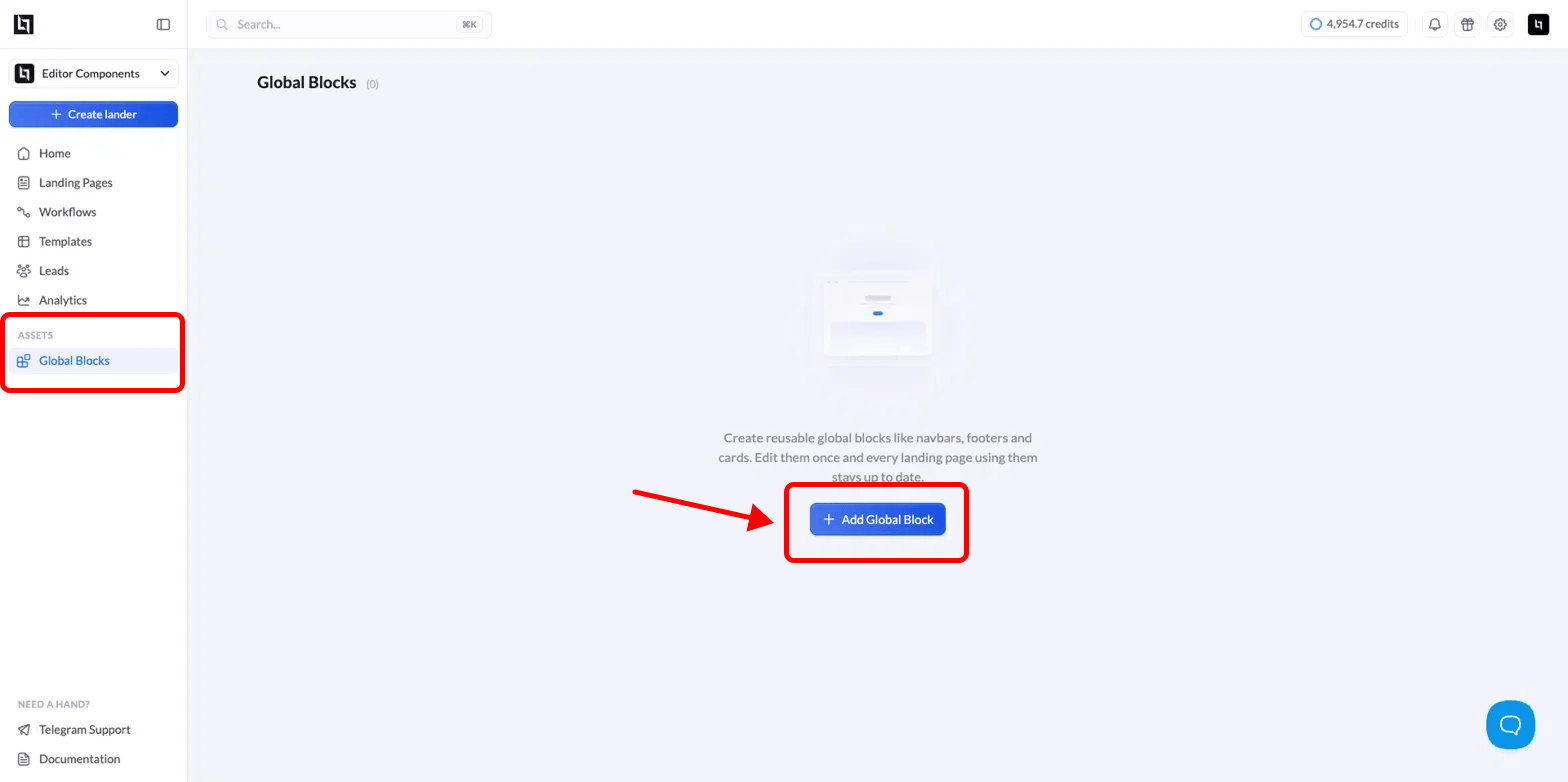
2
Build with AI or from scratch
You are taken to the Create a global block screen. From here you can: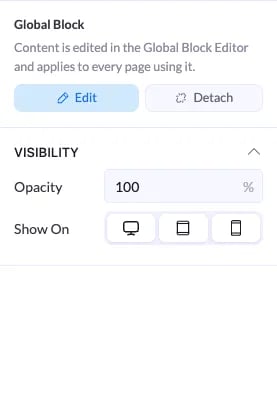
- Describe it and let AI build it. Type what you want in the prompt box, for example a sticky navbar with a logo, links, and a CTA button.
- Pick a preset. Choose a starting point like Navbar, Footer, Testimonials, FAQ section, or CTA banner.
- Create From Scratch. Click Create From Scratch to build the block yourself in the editor.
3
Refine your block
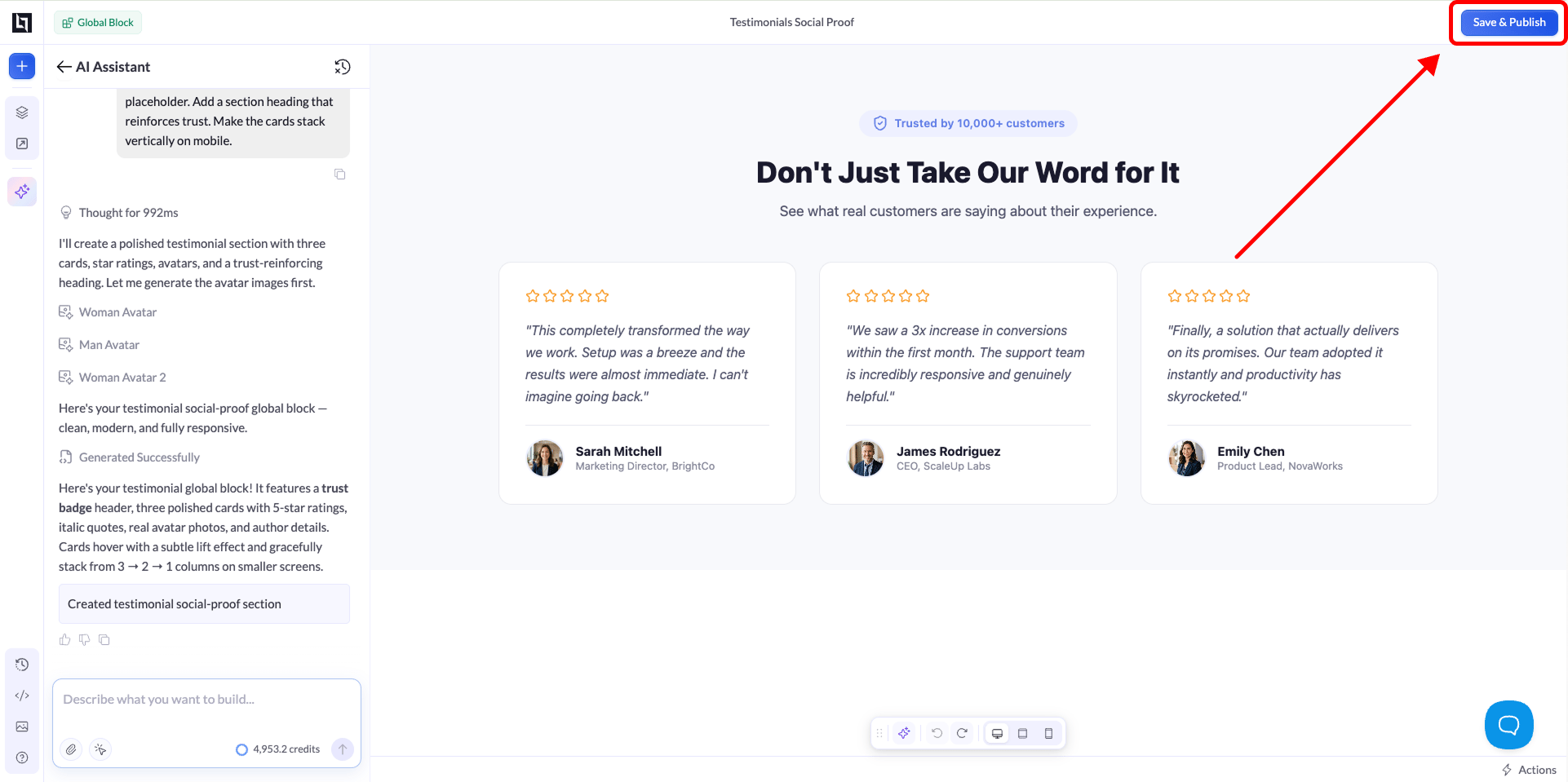
Once the block is generated, keep iterating with the AI Assistant or edit it by hand in the editor, exactly like you would on a normal page. Adjust the copy, links, images, and styling until it looks the way you want.
4
Save and publish
When you are happy with it, click Save & Publish. Your global block is now ready to drop onto any landing page.