

Built-in skills
These skills are available in every account.How to use a skill
There are two ways to use a skill:- Automatically. Just write your request. If it matches a skill’s description, the AI loads that skill on its own.
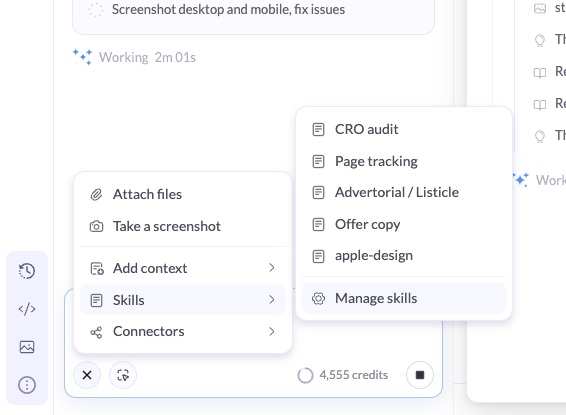
- Manually. Click + in the prompt box, hover over Skills, and pick the skill you want. Then write your request.
Where to manage skills
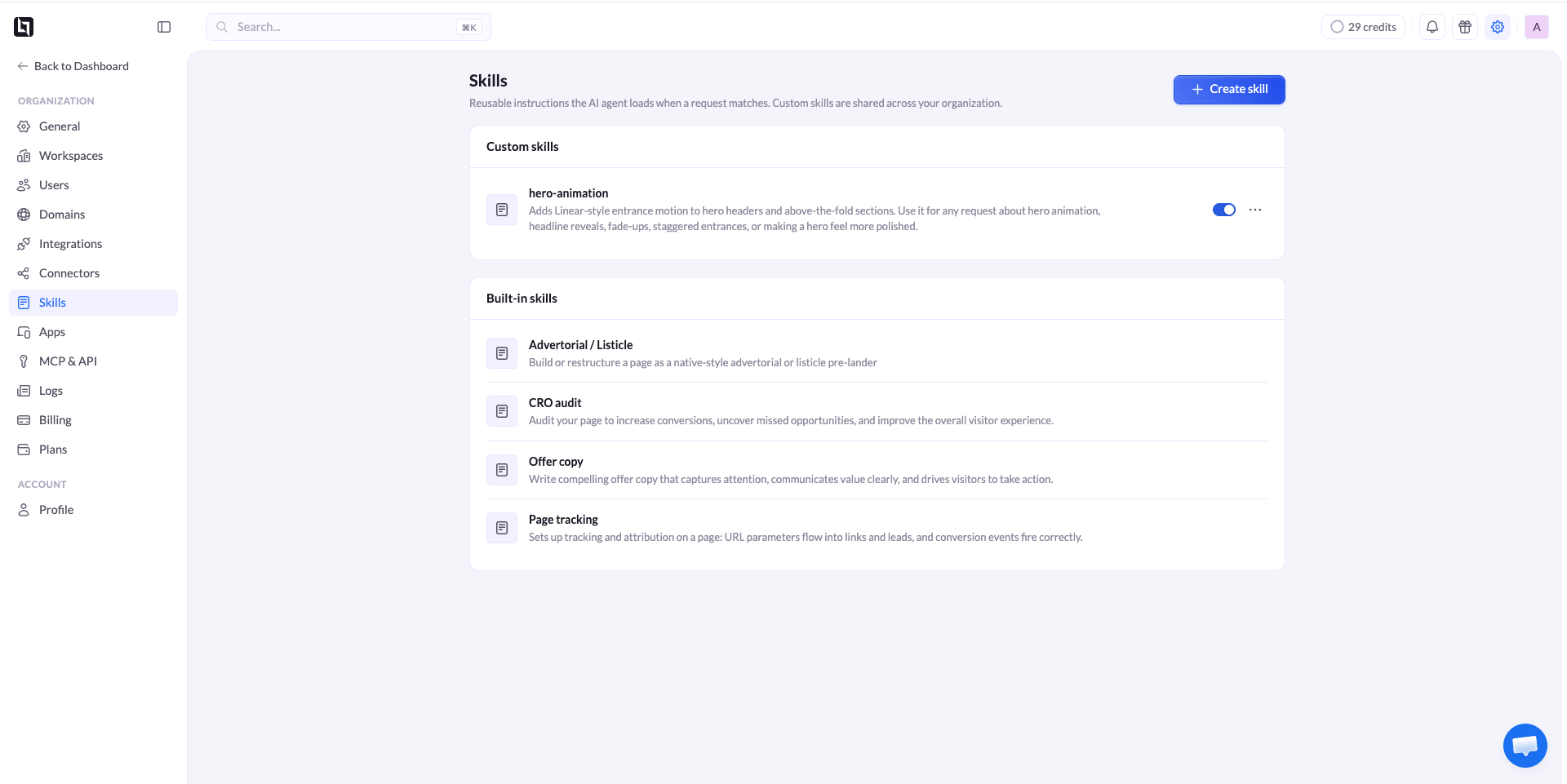
You can manage skills from two places. Both show the same list, where you can see every skill, create new ones, and edit or turn off your custom skills.- From the AI Assistant: click + in the prompt box, hover over Skills, and click Manage skills.
- From Settings: open Settings and select Skills.
How to create a custom skill
Create a custom skill for any task you repeat often, like writing in your brand voice or following your compliance rules.1
Open Manage skills
In the prompt box, click +, hover over Skills, and click Manage skills. Or go to Settings > Skills.
2
Click Create skill
In the Skills window, click Create skill.
3
Fill in the skill details
Add a Name, a Description, and the Instructions. See the table below for what to write in each field..png?fit=max&auto=format&n=uWHxd5IAWWFP2kM-&q=85&s=efac74b1f64243e02739ff28d6000ddc)
4
Save the skill
Click Create skill. Your skill appears under Custom skills and is turned on.
What to write in each field
The Description decides when the skill loads automatically. Mention the type of requests it should handle, like “copy”, “headlines”, or “tracking”.
Edit or disable a custom skill
Open Manage skills from the AI Assistant, or go to Settings > Skills.- View a skill to check its name, description, and instructions.
- Edit a skill from the … menu next to it, then save your changes.
- Disable a skill with the toggle next to it. The AI only uses skills that are turned on. Turn it back on at any time.
Tips for writing great skills
- Keep one task per skill. A “Brand voice” skill and a “Compliance rules” skill work better than one skill that does both.
- Write clear rules. “Headlines under 8 words” is easier to follow than “keep headlines short”.
- Include must-haves and must-nots. List exact CTA text, words to avoid, or claims you cannot make.
- Test and refine. Try the skill on a real page, then update the instructions if the result is off.
Related
Connectors
Give the AI access to data from your other tools.
Optimize with AI
Combine skills and prompts for higher-converting pages.