


What is Pipedrive and Why Use This Integration?
Pipedrive is a CRM and sales pipeline tool used to manage people, deals, and follow-ups in one place. When you connect Pipedrive to a LanderLab landing page, every lead that submits your form is saved as a person in Pipedrive, and a lead is opened for that person automatically. Pipedrive connects with an API Token. You copy the token from your Pipedrive account and paste it into LanderLab once. After that, you map your form fields and go live.Pipedrive integrations are saved globally in your account. Once you connect a Pipedrive account, you can reuse it across multiple landing pages without entering the API token again. You can also add more than one Pipedrive account from the same screen.
Prerequisites
Before you start, make sure you have:- A LanderLab account with at least one landing page that has an email field
- A Pipedrive account
- Your Pipedrive personal API Token
Step 1: Get Your Pipedrive API Token
1
Open your Pipedrive settings
Log in to Pipedrive, click your profile icon in the top right, then go to Company settings.
2
Open the API tab
In the left sidebar, click Personal preferences, then open the API tab.
3
Copy your API token
Copy your personal API token. Keep it somewhere safe for the next step.
If you do not see the API tab, your user role does not have API access enabled. Ask your Pipedrive administrator to turn it on for your permission set.
Step 2: Connect Your Pipedrive Account
1
Go to your landing page
In LanderLab, go to Landing Pages and open the landing page where you want to add Pipedrive.
2
Open Add Integration
Click Add Integration to open the integrations panel.
3
Find Pipedrive
Search for Pipedrive or open the CRM category, then click Pipedrive.
4
Enter your credentials
Fill in the following fields: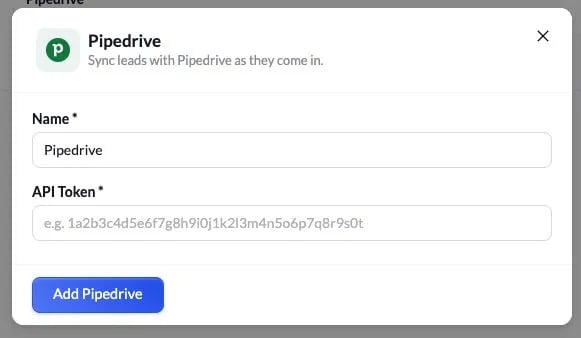
- Name - A label for this account (e.g. “Pipedrive”). This is only used to identify the account inside LanderLab.
- API Token - Paste the personal API token you copied from Pipedrive.
Step 3: Configure the Integration
After saving your account, a setup wizard opens. It has three steps: name the integration, map your fields, then review and connect.Name the integration
1
Set a name
Give this integration a recognizable name (e.g. “Pipedrive - Auto Leads”). This helps you find it in the integrations list on your landing page.
2
Click Continue
Click Continue to move to field mapping.
Map your fields
LanderLab shows your form fields on the left and a dropdown to pick the matching Pipedrive field on the right.1
Map Email
Map your form’s email field to the Pipedrive Email field.
2
Map Name
Map a field to Name. This is required. Use your form’s name field if you collect one, or map another value so Pipedrive has a name to create the person with.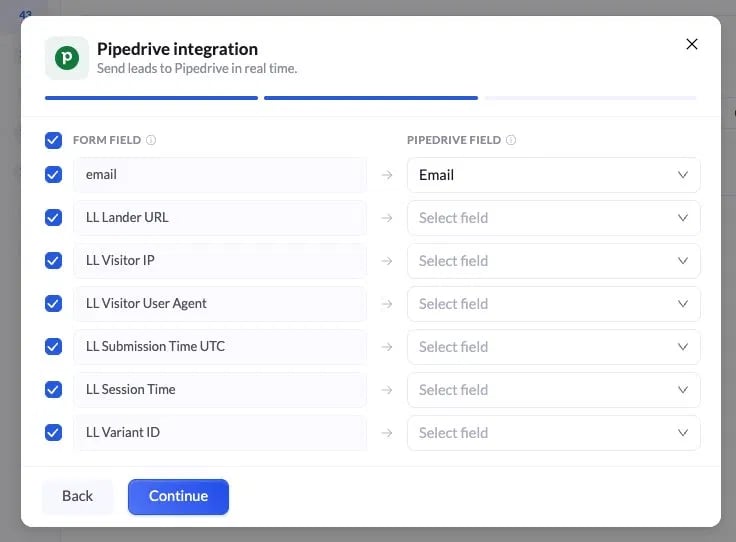
3
Map any extra fields
Map any other fields you want to send. LanderLab also includes tracking fields you can pass along:
- LL Lander URL
- LL Visitor IP
- LL Visitor User Agent
- LL Submission Time UTC
- LL Session Time
- LL Variant ID
4
Click Continue
Click Continue to move to the review step.
Review and connect
1
Review your mapping
The final step shows everything that will be sent to Pipedrive for every lead, including each mapped field. Review it carefully. If anything looks off, click Back to make changes.
2
Click Connect Pipedrive
Click Connect Pipedrive to save and activate the integration. From now on, every lead submitted on this landing page is sent to Pipedrive in real time as a person, with a lead opened for them.
Tips for Pipedrive Integration
- Name is required - Pipedrive cannot create a person without a Name. Always map a field to Name before connecting.
- Reuse your account - Because Pipedrive is saved globally, you only enter the API token once. Connect the same account to other landing pages in a few clicks.
- Pass tracking data - Map fields like LL Lander URL and LL Variant ID to see which page and variant each lead came from.
- Test with a real submission - After connecting, submit a test lead and confirm the person and lead appear in Pipedrive within a few seconds.
Troubleshooting
I see 'Map a field to Name so Pipedrive can create the person'
I see 'Map a field to Name so Pipedrive can create the person'
Pipedrive requires a Name to create a record. Go back to the field mapping step and map one of your form fields to the Name field, then continue.
Leads are not appearing in Pipedrive
Leads are not appearing in Pipedrive
Confirm the integration is active on your landing page and that Name is mapped. Also check that your API token is still valid in Pipedrive, since generating a new token invalidates the old one.
My API token is not accepted
My API token is not accepted
Make sure you copied the full personal API token from Company settings > Personal preferences > API. If you recently regenerated it in Pipedrive, update the token in LanderLab to match.
I cannot find the API tab in Pipedrive
I cannot find the API tab in Pipedrive
Your user role does not have API access. Ask your Pipedrive administrator to enable API access for your permission set, then copy the token again.