

What is Attio and why use this integration?
Attio is a CRM built around flexible records and lists, used to track people, companies, and deals as your data model changes. When you connect Attio to a LanderLab landing page, every lead who submits your form is saved as a person record in your Attio workspace. Attio connects with an access token that you create in your Attio workspace settings. You paste it into LanderLab once, then map your form fields and go live.Attio integrations are saved globally on your account. Once you connect an Attio account, you can reuse it across multiple landing pages without entering the access token again. You can also add more than one Attio account on the same screen.
Prerequisites
Before you start, make sure you have:- A LanderLab account with at least one landing page that has an email field
- An Attio workspace where you can create access tokens
- An Attio access token with the scopes listed below
Step 1: Create your Attio access token
1
Open your Attio workspace settings
In Attio, click your workspace name in the top left and open Workspace settings.
2
Go to Developers
In the left sidebar, open Developers and create an integration (or open an existing one) to generate an access token.
3
Enable the required scopes
LanderLab needs these scopes on the token:
record_permission- read and writeobject_configuration- readlist_configuration- readlist_entry- read and write
LanderLab shows this same list in the dialog where you paste the token, so you can check it as you go.
4
Copy your access token
Copy the access token and keep it somewhere safe for the next step.
Step 2: Connect your Attio account
1
Go to your landing page
In LanderLab, go to Landing Pages and open the landing page you want to add Attio to.
2
Open Add Integration
Click Add Integration to open the integrations panel.
3
Find Attio
Search for Attio or open the CRM category, then click Add account on the Attio card.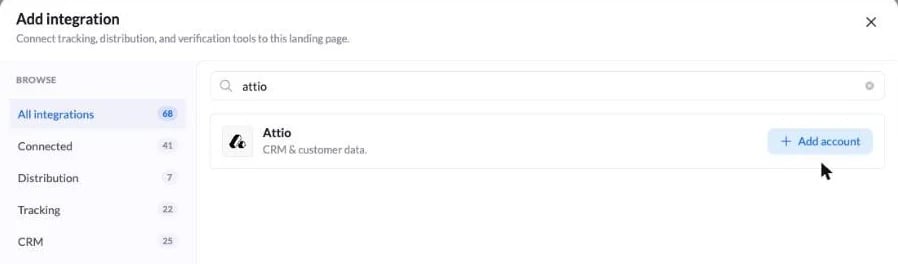
4
Enter your credentials
Fill in the following fields: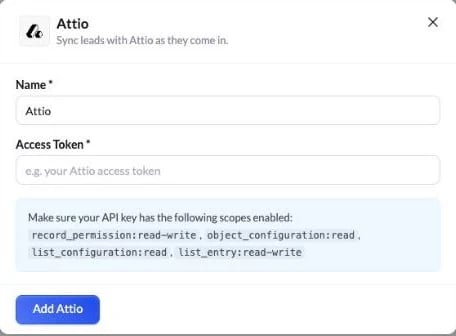
- Name - A label for this account (e.g. “Attio”). It is only used to identify the account inside LanderLab.
- Access Token - Paste the access token you created in Attio.
Step 3: Configure the integration
After you save your account, a setup wizard opens. It has three steps: name the integration, map your fields, then review and connect.Name the integration
1
Set a name
Give this integration a name you will recognise (e.g. “Attio - Auto Leads”). It helps you find it in your landing page’s integration list.
2
Click Continue
Click Continue to move on to field mapping.
Map your fields
LanderLab shows your form fields on the left and a dropdown on the right to pick the matching Attio field.1
Map the email
Map your form’s email field to the Email field in Attio.
2
Map the name
Map your form’s name field to Name so the person record is easy to read in Attio.
3
Map the extra fields
Map any other fields you want to send. LanderLab also includes tracking fields you can pass through:
- LL Lander URL
- LL Visitor IP
- LL Visitor User Agent
- LL Submission Time UTC
- LL Session Time
- LL Variant ID
4
Click Continue
Click Continue to move on to the review step.
Review and connect
1
Review your mapping
The last step shows everything that will be sent to Attio for each lead, including every mapped field. Check it carefully. If anything looks wrong, click Back to make changes.
2
Click Connect Attio
Click Connect Attio to save and enable the integration. From now on, every lead submitted on this landing page is sent to Attio in real time as a person record.
Tips for the Attio integration
- Check your scopes first - Most failed connections come down to a missing scope. Confirm all four scopes are enabled on the token before you paste it into LanderLab.
- Reuse your account - Because Attio is saved globally, you only enter the access token once. Connect the same account to other landing pages in a few clicks.
- Pass tracking data through - Map fields like LL Lander URL and LL Variant ID so you can see which page and which variant each lead came from.
- Test with a real submission - After connecting, submit a test lead and confirm the person record appears in Attio within a few seconds.
Troubleshooting
My access token is not accepted
My access token is not accepted
Check that you copied the full token and that it has not been revoked in Attio. Then confirm the scopes:
record_permission (read and write), object_configuration (read), list_configuration (read) and list_entry (read and write).Leads are not showing up in Attio
Leads are not showing up in Attio
Confirm the integration is active on your landing page and that your email field is mapped. Also check that your access token is still valid in Attio, since revoking or regenerating a token stops the old one from working.
I see a permissions error when leads are sent
I see a permissions error when leads are sent
This usually means a scope is missing. Open the token in Workspace settings > Developers in Attio, enable the four scopes listed above, and update the token in LanderLab if you generated a new one.
I cannot find Developers in my Attio workspace settings
I cannot find Developers in my Attio workspace settings
Your member role may not allow creating access tokens. Ask a workspace admin to create the token for you, or to grant you the access you need.