

Content & Formatting
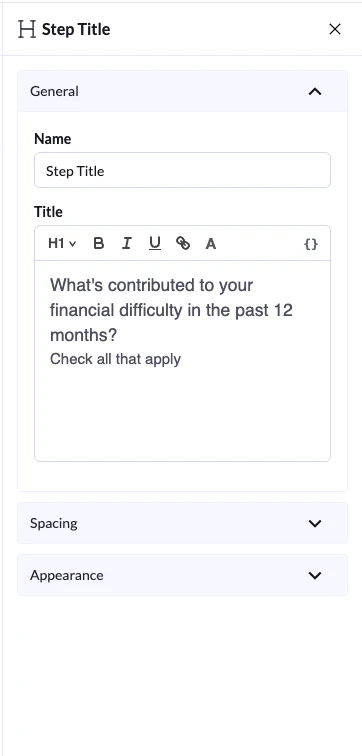
- Headline Block → Used for titles and questions (H1 by default)
- Text Block → Used for longer descriptions and supporting content
- Switch between H1, H2, H3, H4, H5, H6 and paragraph
- Apply bold, italic, underline
- Change text color
- Add links
Appearance Settings
Under Appearance, you can control how the block is displayed.Text Align
Choose how your text is aligned:- Left
- Center
- Right
Visibility (Device Control)
You can control where the block appears:- Show on Desktop
- Show on Mobile
- If you disable one, the block will be hidden on that device
- If both are disabled, the block will be hidden everywhere
Spacing Settings
Under Spacing, you can control layout and positioning:- Size → Small (S), Medium (M), Large (L), or Full width
- Margin → Adjust spacing around the block (top, bottom, left, right)