

How to Use Predefined Blocks
Steps
- Open the Quiz Builder / Editor
- Click Add Block
- Switch to the Predefined tab
- Browse or search for the field you need
- Click or drag the block into your flow
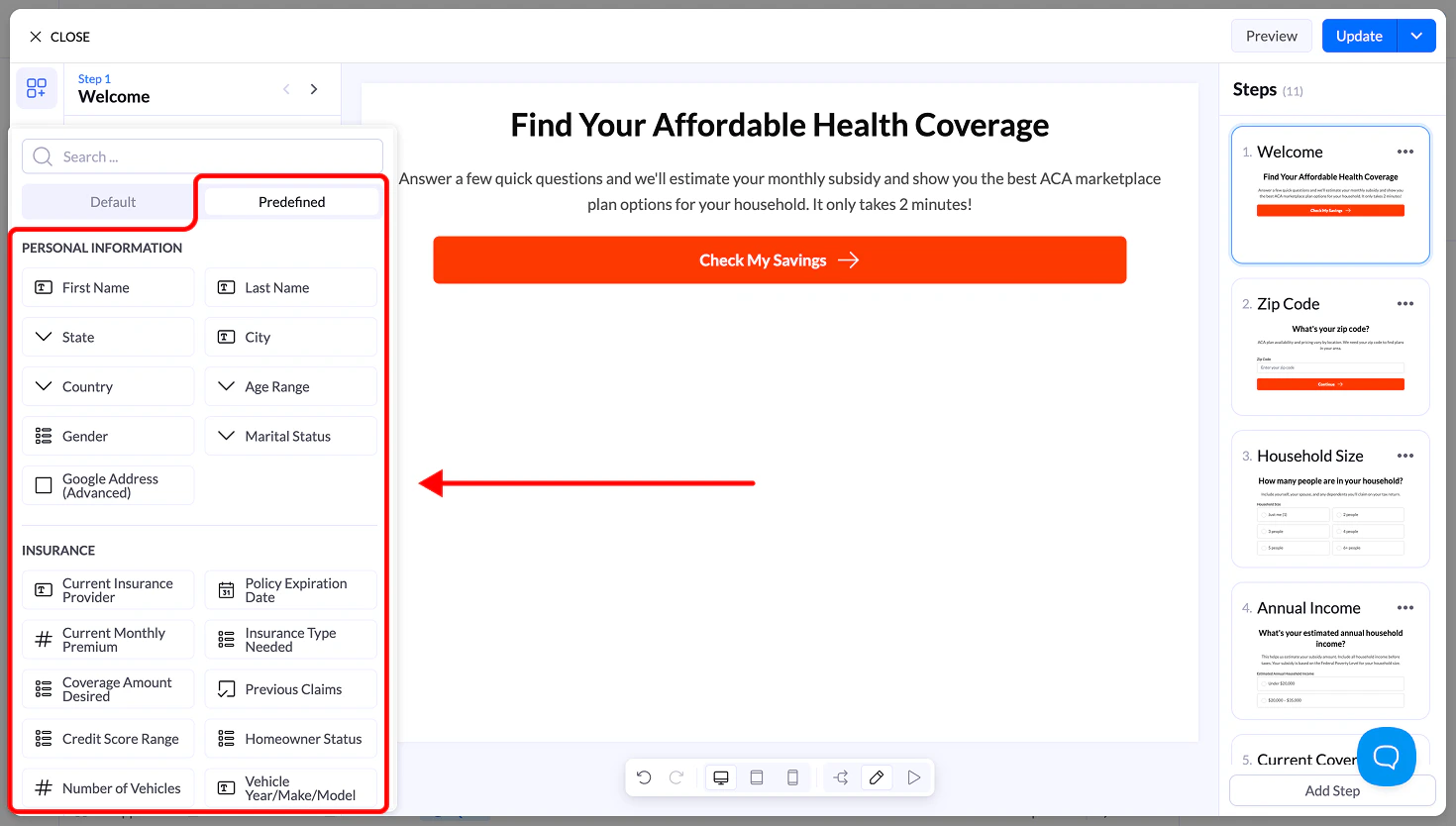
Available Categories
Predefined blocks are organized into categories to make them easy to find.Personal Information
Common identity fields such as:- First Name
- Last Name
- City
- State
- Country
- Age Range
- Gender
- Marital Status
Insurance
Fields commonly used in insurance flows:- Current Insurance Provider
- Policy Expiration Date
- Monthly Premium
- Insurance Type Needed
- Coverage Amount
- Previous Claims
Financial Information
Used for financial and loan qualification:- Credit Score Range
- Loan Amount Needed
- Employment Status
- Monthly Income
- Debt Amount
- Bankruptcy History
Property & Service
Useful for home services and real estate:- Property Type
- Property Age
- Square Footage
- Homeownership Status
- Project Budget
- Service Needed
Lead Qualification (Pay Per Call / Funnels)
Fields used to qualify leads quickly:- Best Time to Call
- Preferred Contact Method
- Urgency Level
- Budget Range
- Decision Maker
- Timeline
Industry-Specific Sets
Depending on your flow, you may also see predefined fields for:- Health & Senior (Medicare status, conditions, etc.)
- Legal (case type, incident date, etc.)
- Solar (electric bill, roof type, etc.)
- Debt Relief (types of debt, payments, etc.)
Why Use Predefined Blocks
Using predefined inputs helps you:- Build flows faster
- Maintain consistent naming for CRM integrations
- Reduce setup errors
- Follow proven lead generation structures
Important Notes
- You can fully edit any predefined block after adding it
- Make sure the Name field stays unique across your flow
- You can combine predefined blocks with custom inputs