

Add the Video Element
Locate the Element: Open the Elements Sidebar (the “+” icon) on the left side of the editor. Drag & Drop: Find the Video element under the Content category and drag it onto your desired section on the canvas.Connect Your Video
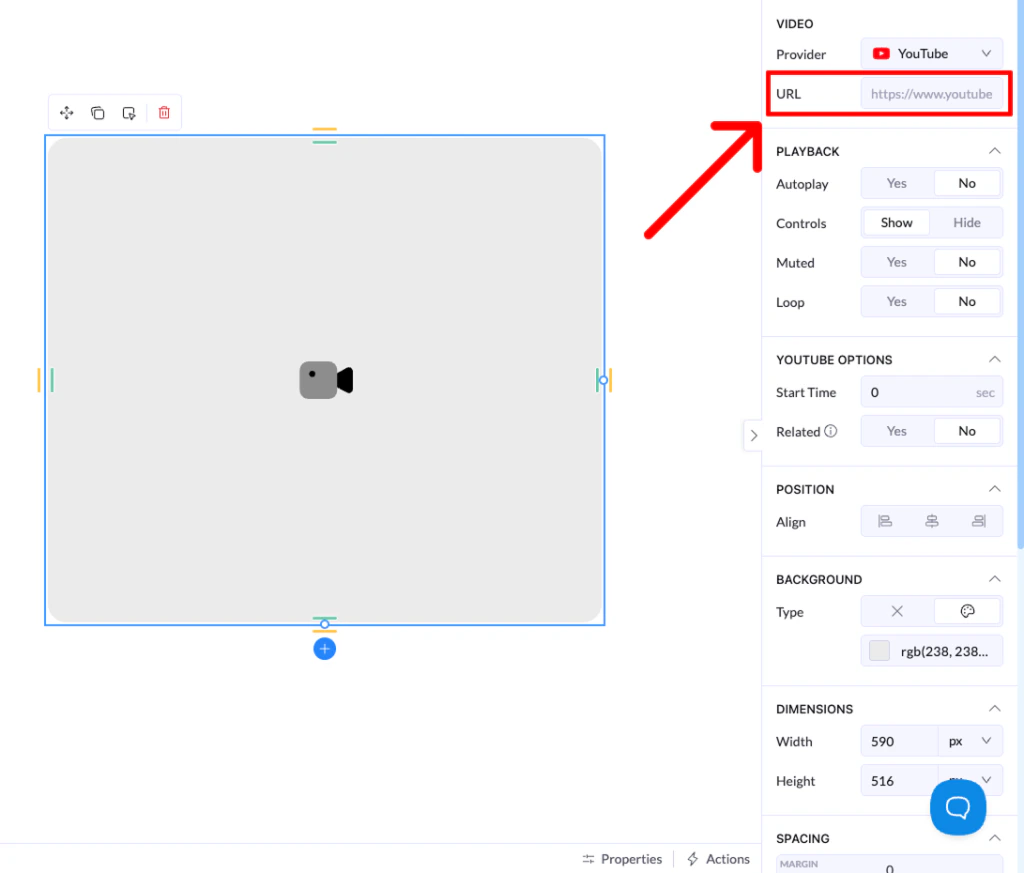
- Access Settings: Click on the Video element on your canvas to open the Properties panel on the right.
- Paste the URL: Paste your video link into the URL field.
- Auto-Identification: Landerlab will immediately identify the source (e.g., YouTube, Vimeo, Wistia) and update the player settings accordingly
Supported Video Players
- YouTube: Ideal for general content and ease of use.
- Vimeo / Wistia: Perfect for premium, ad-free video experiences.
- Loom: Great for quick explainers or personalized messages.
- HTML Video: Use this if you are hosting your own
.mp4files.
Key Video Controls
Once your video is connected, you can use the Playback settings to customize the user experience:- Autoplay: Set the video to start as soon as the page loads (Note: Most browsers require autoplay videos to be Muted by default).
- Controls: Toggle whether the visitor can see the play/pause bar and volume settings.
- Loop: Set the video to restart automatically once it reaches the end.
- Start Time: (For YouTube) Specify exactly which second the video should begin playing.