

It’s commonly used for FAQs or structured information where you want to keep the page clean and organized.
How to Add an Accordion
- Open the left sidebar
- Drag Collapse / Accordion onto the canvas
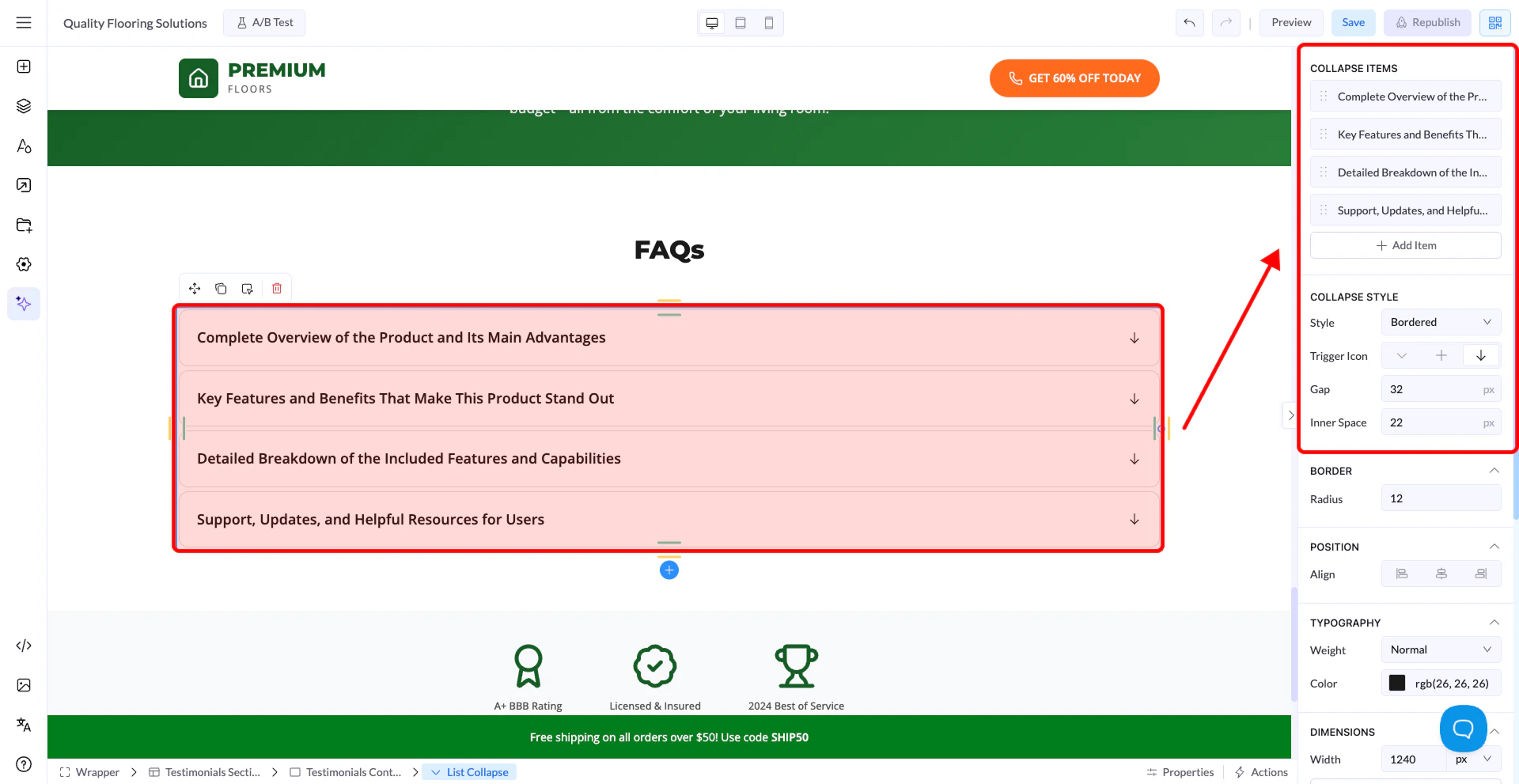
Editing Content
All content is edited directly on the canvas:- Click on the question to edit the title
- Click on the answer area to edit the content
Managing Items
From the right panel:- Add Item → Create new accordion entries
- Reorder items by dragging them
- Each item represents one question + answer
How It Works
- Only one item can be open at a time
- Clicking another item will automatically close the previous one
Collapse Style
You can change how the accordion looks using Collapse Style:- Simple → Minimal design
- Bordered → Adds borders around items
- Line Bottom → Separator lines between items
- Solid → Filled background style
Trigger Icon
- Choose the icon style (e.g. +, arrow)
- Indicates whether the item is open or closed
Spacing Controls
- Gap → Space between items
- Inner Space → Padding inside each item
Styling Options
Like other elements, you can also customize:- Typography
- Colors
- Borders and radius
- Spacing
- Background
Important Notes
- Content is edited directly on the canvas
- Only one accordion item stays open at a time
- Styling works the same as other elements