

OTP Block
The OTP (One-Time Password) block adds SMS phone verification to your quiz funnel. When a visitor submits their phone number, they receive a verification code via SMS and must enter it to continue. This ensures you’re collecting real, verified phone numbers - reducing fake leads and improving performance for call and SMS campaigns.How It Works
When a visitor reaches the OTP block, LanderLab automatically detects the phone number entered in the Phone Number field and sends a verification code to that number via SMS. The visitor enters the code to proceed.How to Add OTP Verification
1. Add a Phone Number Field
Make sure your step includes a Phone Number input block. This is the field where visitors enter their number - the OTP system reads from it automatically.2. Add the OTP Block
In the step editor, click Add Block and select OTP. Place it after the Phone Number field or in the next steps.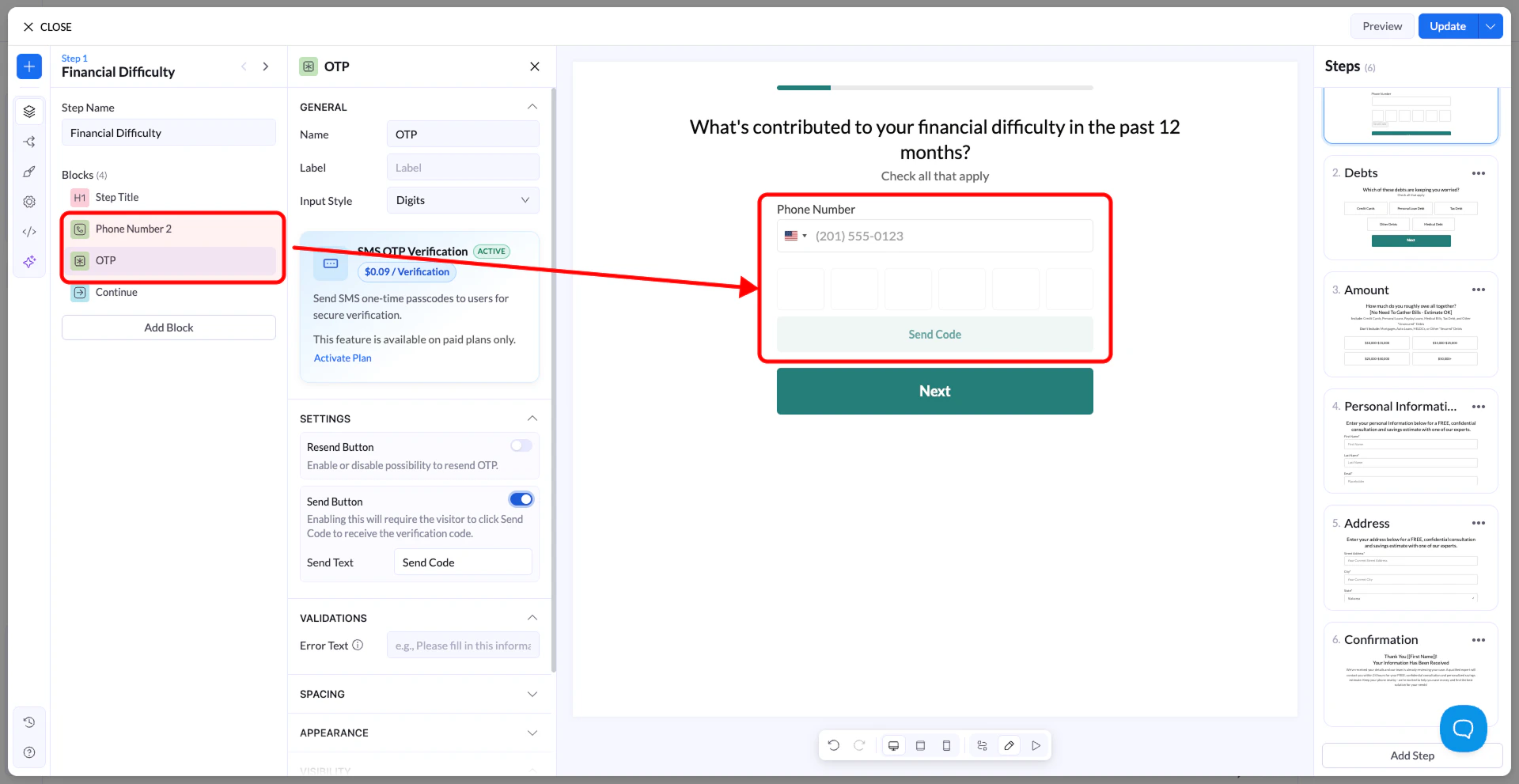
3. Configure the OTP Block
Select the OTP block to open its settings panel. The key sections are covered below.4. Save and Test
Click Update, then publish or republish your funnel. To test:- Enter a valid phone number
- You should receive an SMS with the code
- Enter the code to confirm it works end to end
General Settings
Input Style
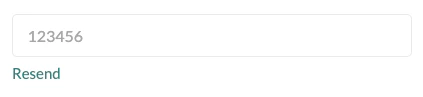
Choose how the code entry field appears to visitors: Digits Displays individual styled boxes - one per digit. This is the more polished, modern look. Each character gets its own square, making it visually clear and easy to fill in. Works great for funnels where design quality matters.
Settings
Resend Button
Enable this to show a Resend link below the code entry field. Visitors can use it to request a new code if they didn’t receive the first one. Customize the link label using the Resend Text field (default: Resend).Send Button - Know When to Enable It
This is the most important setting to get right, and it depends entirely on where your OTP block lives in the funnel.When the OTP block is on the same step as the Phone Number field:
Enable the Send Button. This adds a Send Code button to the step. The visitor enters their phone number and clicks the button to trigger the SMS - then enters the code in the same step. Without this button enabled, there’s no way to request the code before the step is submitted.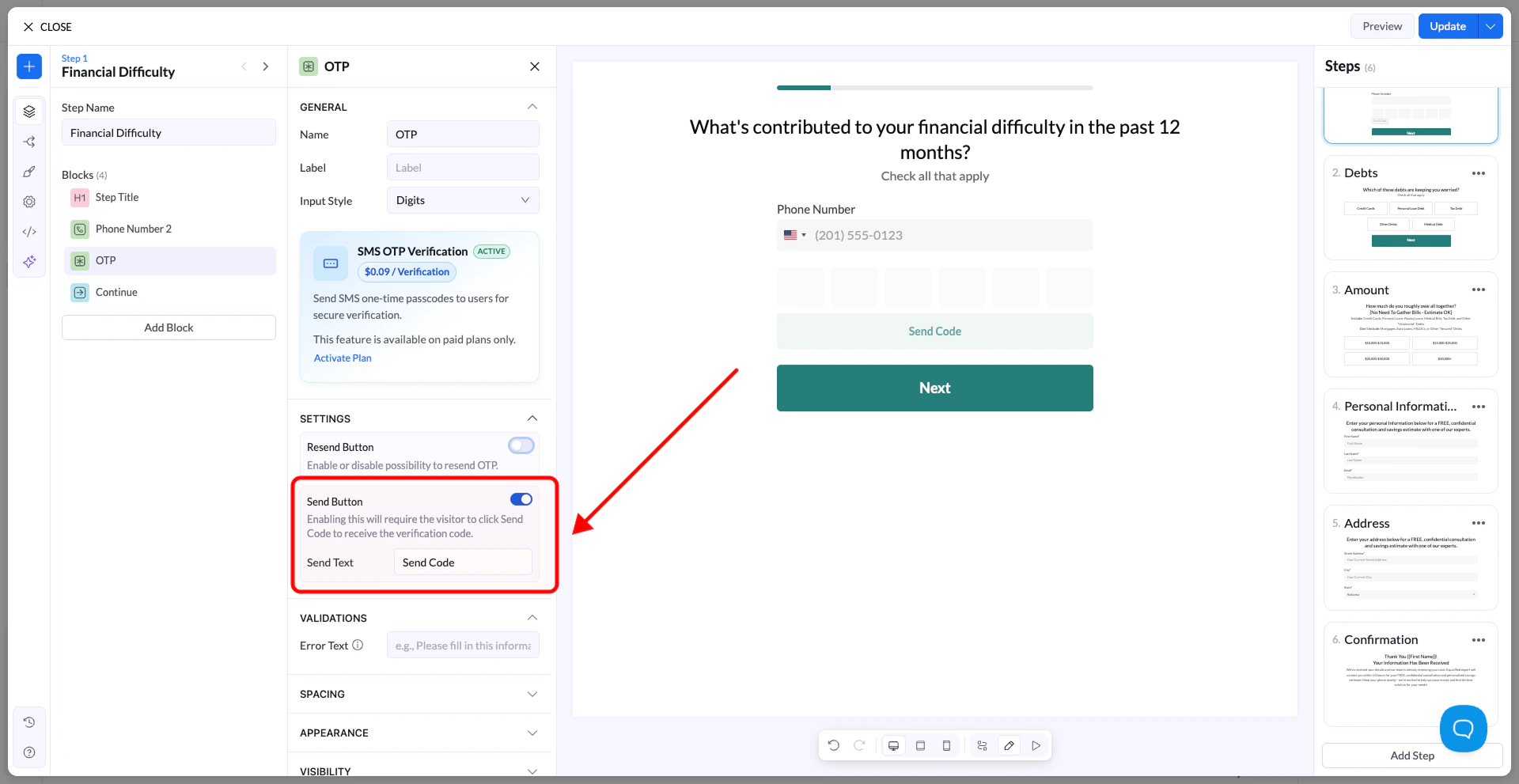
When the OTP block is on a separate step (after the phone number step):
You can leave the Send Button disabled. The visitor already submitted their phone number on the previous step, so LanderLab sends the code automatically when they arrive at the OTP step. The code field is ready and waiting - no button required. Customize the button label using the Send Text field (default: Send Code).Validations
Use the Error Text field to set the message shown when a visitor enters an incorrect or expired code.Spacing
Control the width of the block using the preset sizes: S, M, L, or Full. Adjust the top and bottom margin values to fine-tune spacing within the step.SMS OTP Pricing
SMS OTP Verification costs $0.09 per verification and is available on paid plans only. If you’re on a free plan, you’ll see an Activate Plan prompt inside the OTP block settings.Why Use OTP Verification
- Confirms the visitor owns the phone number they submitted
- Eliminates fake, mistyped, or throwaway numbers
- Improves lead quality for call center and SMS campaigns
- Increases advertiser confidence in your lead data