


What is Microsoft Clarity?
Microsoft Clarity is a free behavior analytics tool. It records visitor sessions and turns them into heatmaps and session replays, so you can watch how real people scroll, click, and move through your landing page. Where Google Analytics tells you what happened, Clarity shows you why it happened. You can spot dead clicks, rage clicks, and drop-off points on a specific step of your funnel. LanderLab handles the Clarity script installation for you. Instead of pasting the tracking code into your page, you enter your Project ID and LanderLab adds the script on publish.Once you add a Microsoft Clarity integration, it is saved globally in your account. You can connect the same account to as many landing pages as you want without entering the details again.
How to Add Microsoft Clarity
1
Open your landing page
Go to Landing Pages and click the name of the landing page where you want to track visitor behavior.
2
Open the integrations panel
Click Add Integration, then search for Clarity in the search bar or open the Tracking category on the left.
3
Add your Clarity account
Click Microsoft Clarity, then click Add another account if you already have one saved. A short configuration form appears.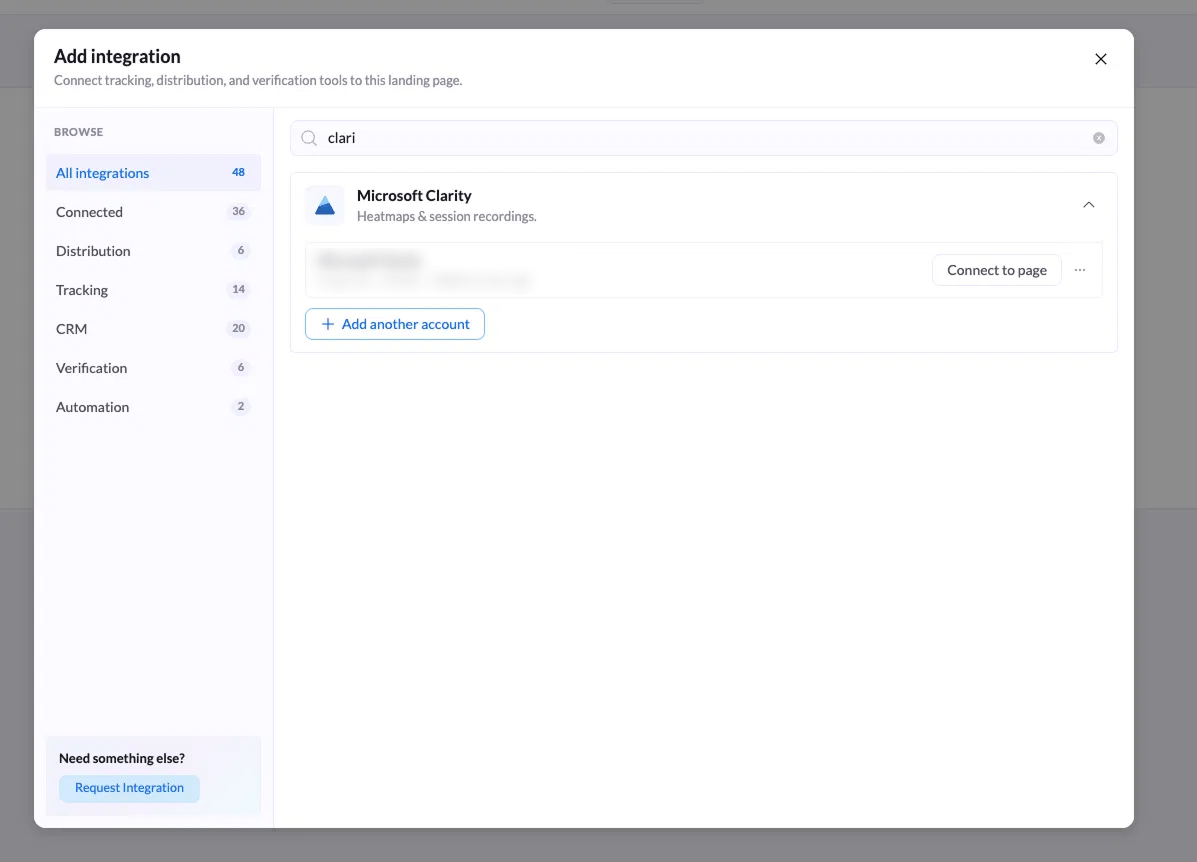
4
Fill in the two fields
5
Click Add Microsoft Clarity
Click Add Microsoft Clarity to save the account. It is stored globally, so it will be ready to use on any other landing page.
6
Connect it to the page
Click Connect to page, choose which variants should run the script under Apply to variants, then confirm with Connect to page.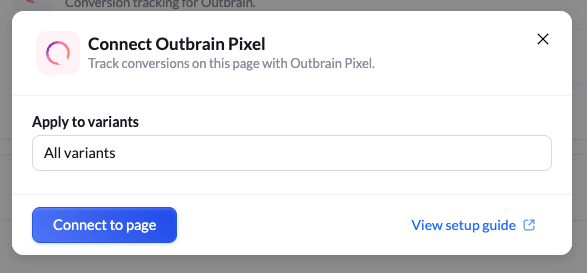
All variants is selected by default. Keep it if you want the same Clarity data across your A/B test, or pick a single variant to isolate one design.
7
Publish the page
Click Publish or Republish. The Clarity script only runs on the live page, so recordings start after publishing.
Connect Microsoft Clarity to Another Landing Page
Because Clarity accounts are saved globally, you never need to enter the Project ID twice.1
Open the other landing page
Go to Landing Pages and open the page you want to track.
2
Select your saved account
Click Add Integration, search for Clarity, and you will see your saved account listed with its Project ID. Click Connect to page next to it.
3
Choose variants and publish
Select the variants under Apply to variants, confirm, then Publish or Republish the page.
Where to Find Your Clarity Project ID
- Log in to clarity.microsoft.com.
- Open the project you want to use, or click New project to create one.
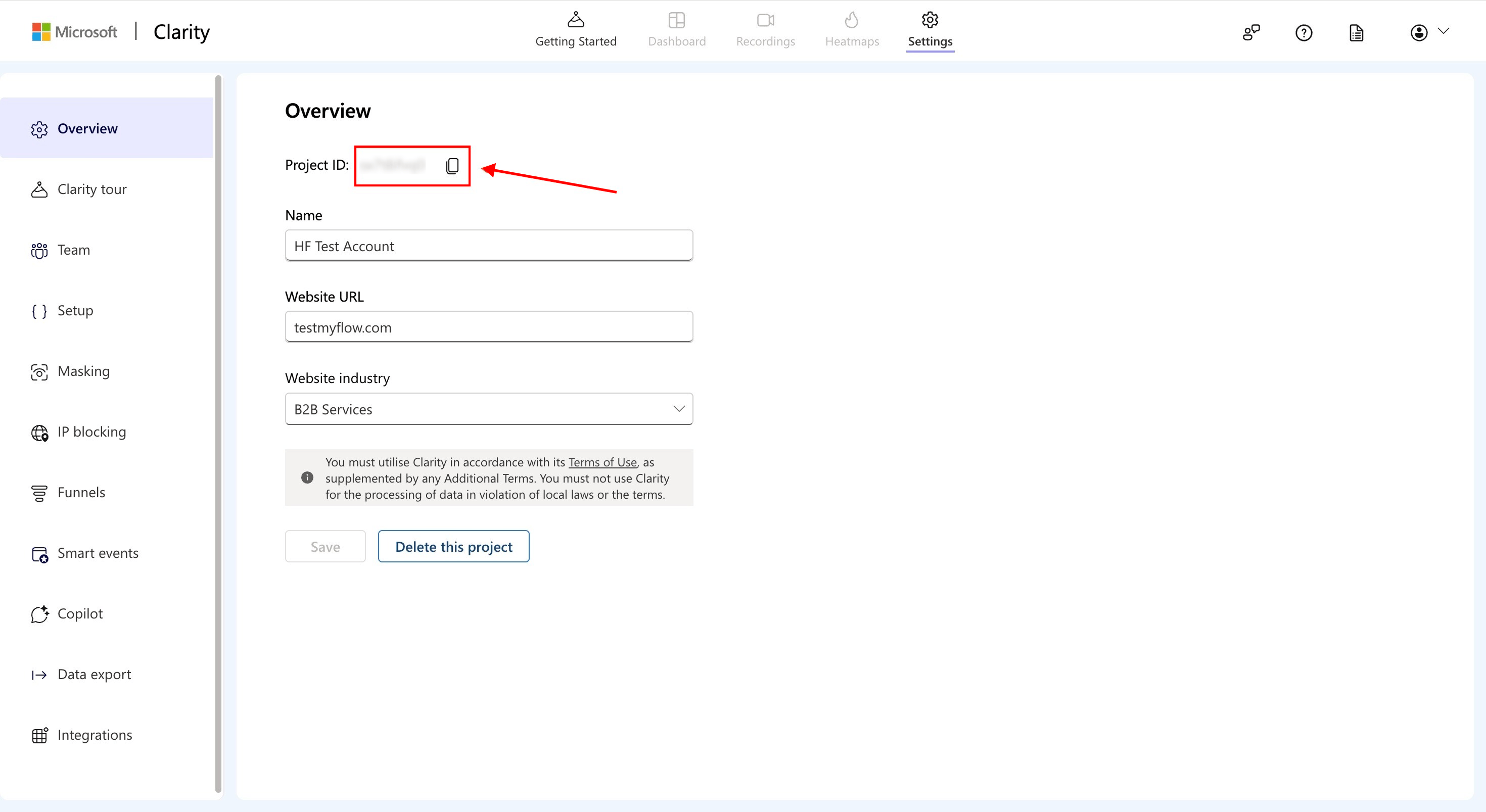
- Go to Settings, then Overview or Setup.
- Copy the Project ID, a short alphanumeric code such as
abcdef1234.
/projects/view/.
How to Confirm Clarity Is Working
1
Visit your published page
Open the live URL of your landing page in a normal browser tab and interact with it for a few seconds.
2
Check the Clarity dashboard
Go back to Clarity and open Recordings. Your session should appear within a few minutes.
Why Use Microsoft Clarity
- Watch real sessions - See exactly how visitors scroll through your page, fill in your form, or abandon it halfway.
- Read heatmaps - Find out which headlines, buttons, and sections actually get attention, and which ones get ignored.
- Catch friction fast - Rage clicks and dead clicks point straight at broken buttons, confusing CTAs, or elements people expect to be clickable.
- Improve A/B tests - Pair Clarity replays with LanderLab A/B testing to understand why one variant outperforms another, not just by how much.
- Free with no traffic limits - Clarity is free to use and does not sample your data, so it works well even on high-volume paid traffic campaigns.