

A Delay node affects everything after it. Place it in the flow at the point where you want the pause to start — the nodes below it won’t run until the wait is over.
Add the Delay node
Delay lives under the Internal group in the node menu.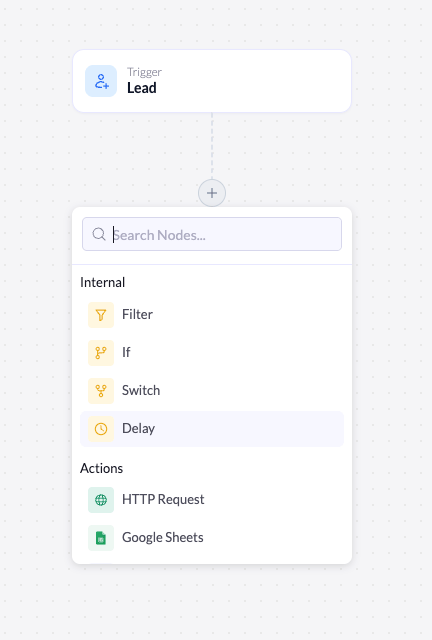
The node menu with Delay under the Internal group.
1
Open the node menu
Click the + at the point in the flow where you want the pause to begin.
2
Select Delay
Under Internal, click Delay. The node is added to the canvas and its settings open on the right.
Configure the delay
Selecting the node opens its settings. The header confirms what it does: Pause execution for a set duration.General
Duration
The Duration section sets how long the workflow waits.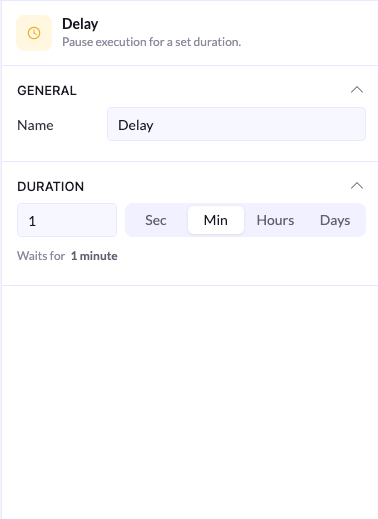
Setting the delay to 1 minute.
- Enter a number in the field on the left.
- Choose a unit from the toggle: Sec, Min, Hours, or Days.
Example: wait before sending an email
A common pattern is to delay a follow-up so it doesn’t arrive the instant a lead signs up:1
Capture the lead
The Lead trigger fires when someone signs up on your landing page.
2
Wait a day
Add a Delay node set to 1 Day.
3
Send the follow-up
Add the action that sends the email after the delay. It runs a day later instead of immediately.