

Cases are evaluated top to bottom, and a lead takes the first case it matches. Order your cases from most specific to most general so a broad case doesn’t catch leads meant for a narrower one.
Add the Switch node
Switch lives under the Internal group in the node menu.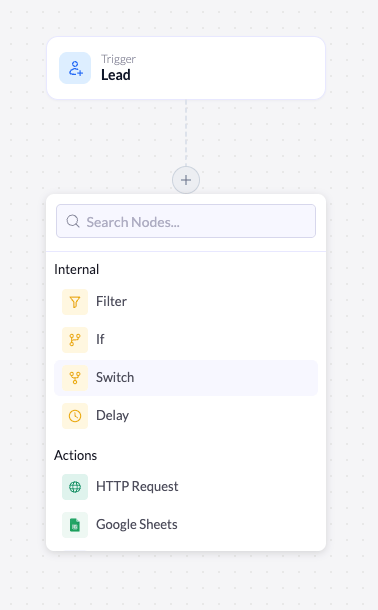
The node menu with Switch under the Internal group.
1
Open the node menu
Click the + below the node where you want the branch to happen (usually right after the trigger).
2
Select Switch
Under Internal, click Switch. The node is added to the canvas and its settings open on the right.
How cases and the Default branch work
Each case you add becomes its own branch under the Switch node on the canvas. Alongside your cases, the node always has a Default branch.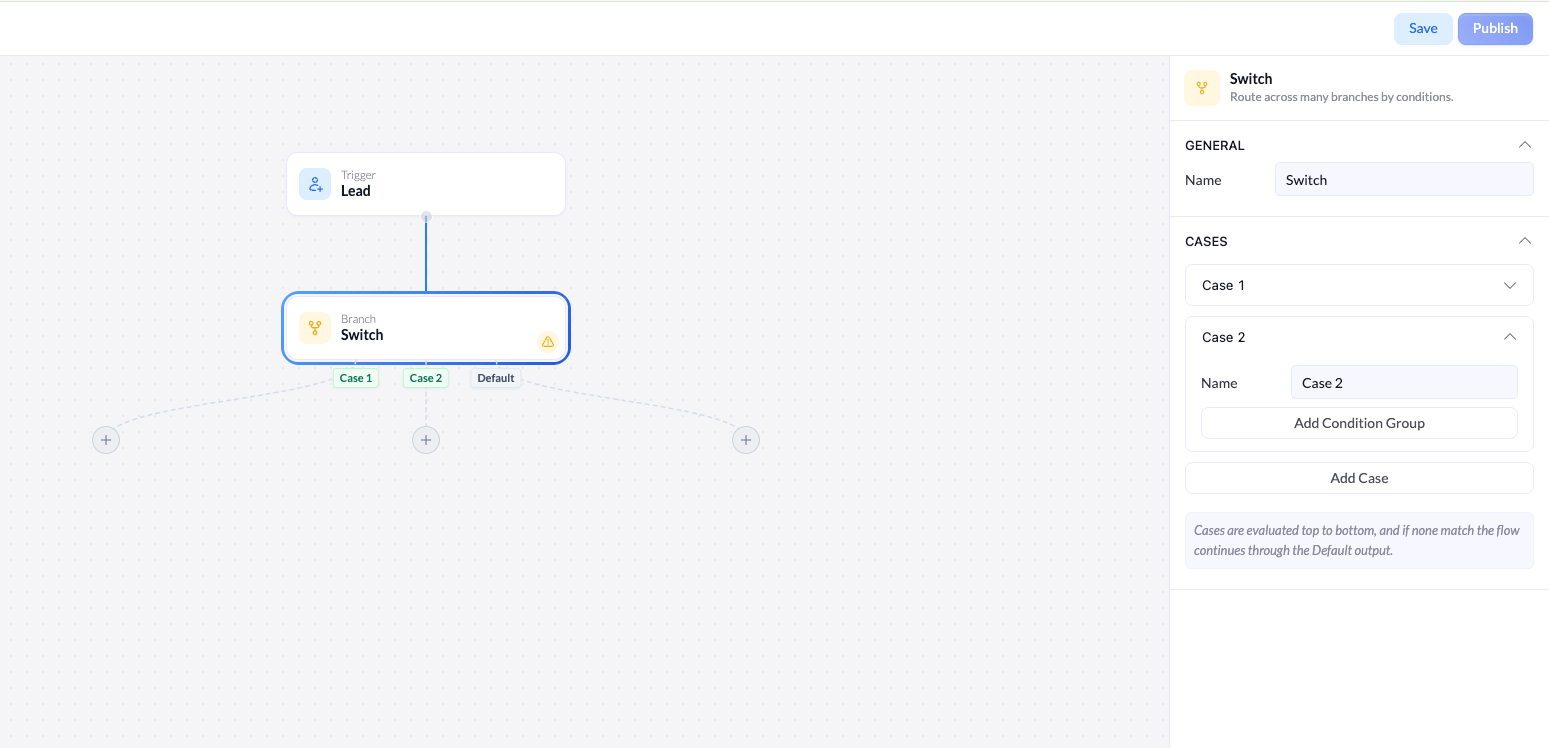
A Switch node with two cases and a Default branch.
- Cases - evaluated top to bottom. A lead takes the first case whose conditions it matches.
- Default - the fallback path. A lead that matches no case flows through Default.
Configure the Switch
Selecting the node opens its settings. The header confirms what it does: Route across many branches by conditions.General
Add and manage cases
In the Cases section, click Add Case to create a case. Each case has:- Name - the label shown on the case’s branch (for example,
Pro plan). Rename it so the canvas stays readable. - Conditions - the rules a lead must match to take this case’s branch.
- Duplicate / delete - use the icons on the case header to copy a case or remove it.
Build a case’s conditions
Inside a case, click Add Condition Group to add your first condition. Conditions work exactly like they do in the Filter and If nodes. Each one has three parts, read left to right: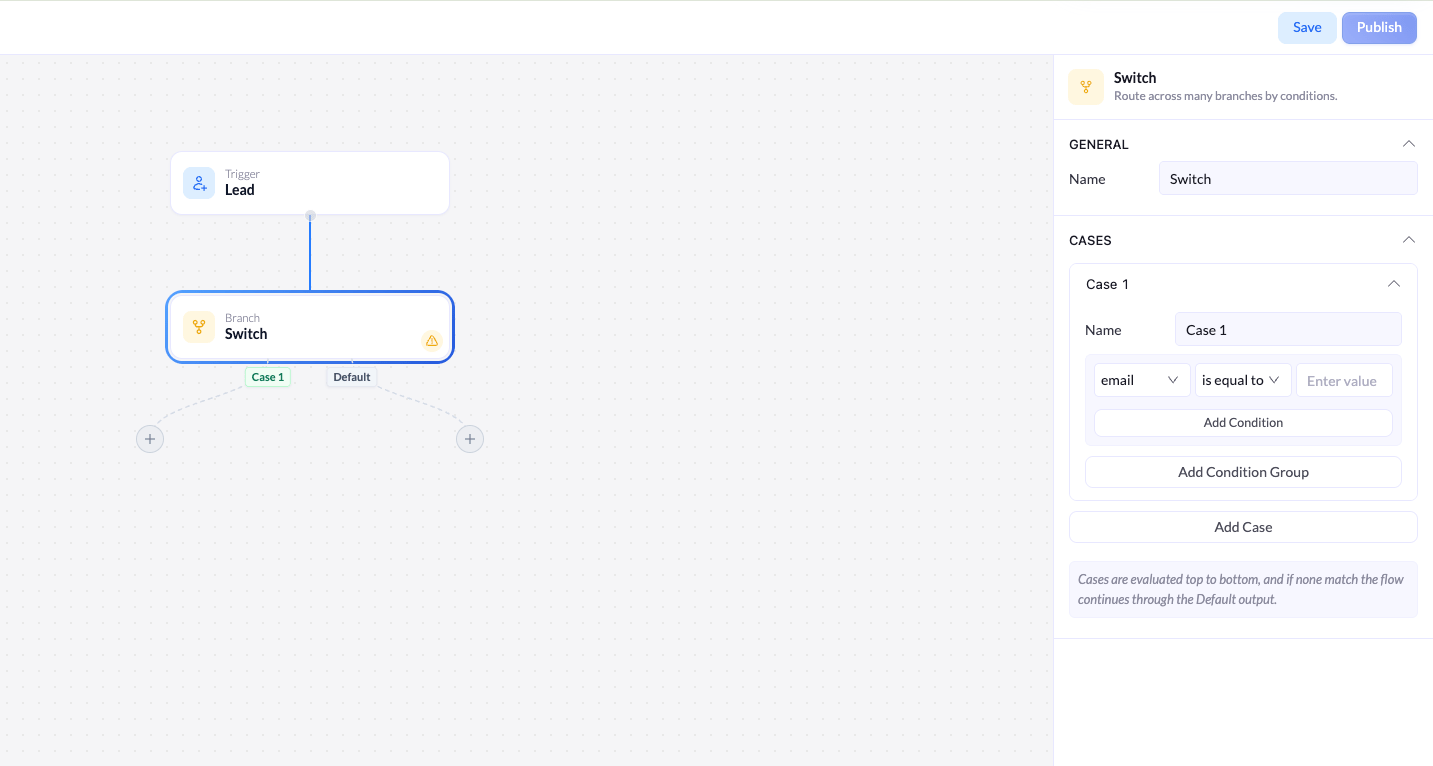
A case condition: field, operator, and value.
Field
The first dropdown lists the fields captured on your connected landing page - for example, email. Pick the field to check.
Operator
The second dropdown sets how the field is compared - for example, is equal to, contains, greater than, or less than.
Value
The third field is what you compare against. Type the value to check for.