Set the Landing Page Title
Follow these steps to update the title of your landing page.1. Go to Landing Pages
From the Landing Pages section of your dashboard, locate the landing page you want to edit.2. Open the landing page
Click on the name of the landing page.3. Open the Settings panel
Click the Settings gear to access the landing page settings.4. Enter the page title
In the Page Title field under General, enter your desired title.5. Save your changes
Click Save Changes to apply the update.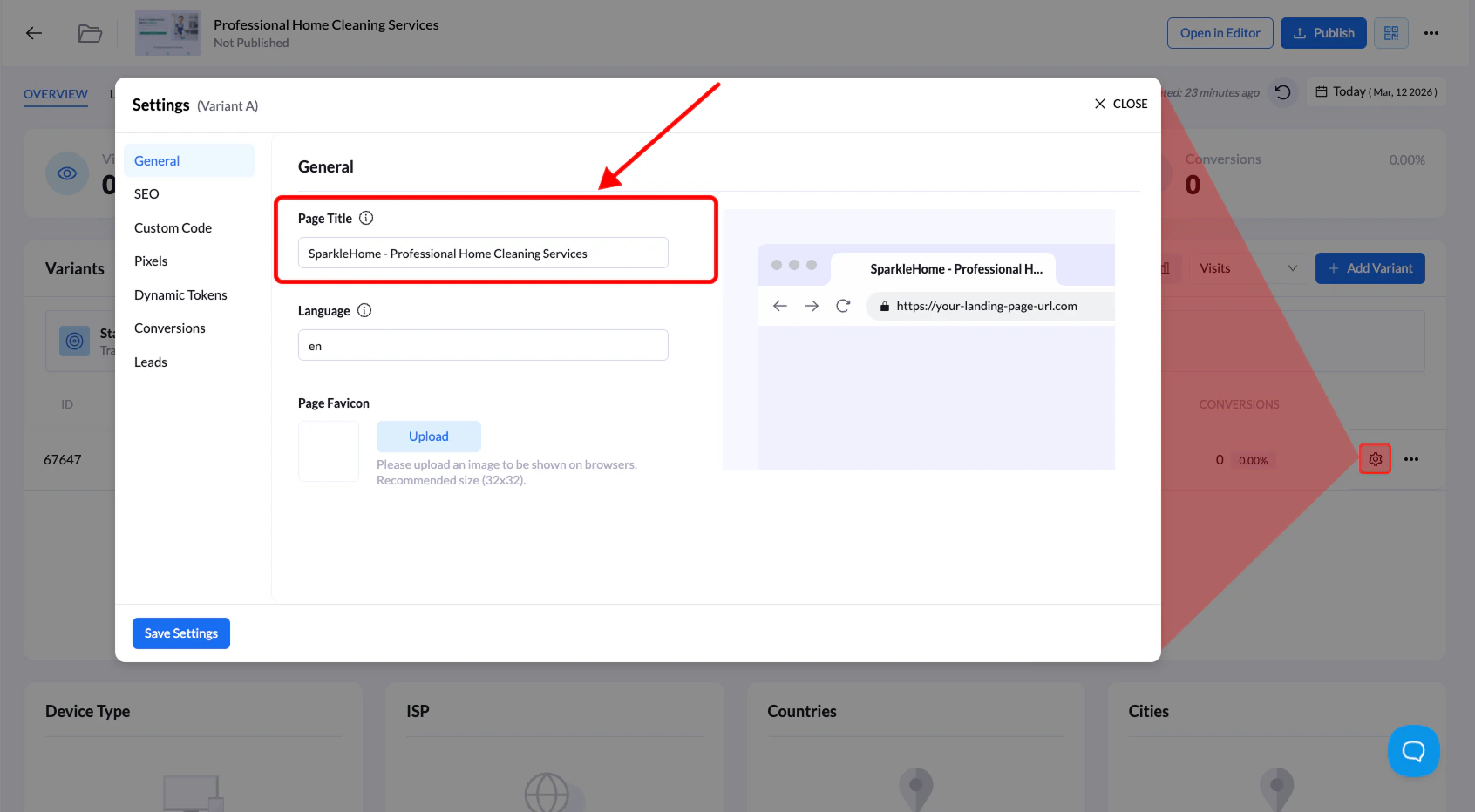
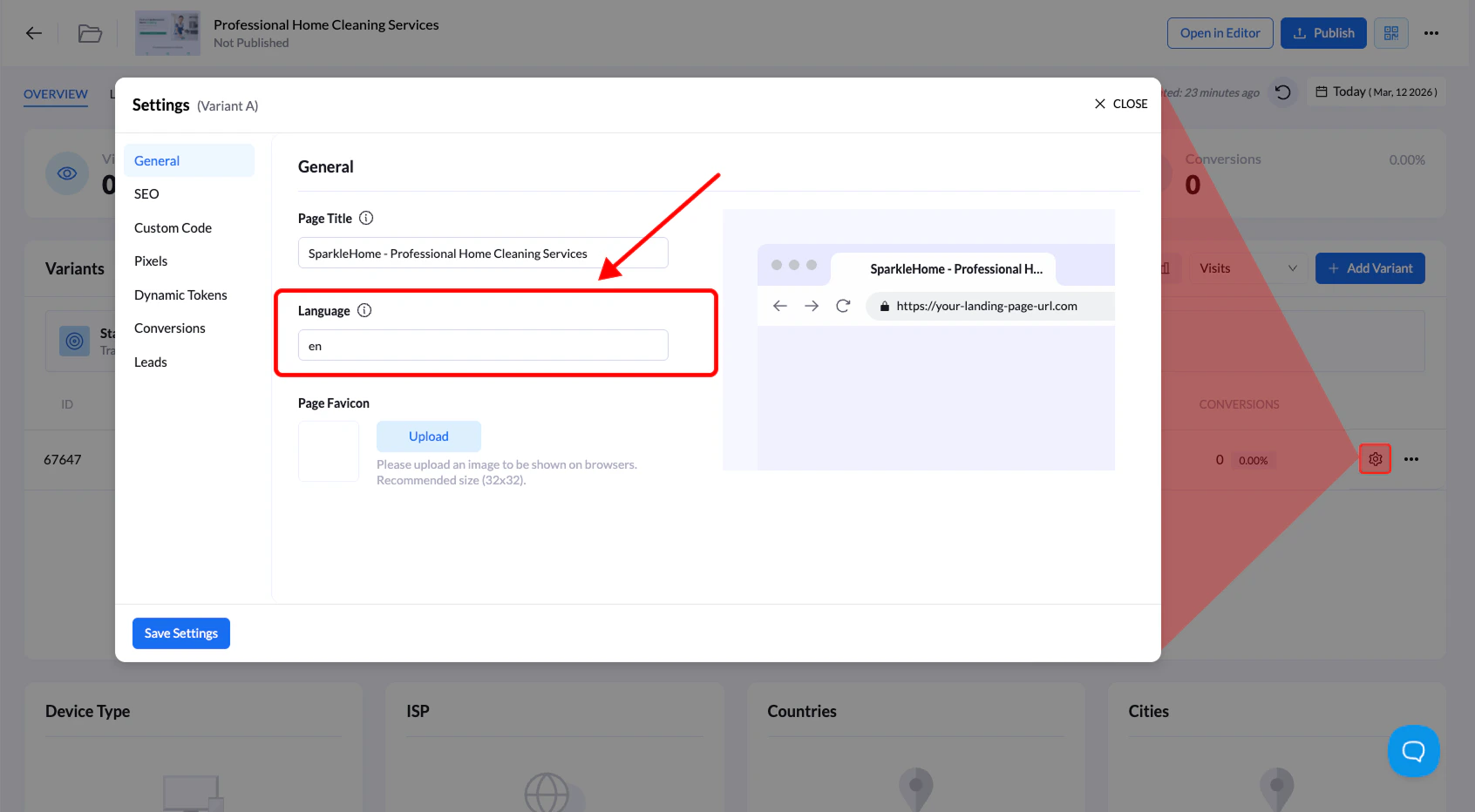
Set the Landing Page Language
The page language helps browsers and search engines understand the primary language of your landing page.Steps
- Go to Landing Pages
- Click the name of the landing page
- Open Settings
- Enter the language code in the Language field under General Page Settings
- Click Save Changes
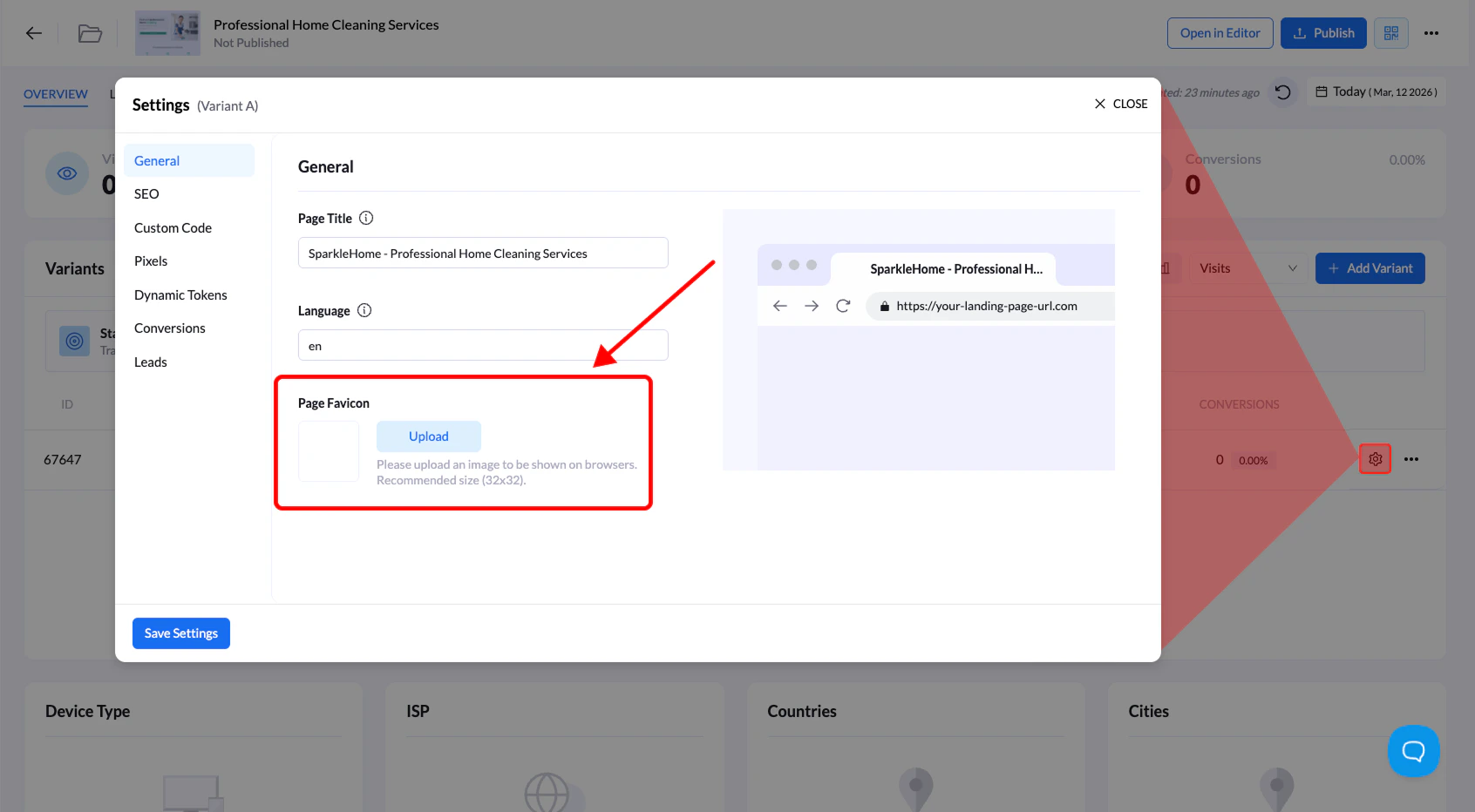
Set the Landing Page Favicon
A favicon is the small icon displayed next to your page title in browser tabs. It helps users quickly recognize your page.Steps
- Go to Landing Pages
- Click the name of the landing page
- Open Settings
- Click Upload and select the favicon from your computer
- Click Save Changes