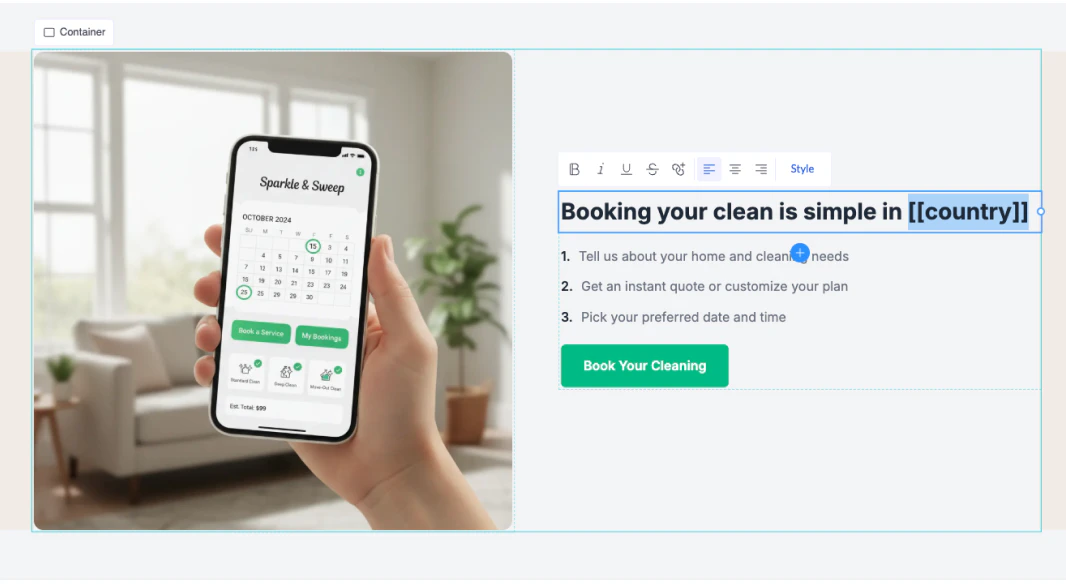
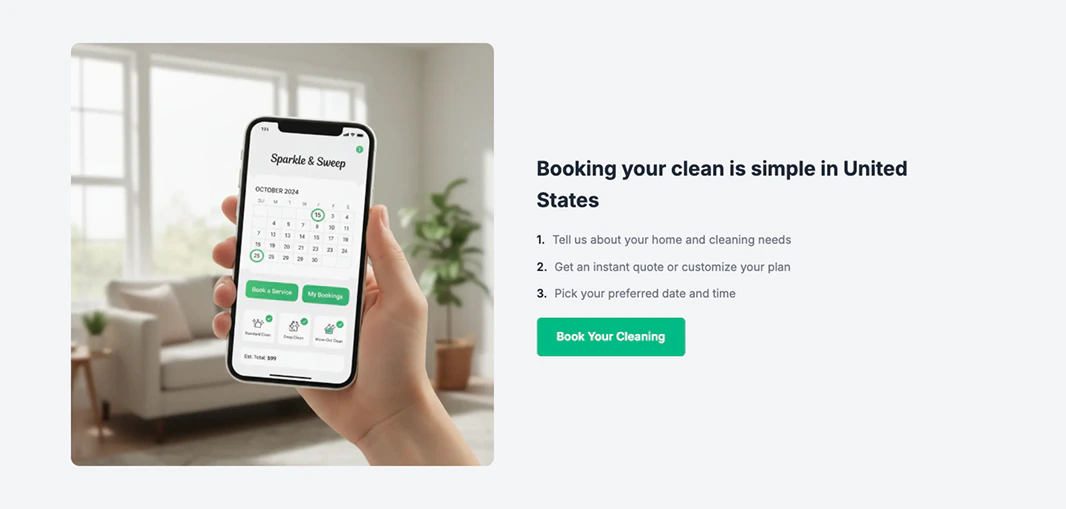
Dynamic tokens allow you to personalize your landing pages based on visitor data. By displaying information such as the visitor’s city, country, browser, or device, your landing page can feel more relevant and engaging.
For example, showing the visitor’s location can make the content appear more tailored to them, which often improves engagement and conversion rates.
Thanks to LanderLab’s built-in tracking capabilities, you can display this information without relying on third-party tools or services.
Visitor Data Tokens
| Dynamic Token | Description | Example Output |
|---|
[[country]] | Displays the country where the visitor is located. | Germany |
[[city]] | Displays the city where the visitor is located. | Rome |
[[region]] | Displays the region or state of the visitor. | Texas |
[[browser]] | Displays the visitor’s browser. | Chrome |
[[operatingSystem]] | Displays the visitor’s operating system. | MacOS |
[[device]] | Displays the type of device being used. | Desktop |
Available Date Tokens
| Token | Description | Example Output |
|---|
[[currentDate]] | Displays the full current date in dd/mm/yyyy format. Supports shifting. | 12/03/2026 |
[[date]] | Displays the numeric day of the month. Supports shifting. | 24 |
[[day]] | Displays the current day of the week. Supports shifting. | Monday |
[[dayName]] | Displays the full day name. Supports shifting. | Tuesday |
[[month]] | Displays the numeric month. | 04 |
[[monthName]] | Displays the full month name. | January |
[[year]] | Displays the current year. | 2024 |
How to Add Dynamic Tokens to a Landing Page
Adding dynamic tokens to your landing page is very simple.
1. Open the landing page editor
Go to Landing Pages and open the page you want to edit.
2. Insert the token
Add the dynamic token directly into any text element where you want the information to appear.
Example:
Welcome visitors from [[city]]!
3. Save and publish
Save your changes and publish or republish the landing page.
When visitors open the page, the token will automatically be replaced with their actual information.
💡 Example Use Cases
Dynamic tokens can be used to create more personalized messages, such as:
- “Special offer for visitors in [[country]]!”
- “Top services available in [[city]] today”
- “Optimized for [[device]] users”
This type of personalization helps make your landing pages feel more relevant and targeted to each visitor.
Using Dynamic Tokens for Localization
Dynamic tokens can also be used for automatic localization of your landing pages. This means the content can adapt based on the visitor’s location, device, or environment.
For example, you can display different text depending on where the visitor is located.
Example: Location Personalization
Special offer for visitors from [[country]]!
If a user visits from Germany, the page will display:
Special offer for visitors from Germany!
Example: City Personalization
Top services available today in [[city]]
If a user visits from London, the page will display:
Top services available today in London
Example: Region Personalization
Best deals available in [[region]]
This makes the landing page feel more relevant and personalized, which can increase engagement and conversions.
Where to Use Localization Tokens
Dynamic tokens can be added anywhere inside your landing page content, including:
- Headlines
- Text blocks
- Buttons
- Offers or promotions
- Advertorial content
- CTA messages
Simply insert the token inside the text element in the visual editor, then save and publish the page. Last modified on April 2, 2026