

Where to Find It
- Open your page in the editor
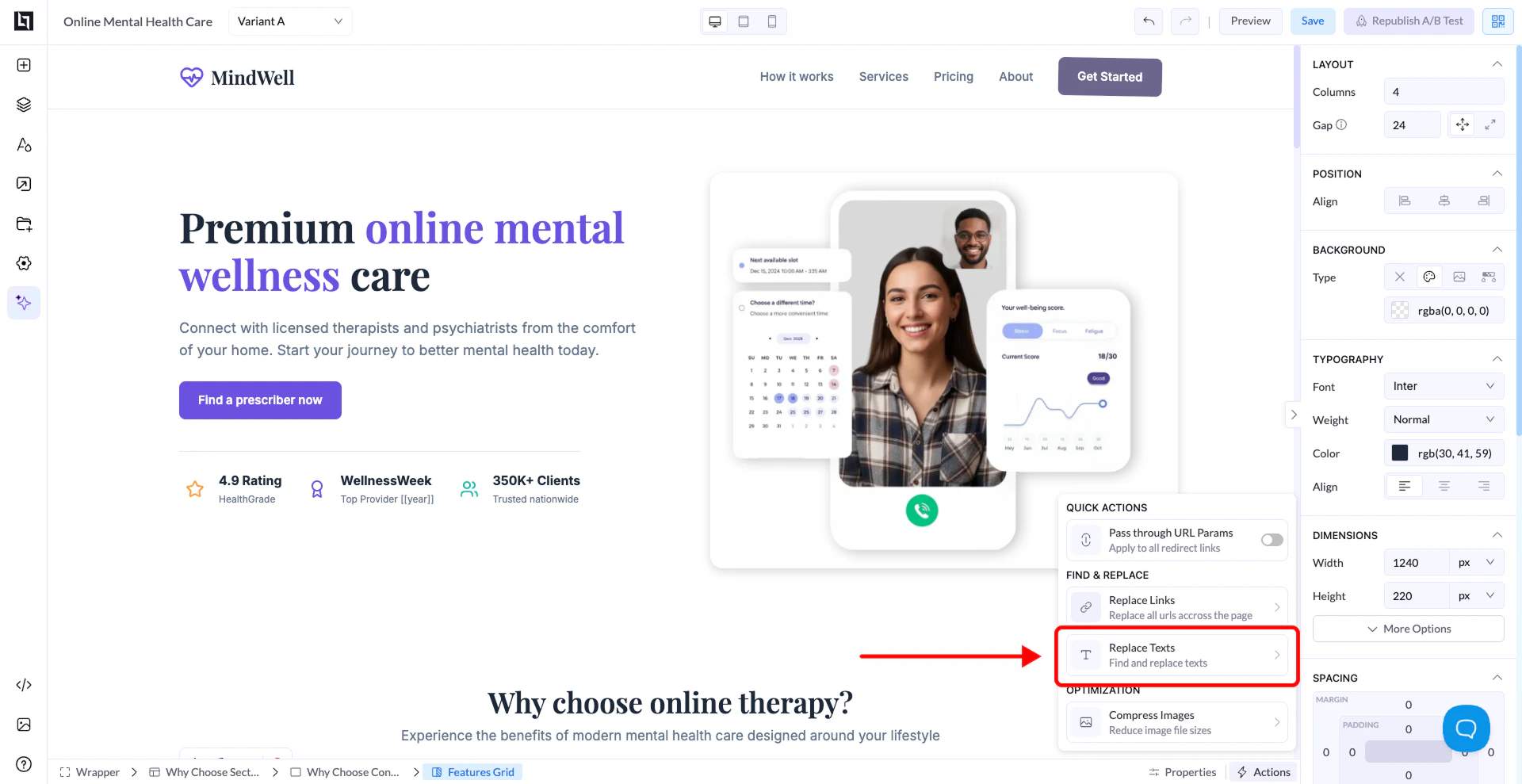
- Click on the Actions / Quick Actions panel
- Select Replace Texts
How It Works
A popup will appear with two fields:- Find Text → the text you want to replace
- Replace With → the new text you want to use
When to Use It
- Updating CTA text across multiple sections
- Changing product or service names
- Fixing repeated wording mistakes
- Adjusting messaging quickly
Important Notes
- It replaces all matching text occurrences on the page
- Make sure your “Find Text” is exact
- It won’t partially match words (only exact matches)