

What Is Live Mode?
Live Mode is a preview state inside the LanderLab editor that lets you see all JavaScript-powered elements on your landing page exactly as visitors will experience them. The editor normally blocks JavaScript from running. This is intentional. It keeps the editing experience clean and prevents unexpected behaviors while you are building. However, some features, like popups, mouse effects, scroll animations, or any other dynamic interaction, require JavaScript to work. Live Mode is how you see all of that in action without leaving the editor.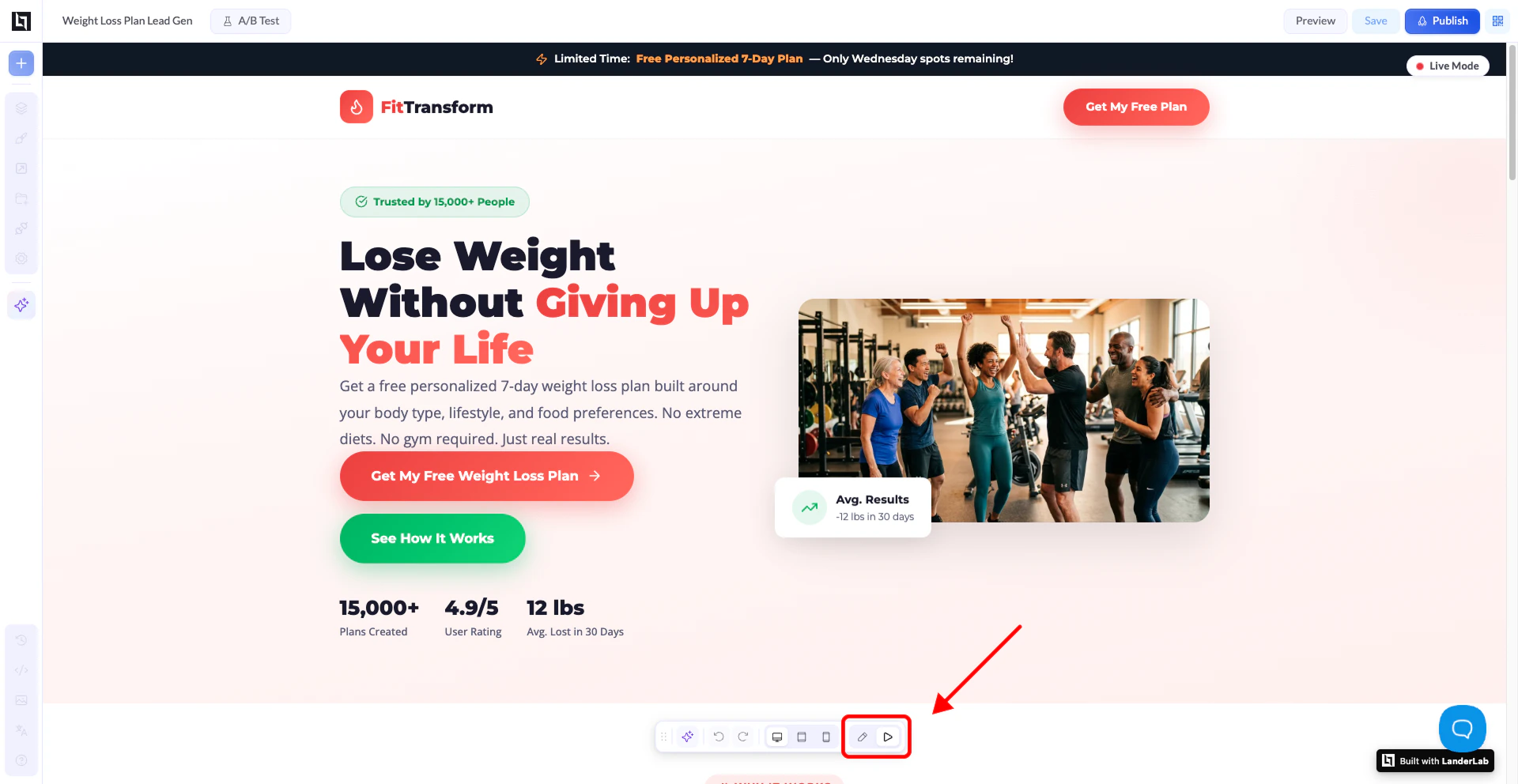
When to Use Live Mode
Use Live Mode when you want to:- Preview popups, overlays, or modals you have added to the page
- Check mouse-follow or hover effects
- Test any custom JavaScript interactions or third-party scripts
- Review what the AI builder has generated after a refinement, since the AI mode automatically switches you to Live Mode so you can see the full result including any JS effects
How to Enter Live Mode
There are two ways to enter Live Mode:- From the bottom toolbar - Click the Play button (the triangle icon) in the editor toolbar at the bottom of the screen.
- Automatically - Whenever the AI mode applies a refinement to your page, the editor switches to Live Mode so you can immediately see the output with all JavaScript running.
How to Go Back to Edit Mode
There are two ways to return to editing:- From the bottom toolbar - Click the Pencil icon in the toolbar. This replaces the Play button when you are in Live Mode.
- From the top-right button - Hover over the “Live Mode” button in the top-right corner of the editor. It will change to say “Go to Edit Mode.” Click it to return.