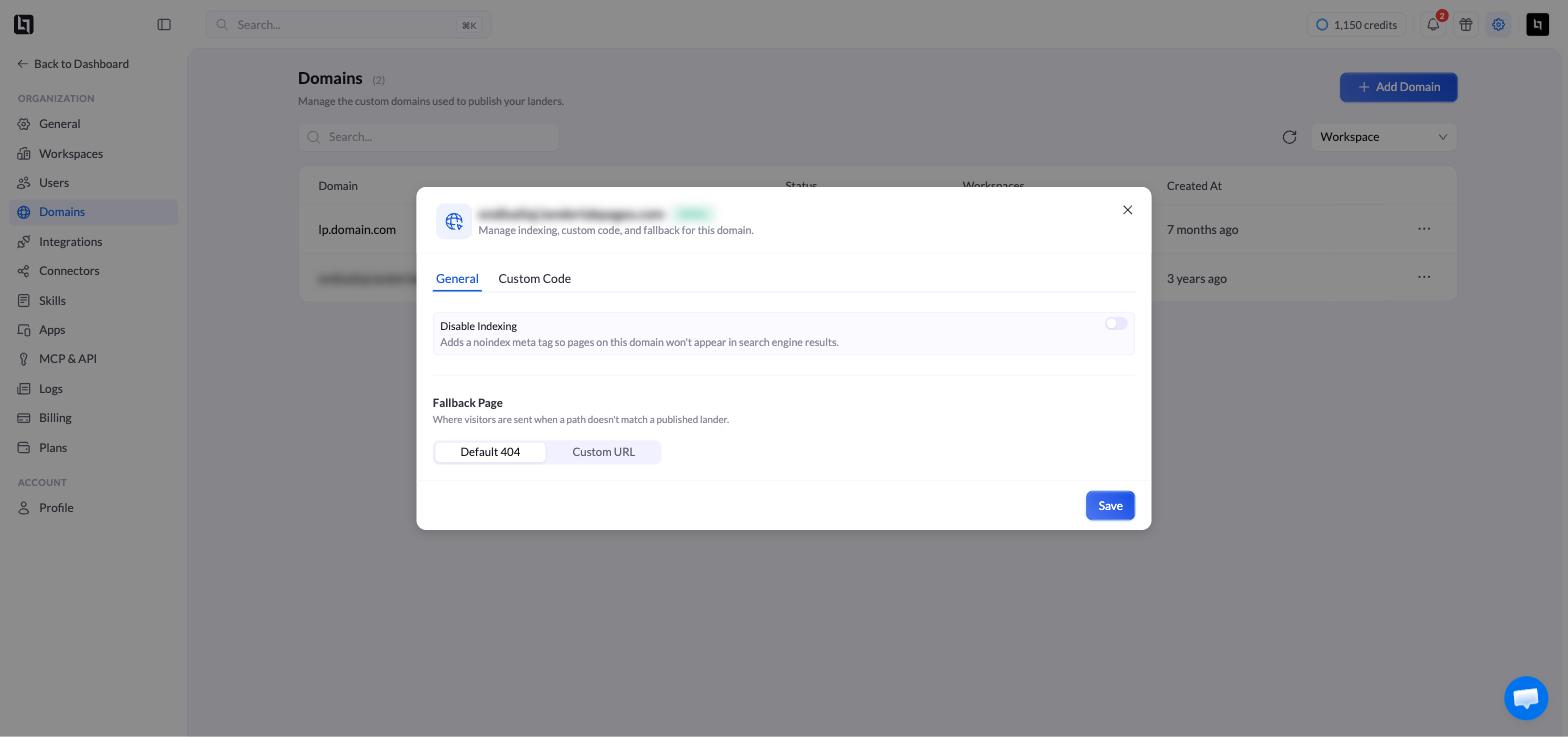
When a visitor lands on a URL that does not exist under your domain, LanderLab shows a 404 Not Found page. You can choose between the default LanderLab 404 page or redirect visitors to a custom URL with a fully designed page of your own.Documentation Index
Fetch the complete documentation index at: https://docs.landerlab.io/llms.txt
Use this file to discover all available pages before exploring further.

Available Options
Default 404
The default option shows the standard LanderLab 404 page. This is enabled by default and requires no additional setup.Custom URL
If you have a custom 404 page already designed and hosted, you can point your domain to that URL instead. When a visitor hits a broken or missing URL, they will be redirected to your custom 404 page. This is a good option if you want to match your brand, offer navigation options, or recover potential leads who land on a dead page.How to Configure Your 404 Page
- Go to Settings in your LanderLab account.
- Click on Domains.
- Find the domain you want to configure and click the three-dot menu (…) on the right.
- Select Settings.
- In the Domain Settings panel, scroll to the 404 Not Found Page section.
- Select either Default 404 or Custom URL.
- If you selected Custom URL, enter the full URL of your 404 page.
- Click Save.
Your custom 404 page must be a publicly accessible URL. LanderLab will redirect visitors to that URL when they hit a page that does not exist under your domain.
Tips for a Good Custom 404 Page
- Keep the design consistent with your brand.
- Add a clear call to action, such as a link back to your main landing page.
- If you are running lead generation campaigns, consider including an opt-in form on the 404 page to recover lost visitors.