Documentation Index

Fetch the complete documentation index at: https://docs.landerlab.io/llms.txt

Use this file to discover all available pages before exploring further.

Use domain-level custom code to inject scripts, tracking pixels, or global styles into every landing page published under a specific domain, without editing each page individually.

What is Domain-Level Custom Code?

Domain-level custom code lets you add HTML, JavaScript, or CSS that runs on every page published under a specific domain in LanderLab. Instead of adding the same script to each landing page one by one, you add it once at the domain level and it gets automatically injected into all pages on that domain. This is useful for:
  • Global tracking pixels (e.g. a Google Tag Manager container)
  • Analytics scripts that should run on every page
  • Custom CSS or styles that apply across all pages on the domain
  • Any third-party script that needs to be present on every page

Where to Add Domain-Level Custom Code

1

Go to Settings

Log in to your LanderLab account and click Settings in the left sidebar.
2

Click Domains

In the Settings menu, select Domains. You will see a list of all domains connected to your account.
3

Open the domain menu

Find the domain where you want to inject global scripts. Click the three-dot menu (…) on the right side of that domain row.
Domain Settings
4

Select Settings

From the dropdown, click Settings. A modal will open for that domain.
5

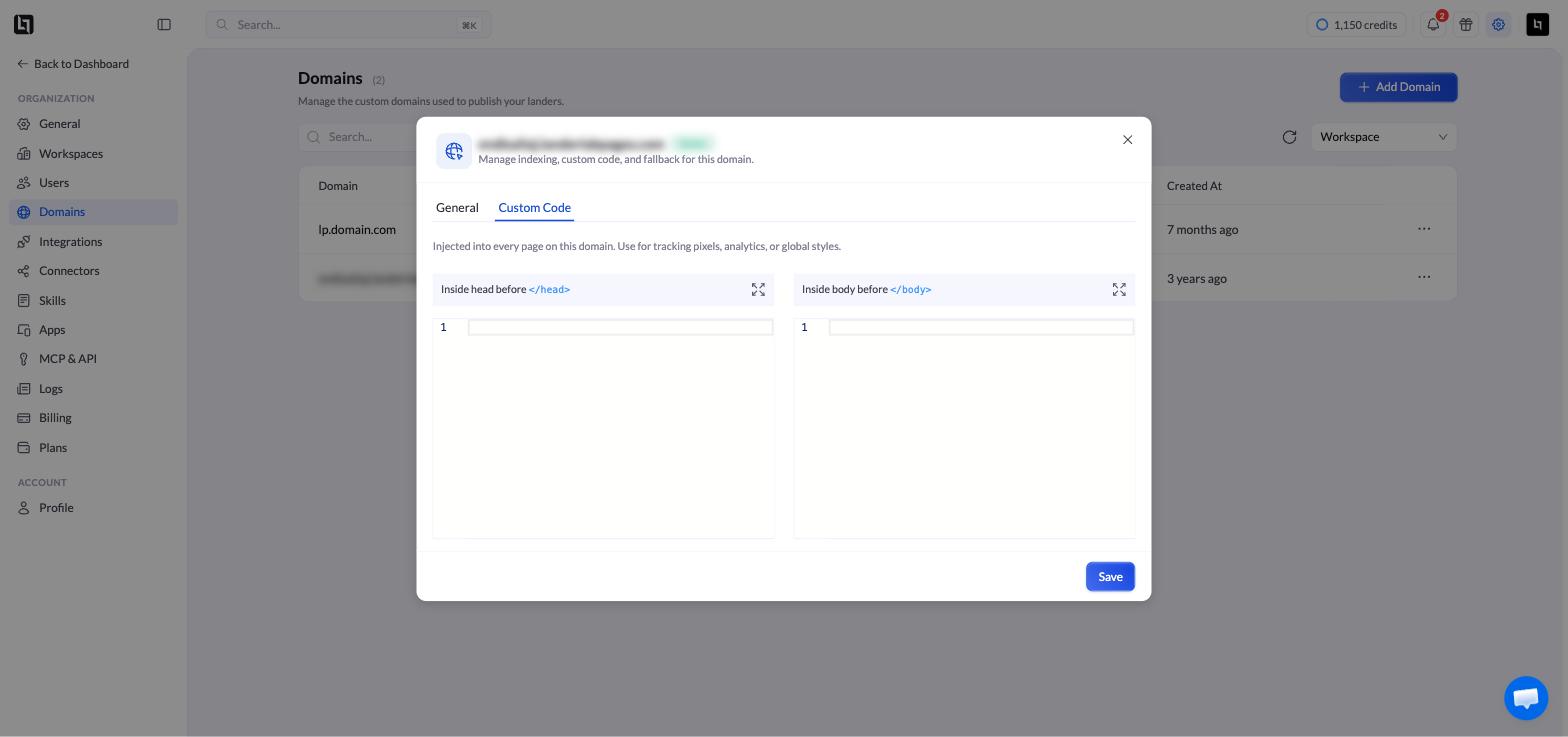
Go to the Custom Code tab

Inside the domain settings modal, click the Custom Code tab. You will see two code editor panels:
Screenshot 2026 05 11 At 2 56 54 PM
PanelDescription
Inside head before </head>Code entered here is injected into the <head> of every page on this domain. Use this for tracking pixels, analytics tags, and meta scripts that need to load in the head.
Inside body before </body>Code entered here is injected just before the closing <body> tag of every page. Use this for scripts that should load after the page content.
6

Paste your code and save

Paste your script or code into the appropriate panel and click Save. The code will be automatically injected into every page published under this domain.

Which Panel Should I Use?

As a general rule:
  • Head panel - Use for tracking pixels, tag managers (e.g. Google Tag Manager), and analytics initialization scripts. These typically need to load as early as possible.
  • Body panel - Use for scripts that depend on the page content being loaded first, or for any third-party widget that recommends placement before </body>.
If you are not sure, check the installation instructions of the tool you are adding. Most tracking scripts specify which placement to use.
Domain-level custom code is injected into every page on that domain. If you need a script to run only on a specific landing page, use the per-page custom code setting inside the landing page editor instead.
After adding or updating domain-level custom code, republish any landing pages on that domain that are already live to ensure the updated code is applied.