

By setting them once, you ensure a consistent and professional design everywhere.
Where to Find It
- Open the Theme panel
- Go to the Fonts section

- Headings → Used for titles and large text
- Page → Used for paragraphs and regular text
How Fonts Work
- Fonts set here apply globally across your page
- All text elements automatically inherit these fonts
- You don’t need to style each block individually
Manage Fonts
Click Manage Fonts to open the font library.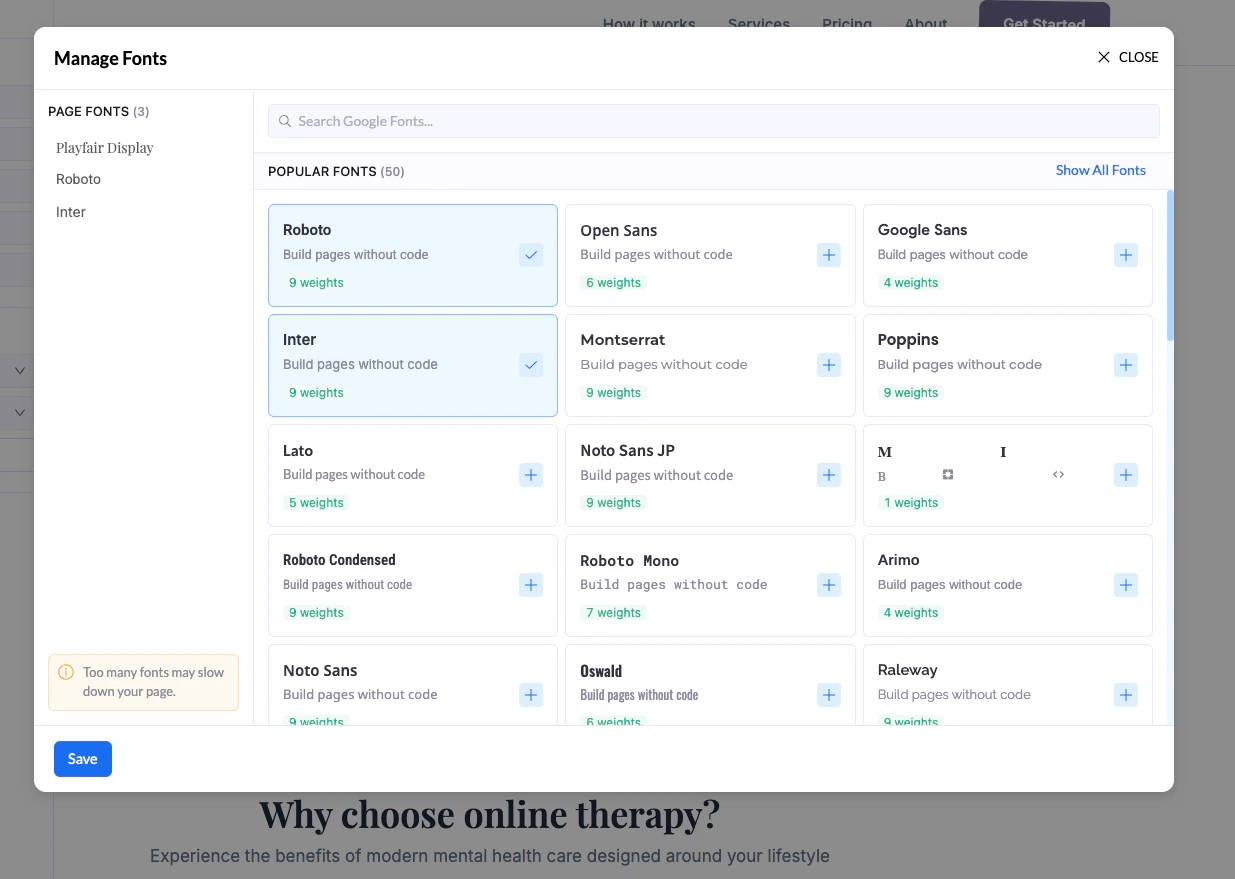
- Browse available fonts
- Search for specific fonts
- Add new fonts to your project
- See how many font weights each font includes
Important Notes
- Adding too many fonts can slow down your page
- Stick to 1–2 fonts maximum for best performance
- Choose fonts that are easy to read on all devices
Best Practice
- Use one font for Headings
- Use one font for Body text (Page)
- Keep it simple and consistent