

This is where you decide if items go side by side, stacked, centered, spaced, etc.
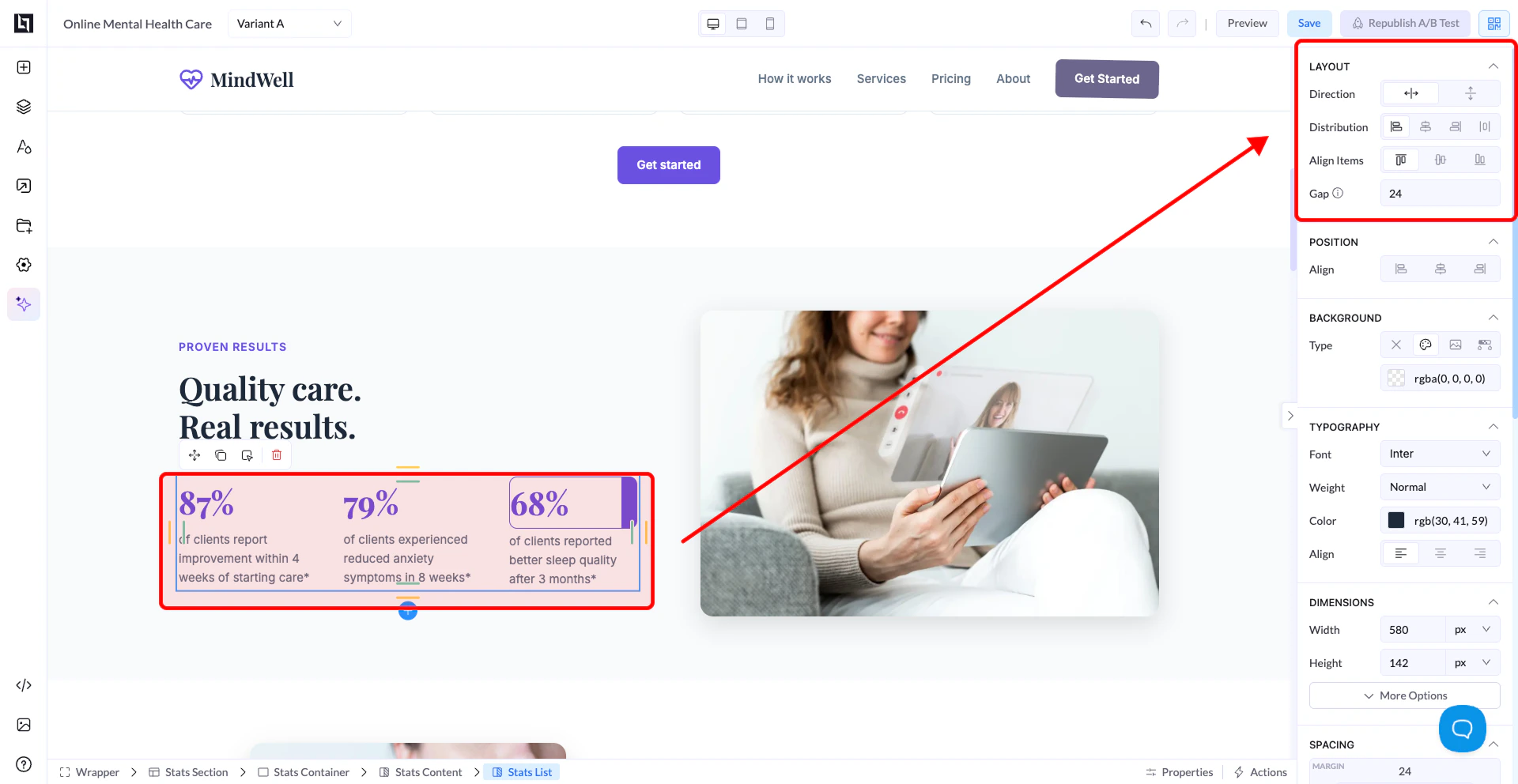
The 4 Key Settings
1. Direction (Most Important)
This controls how items are placed inside the container.Horizontal (Row)
- Elements go left → right
- Example: buttons next to each other
- Rows
- Inline elements
- Columns side by side
Vertical (Column)
- Elements go top → bottom
- Example: title → text → button
- Forms
- Stacked content
- Most layouts (default)
2. Distribution (Spacing Between Items)
This controls how items are spaced across the container. Common options:- Start → items stick to the beginning
- Center → items stay in the middle
- End → items go to the end
- Space Between → first left, last right, space in between
- Space Around → equal space around items
👉 Example: If you have 3 buttons:
- Space Between → spread across full width
- Center → grouped in the middle
3. Align Items (Alignment)
This controls alignment on the opposite axis of Direction.If Direction = Row (horizontal):
- Align Items = vertical alignment
- Top
- Center
- Bottom
If Direction = Column (vertical):
- Align Items = horizontal alignment
- Left
- Center
- Right
Important:
- Direction = main axis
- Align Items = cross axis
4. Gap
- Controls space between elements
- Works like automatic spacing
- Gap = 20 → adds equal spacing between all items
Simple Examples
Example 1: Center everything
- Direction: Vertical
- Align Items: Center
- Distribution: Center
Example 2: Buttons in a row
- Direction: Horizontal
- Distribution: Space Between
- Align Items: Center
Example 3: Simple form layout
- Direction: Vertical
- Align Items: Left
- Gap: 10–20
Common Mistakes
❌ Trying to center elements without changing Direction❌ Confusing Align Items with Distribution
❌ Adding margin instead of using Gap
❌ Forgetting container controls child elements
Best Practices
- Start with Column for most layouts
- Use Row only when needed
- Use Gap instead of manual spacing
- Keep layouts simple and consistent
Golden Rule:
If something looks “wrong”, it’s almost always:
If something looks “wrong”, it’s almost always:
- Wrong Direction
- Wrong Alignment