

A filter is pass-or-stop. There’s no second path for leads that fail. If you need different actions for different leads instead of stopping them, use an If or Switch node instead.
Add the Filter node
Filter lives under the Internal group in the node menu.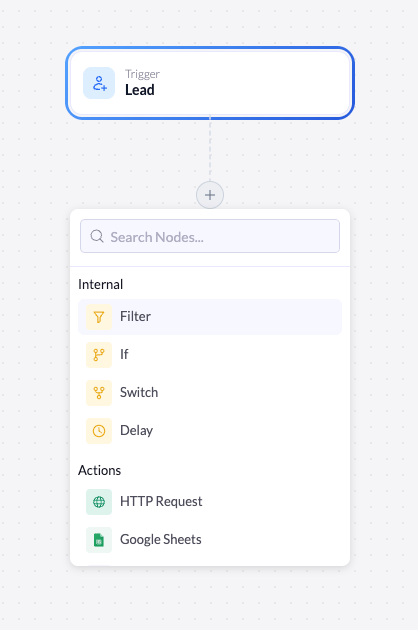
Open the node menu
Click the + below the node where you want the filter to run (usually right after the trigger).
Configure the filter
Selecting the node opens its settings. The header confirms what it does: Continue only if conditions match.General
| Setting | Description |
|---|---|
| Name | The label for this node on the canvas. Rename it to describe what it filters (for example, Only US leads) so the workflow stays readable. |
Conditions
The Conditions section is empty until you add a condition group. Click Add Condition Group to create your first group and your first condition.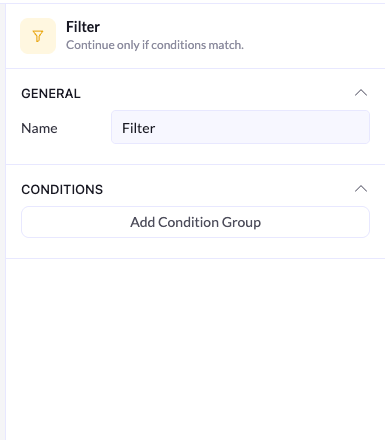
Build a condition
Each condition has three parts, read left to right: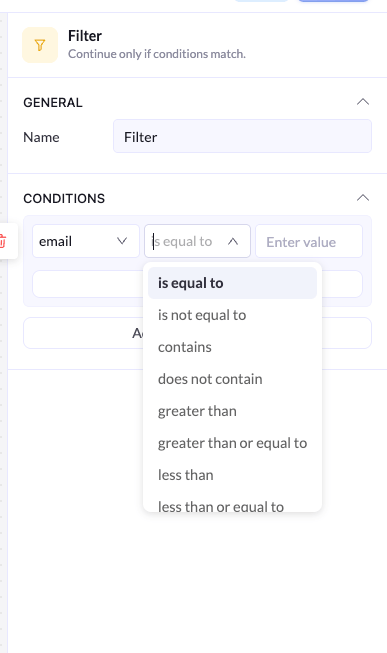
Field
The first dropdown lists the fields captured on your connected landing page - for example, email. Pick the field you want to check.
Operator
The second dropdown sets how the field is compared to your value. Options include:
| Operator | Passes when the field… |
|---|---|
| is equal to | exactly matches the value |
| is not equal to | is anything other than the value |
| contains | includes the value somewhere inside it |
| does not contain | does not include the value |
| greater than | is larger than the value |
| greater than or equal to | is larger than or matches the value |
| less than | is smaller than the value |
| less than or equal to | is smaller than or matches the value |
Combine conditions with AND / OR
You can add more than one condition to a group. An AND / OR toggle appears between conditions to set how they combine.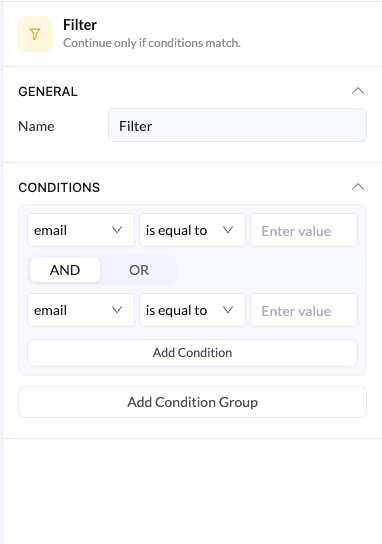
- AND - The lead must match every condition in the group.
- OR - The lead must match at least one condition in the group.
Add condition groups
For more complex logic, click Add Condition Group to create a second group. An AND / OR toggle then appears between the groups as well.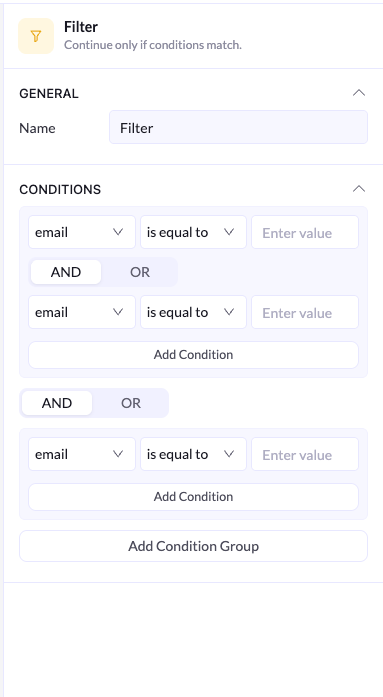
- Within a group - conditions combine with the group’s AND / OR toggle.
- Between groups - each group is evaluated as a whole, then groups combine with the AND / OR toggle between them.
Pass if the lead is from the US (group 1) AND they signed up for either the newsletter OR the webinar (group 2).Group 1 holds the country condition. Group 2 holds the two signup conditions joined by OR. The two groups are joined by AND.
Think of groups like parentheses in math: conditions inside a group are evaluated first, then the groups are combined. Reach for a new group whenever your logic mixes AND and OR.