

Workflows let you automate what happens after a visitor becomes a lead. Start with a trigger, add conditions and actions, then publish. Every lead that comes in runs through your workflow so the right data reaches the right place, automatically.
What is a Workflow?
A workflow is an automated sequence that runs each time you capture a new lead. Instead of manually exporting data or wiring up separate integrations, you build a simple flow on a visual canvas: a trigger starts it, conditions decide which path a lead takes, and actions do the work, such as sending lead data to Google Sheets or posting it to an external API. Each workflow is made of nodes connected together. You drag, drop, and connect them on the canvas, configure each one, then publish. Once live, you can watch every lead move through the workflow in real time and see exactly where each one landed, including any that failed.Workflows is currently in BETA. Features and available nodes may change as the product evolves.
How to Build Your First Workflow
The setup walks you through creating a workflow, adding a trigger, branching with conditions, configuring an action, and publishing, all in a single flow.Open Workflows and Create One
From the left sidebar, click Workflows. Click Add Workflow in the top right, enter a Name in the popup, then click Create Workflow.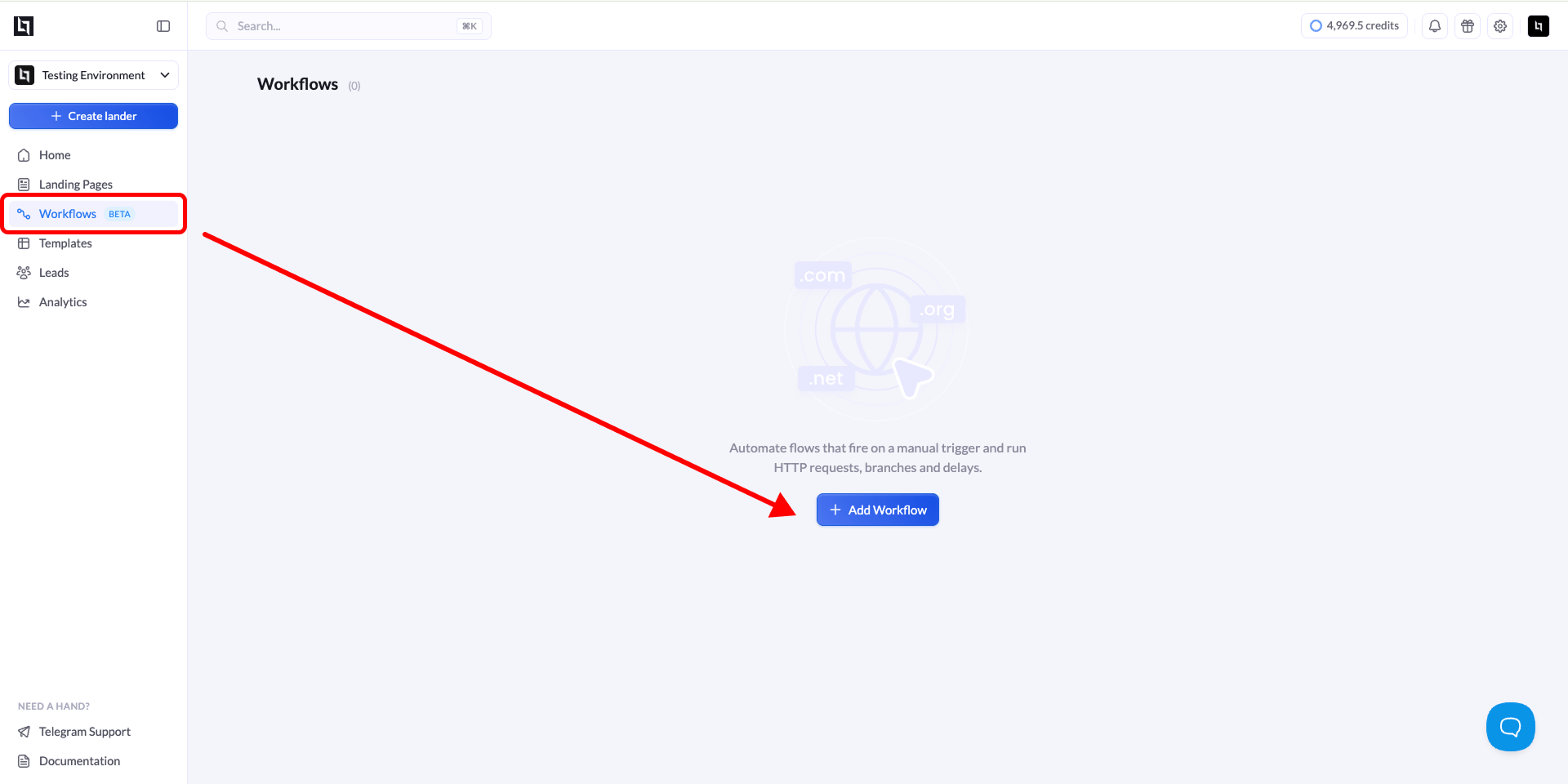
Add the Lead Trigger
A new workflow opens on a blank canvas. Click the + button in the center of the canvas to open the node search, then under Triggers, select Lead.The Lead trigger starts the workflow every time a visitor submits a form on a connected landing page.Next, click the Lead node to open its settings. In the Landing Page section, click Add landing page and choose the landing page whose leads should start this workflow. Only leads from a connected landing page will trigger it.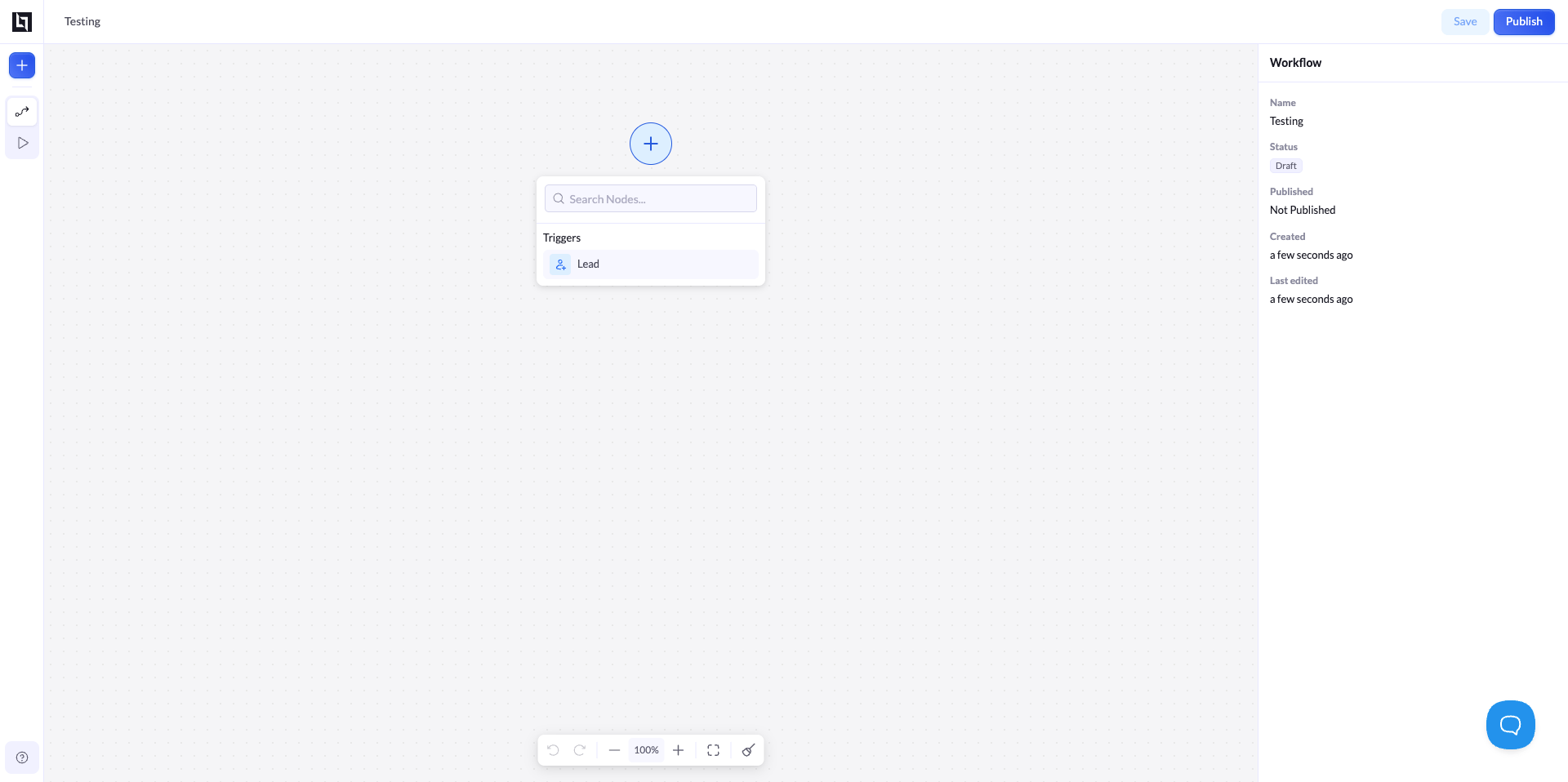
Add a Node
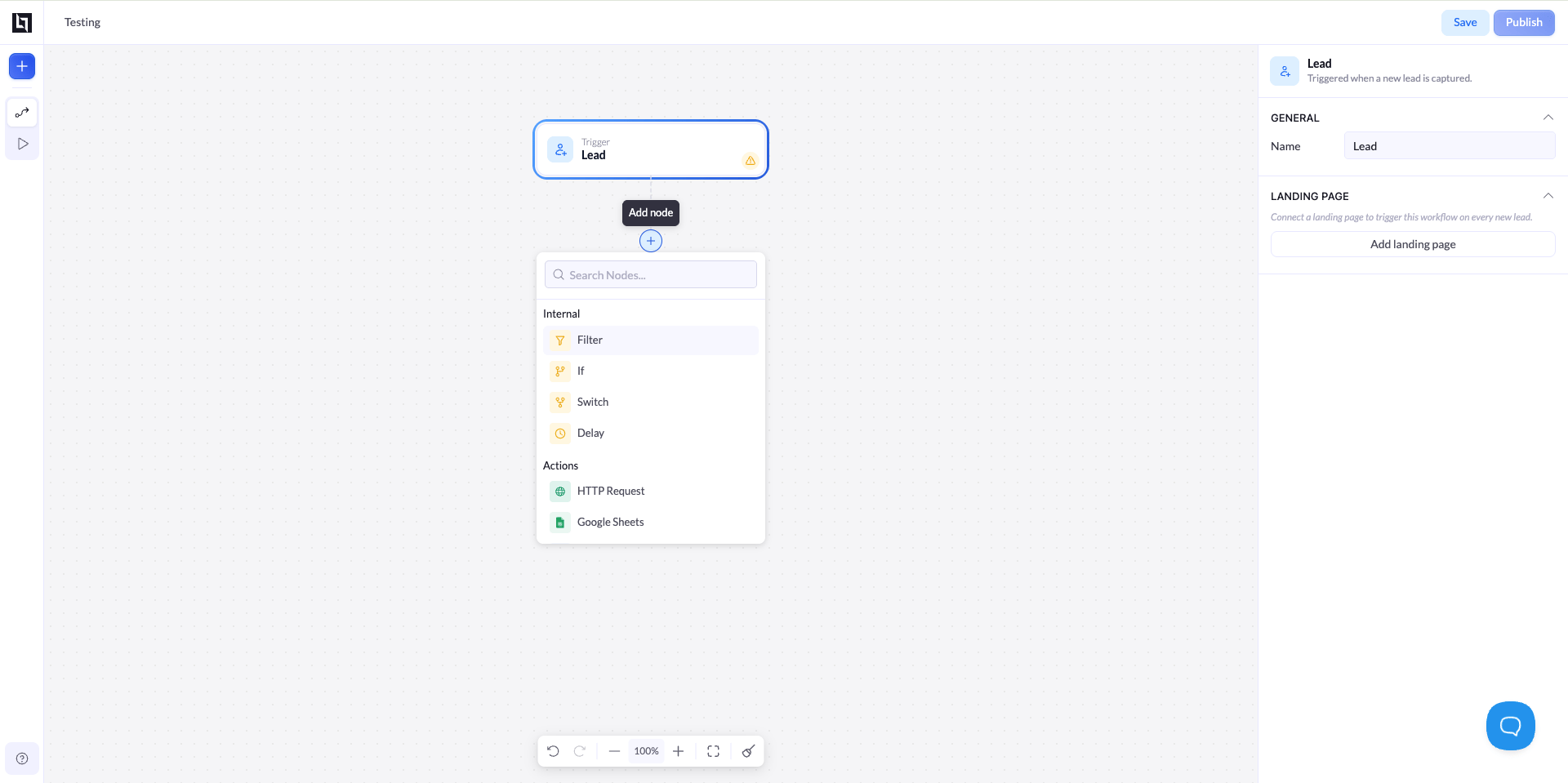
To continue the flow, add the next node. You have two options:
Both open the node search, where nodes are grouped into Internal (logic) and Actions (integrations).
| Option | How |
|---|---|
| Canvas + | Click the + that appears below a node on the canvas. |
| Sidebar + | Click the + in the top left toolbar to open the node panel. |
| Group | Nodes |
|---|---|
| Internal | Filter, If, Switch, Delay |
| Actions | HTTP Request, Google Sheets, LeadByte, LeadsPedia, LeadProsper, Phonexa, MailChimp, HubSpot, GetResponse, ActiveCampaign, MailerLite, Omnisend, Klaviyo, GoHighLevel, Brevo, Beehiiv, ConvertKit, Drip, AWeber, Meta CAPI, ClickFlare |
Configure the Node
Click any node to open its settings panel on the right. Each node has its own fields.For a Google Sheets action, the panel shows a General section to rename the node and an Account section where you click Add account to connect a Google account and choose where leads are written.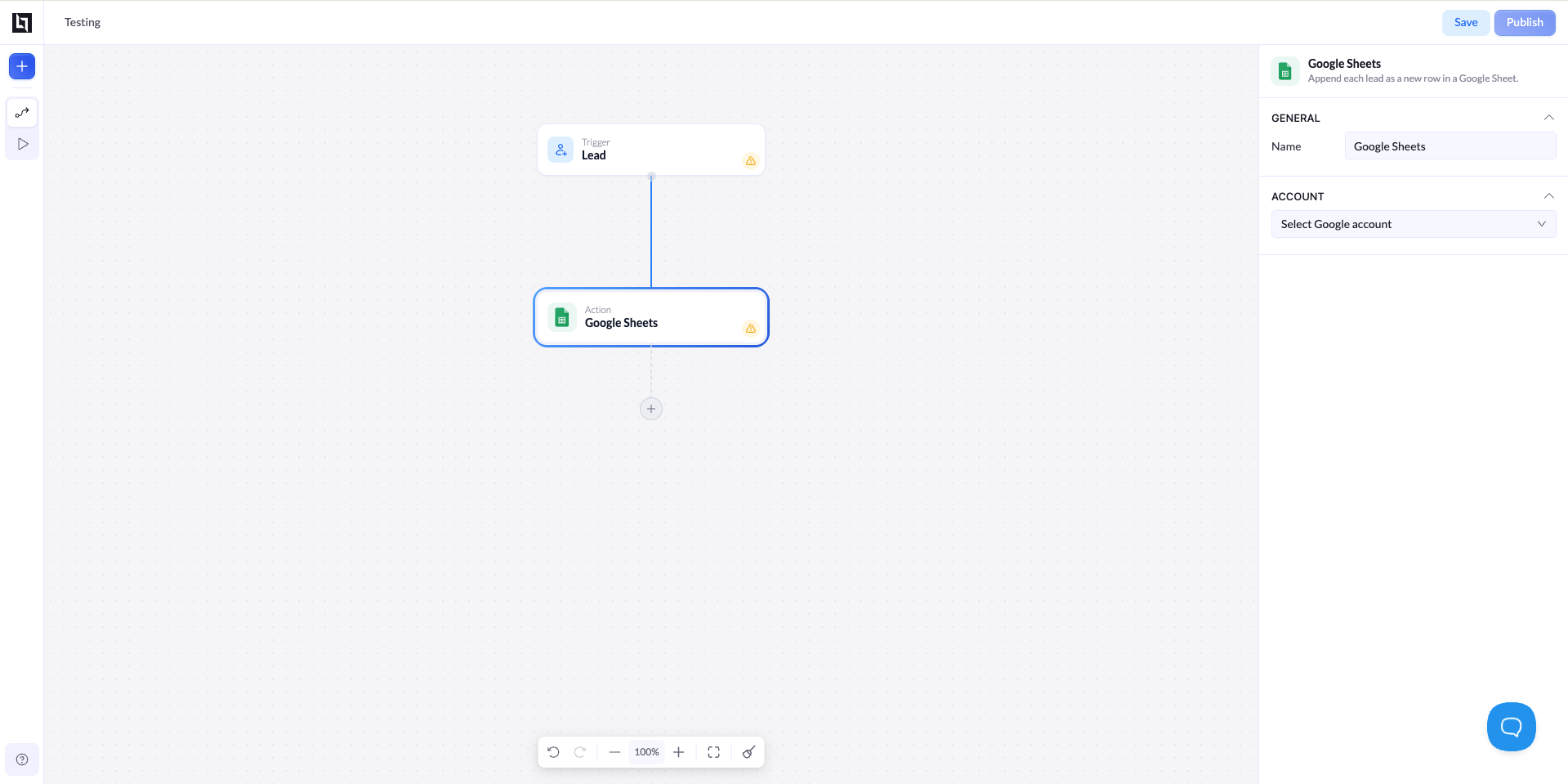
Tracking Workflow Runs
Once your workflow is live, open the Runs view by clicking the play icon in the left toolbar. This is where you monitor activity. Each run shows a single lead’s journey through the workflow: where it entered, which path it took, and where it ended up. If a step fails, the run is marked so you can spot the problem quickly and fix the node. Use the time filters (1D, 7D, 1M, 3M, All, or Custom) to focus on a specific period. Before any leads come in, the view shows “No runs yet.”The Runs view is your audit trail. Check it regularly to confirm leads are flowing as expected and to catch failed steps early.