

- Reuse the same quiz on several landers without rebuilding it
- Add a quiz to a lander that is already live
- Show a LanderLab quiz on a website built outside LanderLab
How It Works
You create a blank landing page that contains only the quiz and publish it. Then you add a short iframe snippet with the Custom Code element on the lander where you want the quiz to appear. Visitors see and complete the quiz without leaving that lander.Step-by-Step Guide
1
Create a blank landing page for the quiz
- Go to Landing Pages and click Create Landing Page
- Click Create From Template
- Select Blank Template and click Use Template
- Give the page a clear name (for example,
Quiz - Embed) and click Create Landing Page

2
Add the Quiz element
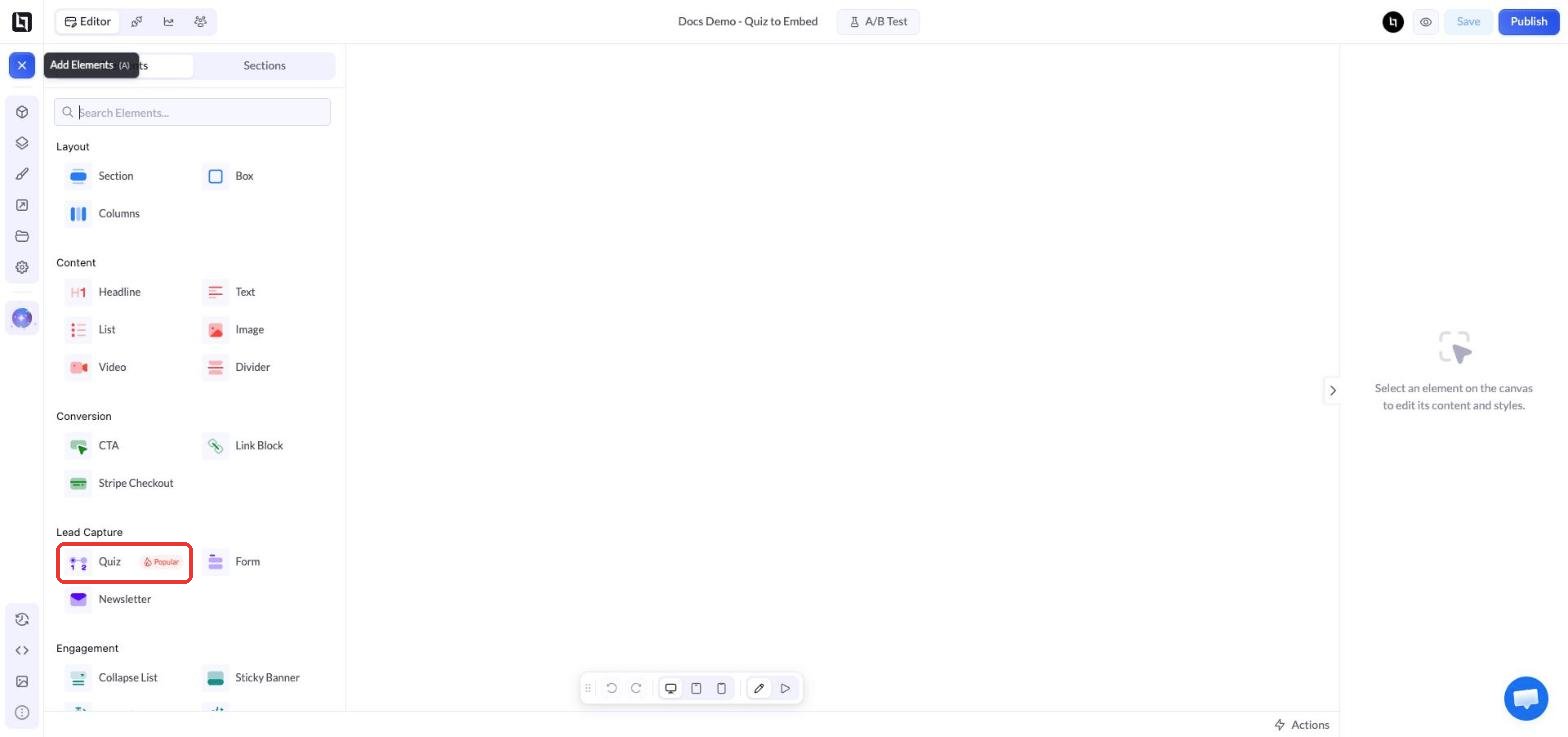
- In the editor, click + (Add Elements) in the top-left corner
- Under Lead Capture, click Quiz to add it to the page
3
Build your quiz
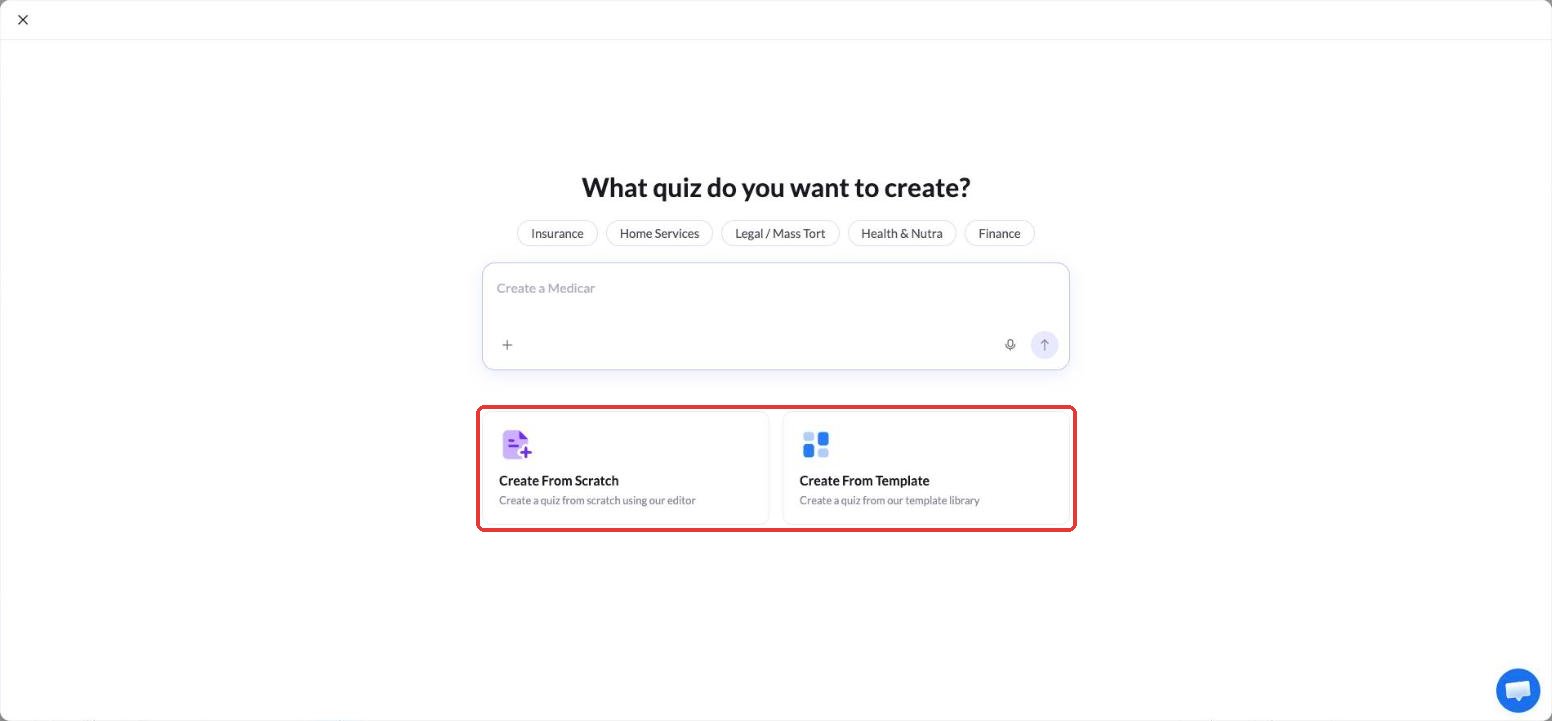
- Choose Create From Scratch to build the quiz yourself, or Create From Template to start from a ready-made quiz. You can also describe the quiz in the prompt box to create it with AI.
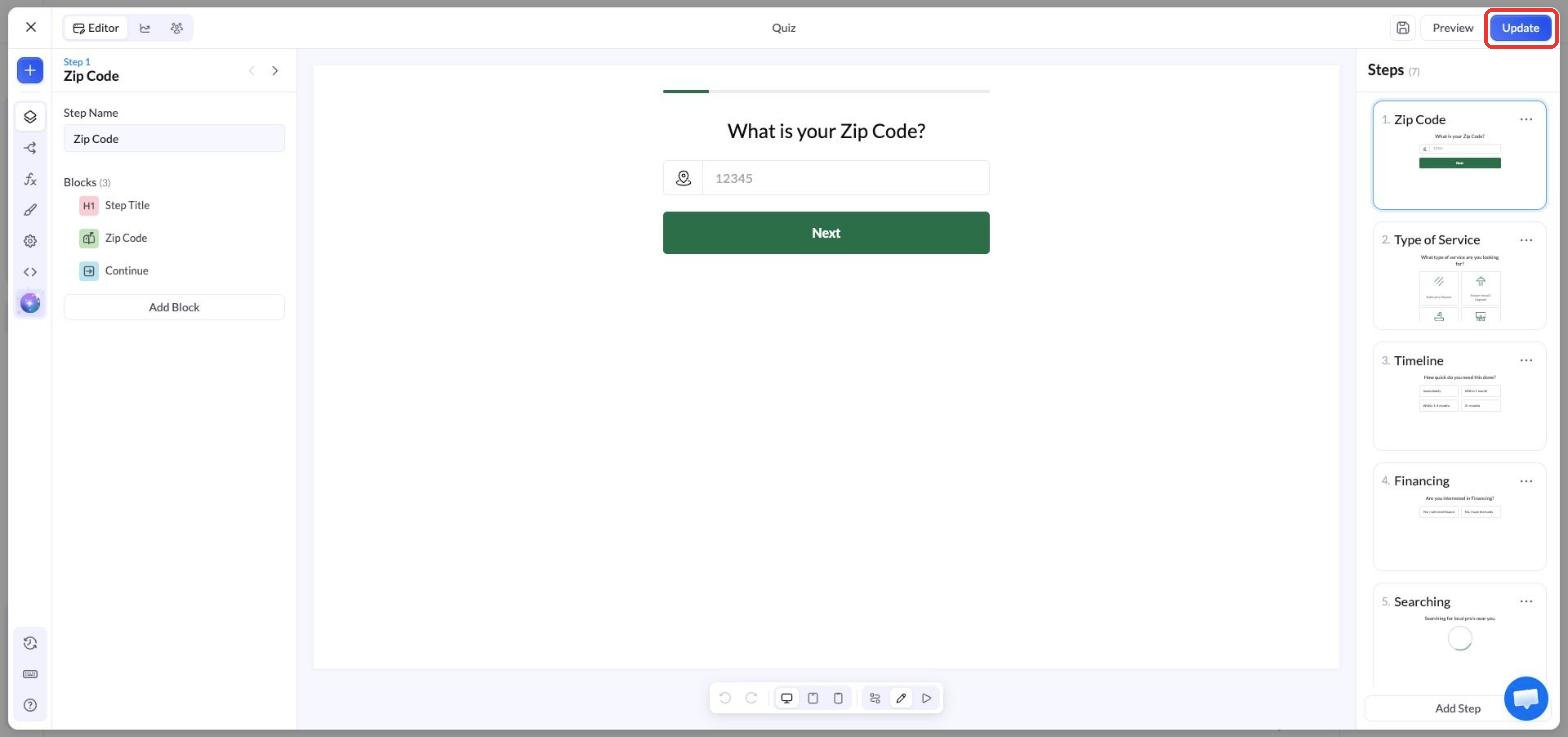
- Add and edit your steps in the quiz builder
- Click Update to save the quiz
4
Publish the quiz page
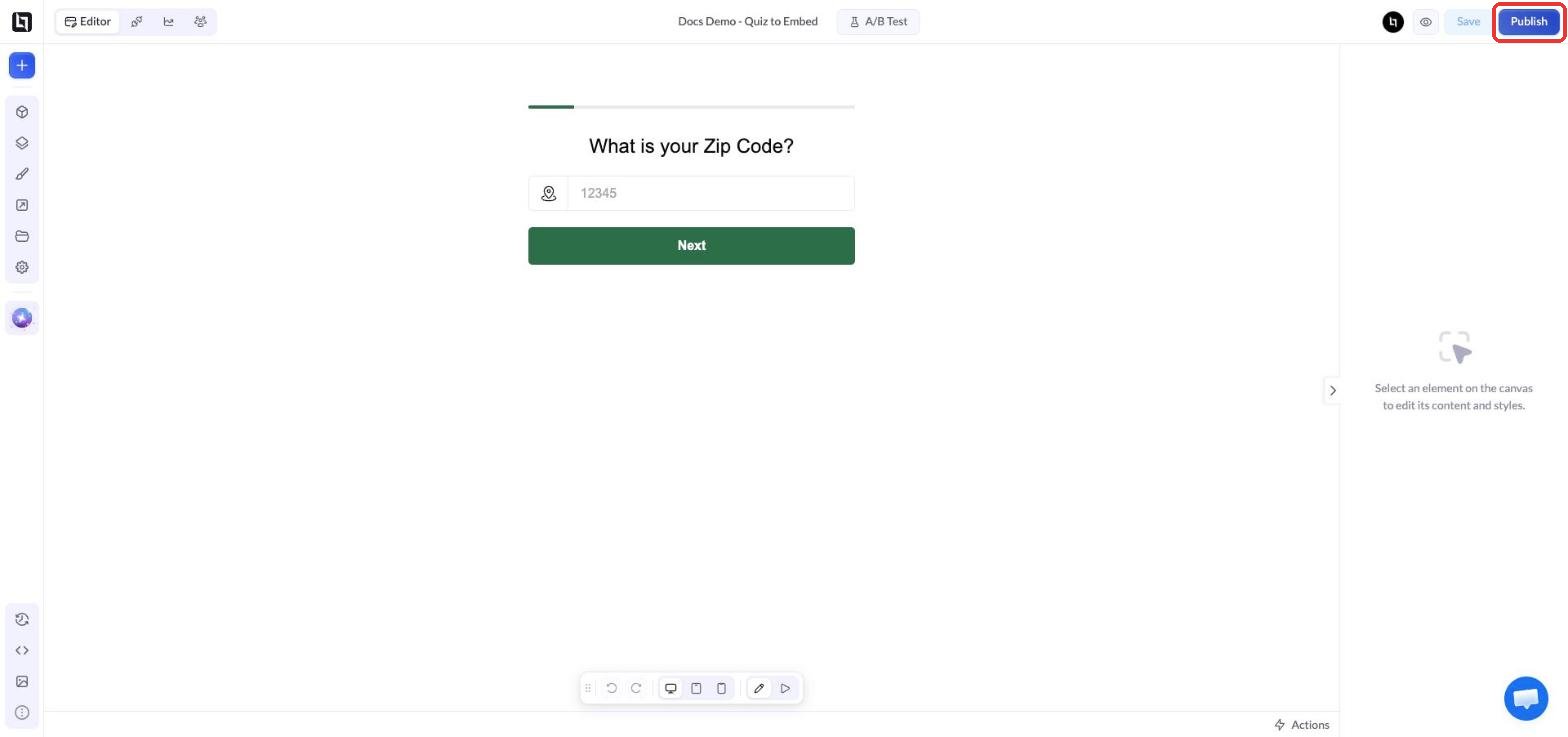
- Click Publish in the top-right corner of the editor
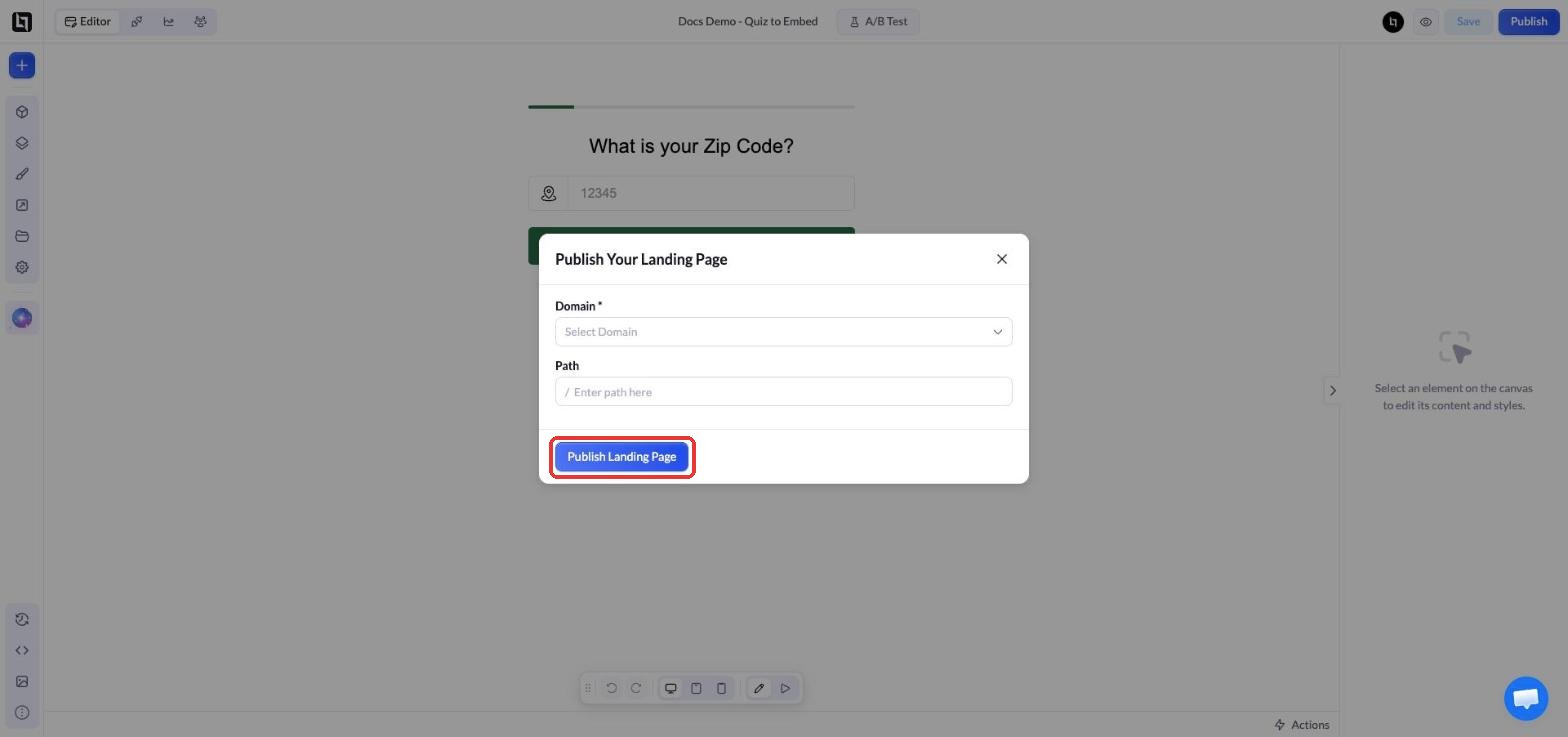
- Choose a Domain and a Path, then click Publish Landing Page
- Copy the live URL of the page (for example,
https://yourdomain.com/quiz). You will paste it into the embed code later.
5
Add a Custom Code element to your lander
- Open the lander where you want the quiz to appear in the editor
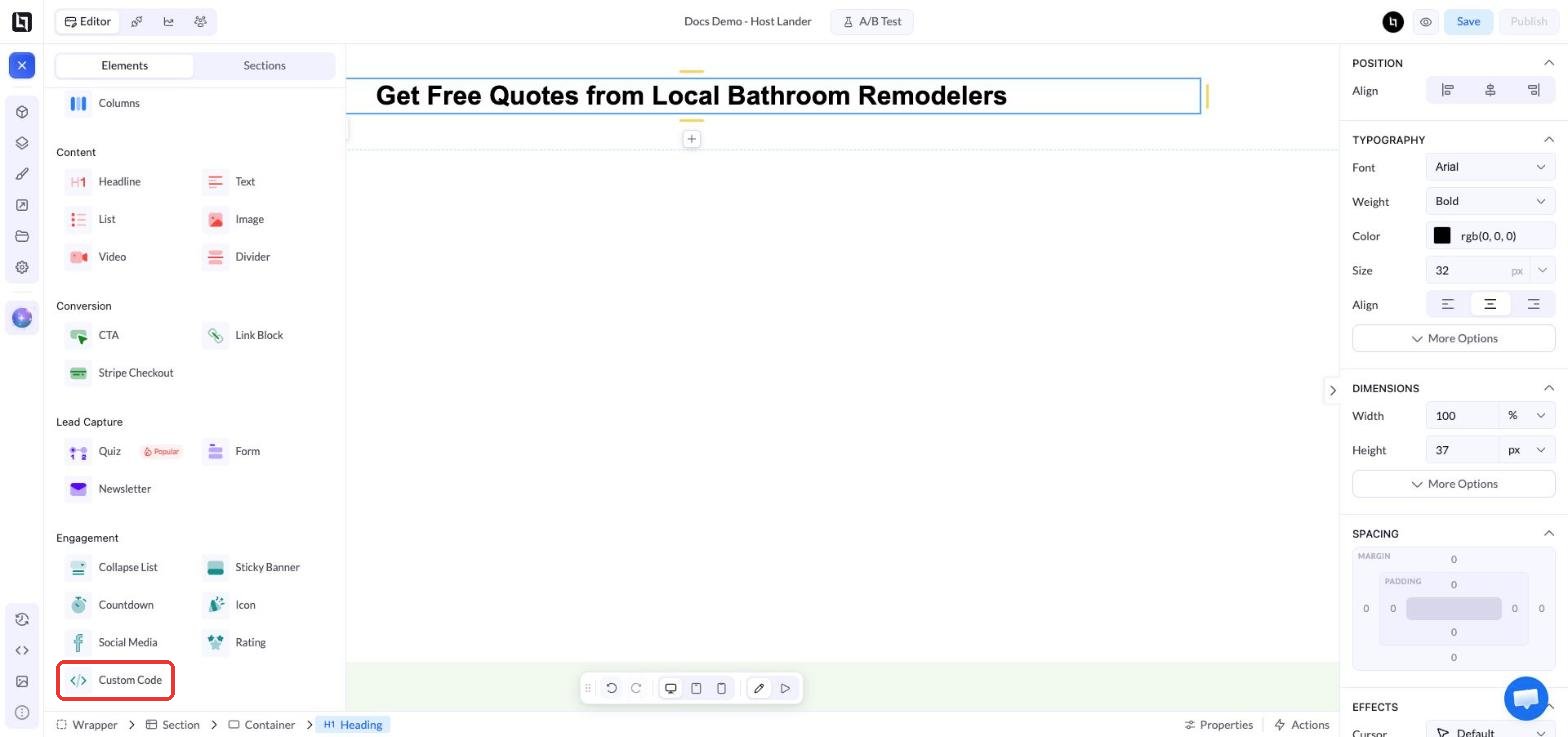
- Click + (Add Elements) and, under Engagement, click Custom Code
- Move the element to the spot where the quiz should appear
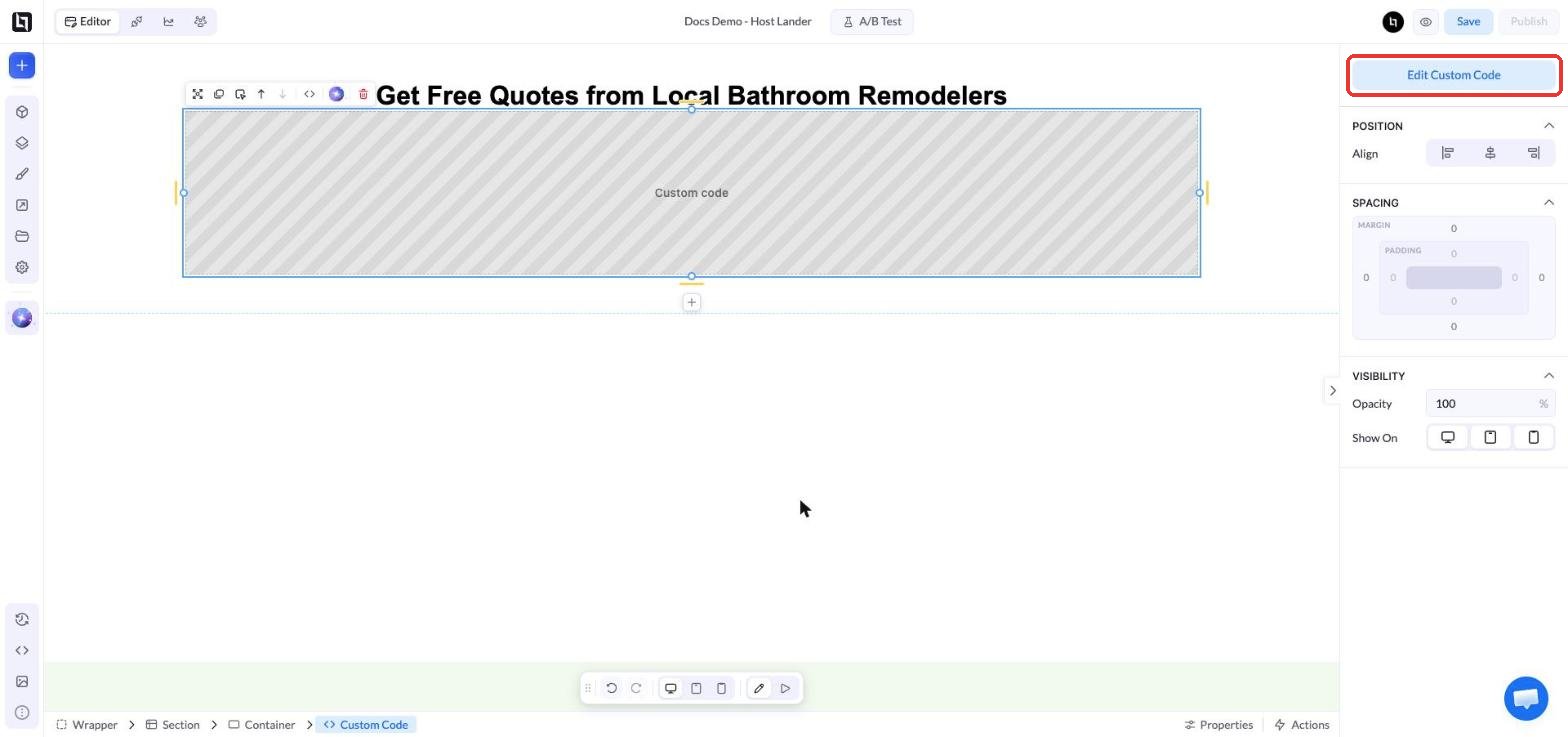
- With the element selected, click Edit Custom Code in the right panel
6
Paste the embed code
Paste this code into the Edit Code window and replace the Click Save to close the window.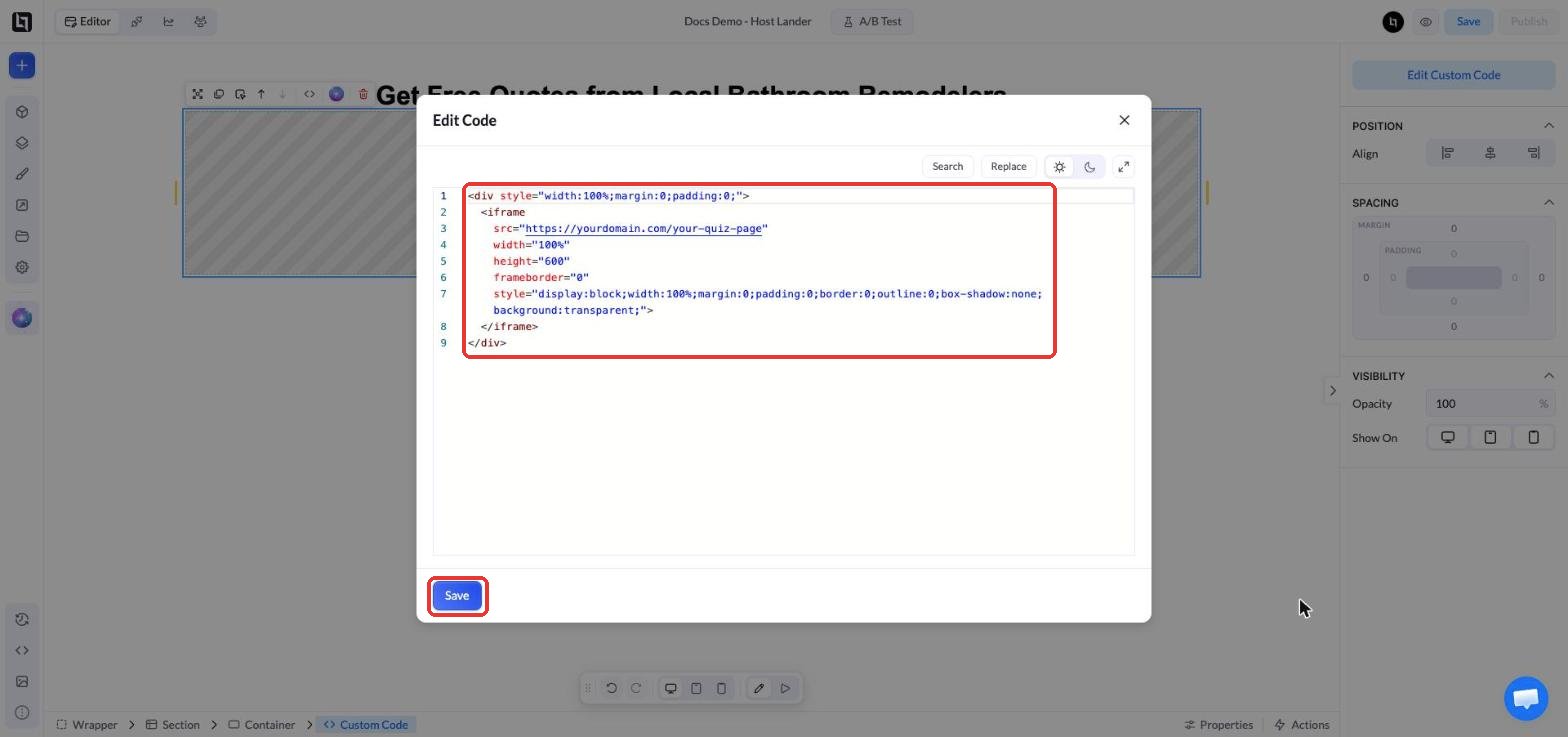
src value with the URL of your published quiz page:Final Result
The quiz now appears inside your lander with no border around it, and visitors can complete it without leaving the page.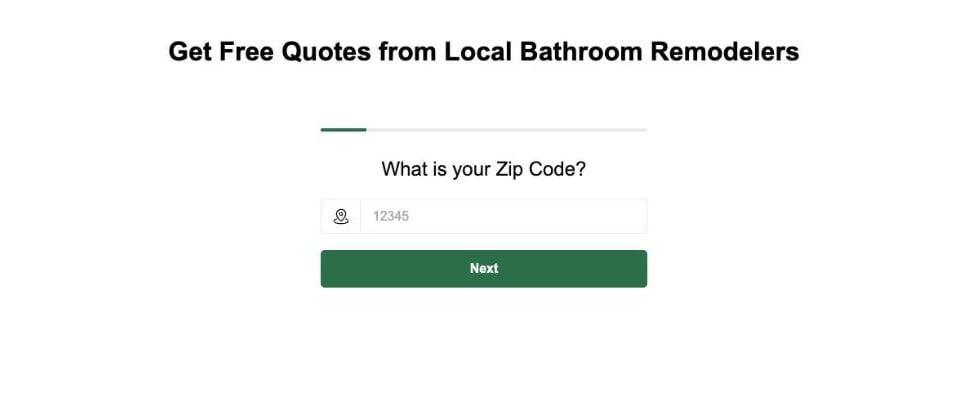
Customize the Embed
- Height: Change
height="600"to fit your tallest quiz step. If a step is taller than the frame, visitors will see a scrollbar inside the quiz. - Mobile: Check the lander on mobile, where quiz steps are often taller, and increase the height if needed.
- Width: The quiz fills the full width of its container. To make it narrower and centered, change the style of the outer
<div>towidth:100%;max-width:600px;margin:0 auto;padding:0;.
Alternative: embed code with a style block
Alternative: embed code with a style block
If you embed several quizzes on the same page, you can keep the styling in one
<style> block and reuse the quiz-embed class:Embed the Quiz Outside LanderLab
The same embed code works on any website or page builder that lets you add custom HTML, such as a WordPress Custom HTML block or a Webflow Code Embed element. Paste the code there and replace thesrc value with your quiz page URL.
Important Notes
- Leads stay with the quiz page. The quiz runs on the blank quiz page, so its leads and analytics are recorded on that page, not on the lander where you embedded it.
- Quiz updates go live everywhere. When you edit and republish the quiz page, the embedded quiz updates on every lander that uses it. Update the
srconly if you change the quiz page’s domain or path. - Tracking runs inside the iframe. Pixels and URL parameters on the host lander do not reach the embedded quiz automatically. Set up quiz tracking, such as the Meta Pixel Lead event, on the quiz page itself.
- Always test the quiz on the live lander after publishing.