

The File Manager accepts files up to 20 MB. For longer or heavier videos, host them on a video platform and embed the link instead.
How to upload a video to the File Manager
1
Open the File Manager
Open your landing page in the editor and click the File Manager icon in the left sidebar. The panel lists your page files by type, such as Index File and Images.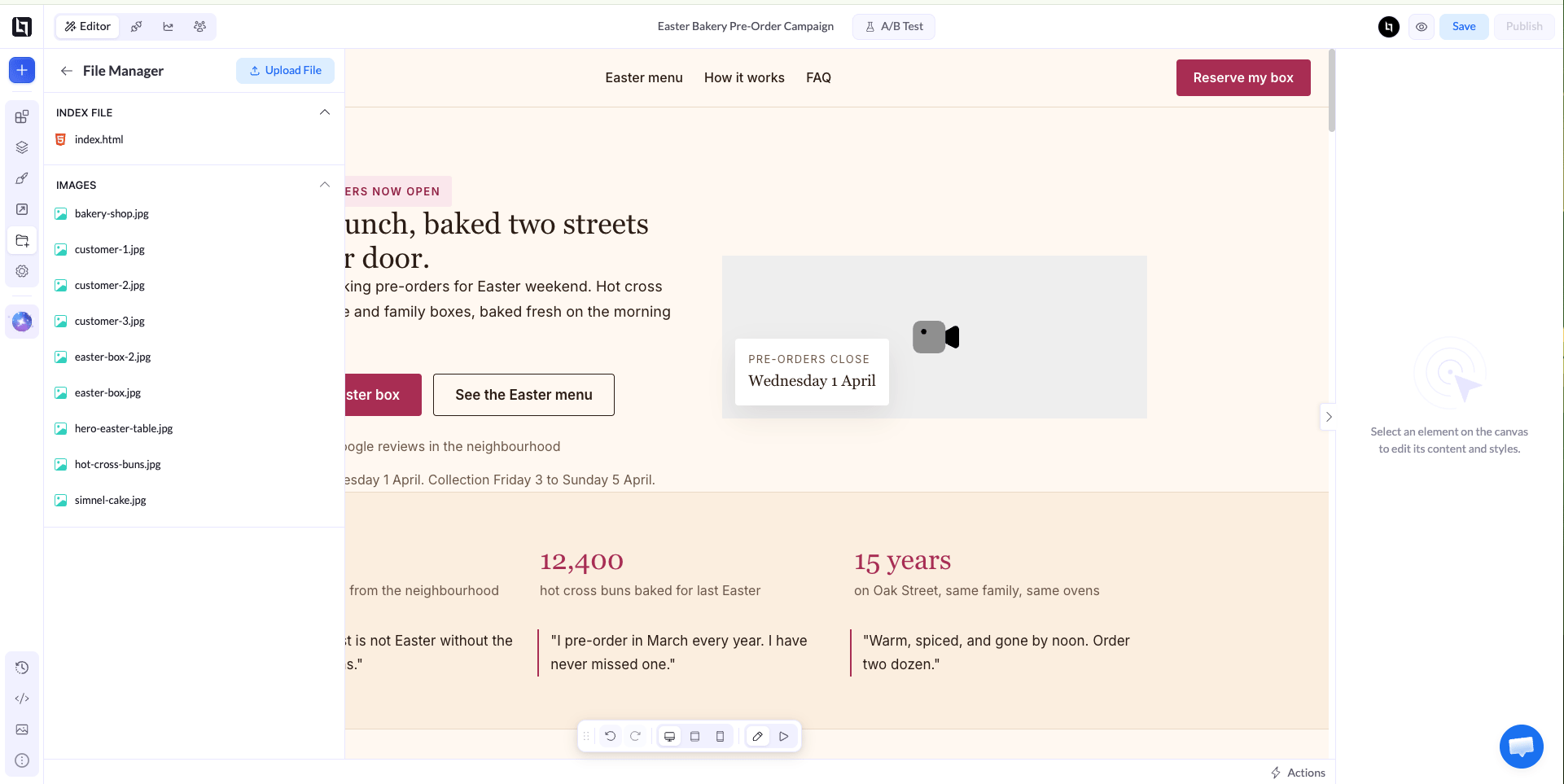
2
Select your video
Click Upload File. In the Upload new file window, click Click to Select File and choose the video on your computer.
3
Choose the directory and upload
Open the Select Directory dropdown and choose / to upload the video to the root folder. Click Upload.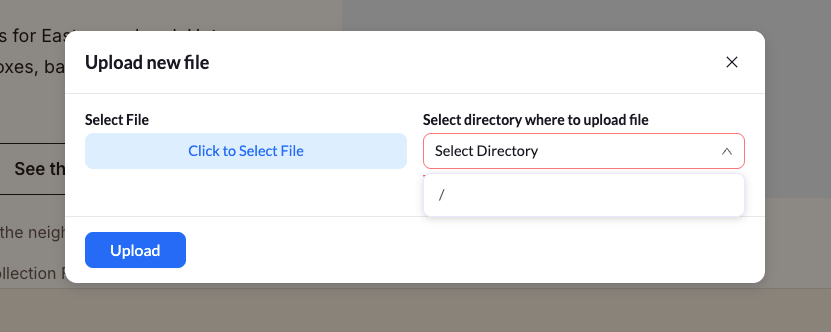
How to copy the video’s file URL
The uploaded video appears under Other Files in the File Manager. Hover over the file and click the Copy File Url icon to copy its link.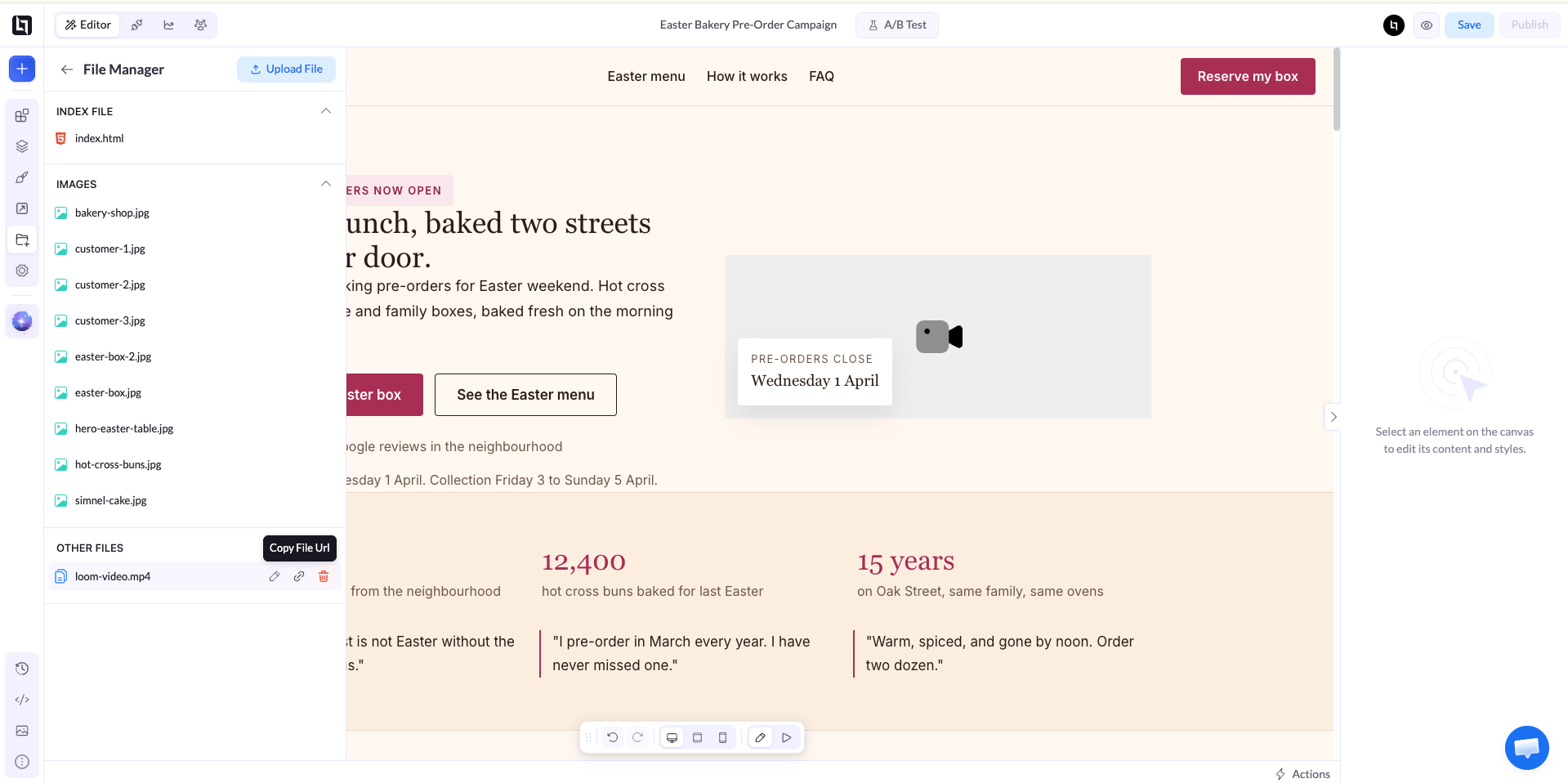
How to add the video to your page
1
Add a Video element
Click the + icon at the top of the left sidebar to open the elements panel. Drag the Video element from Content onto a section of your page.To replace a video that is already on the page, select that Video element instead.
2
Select HTML Video
With the Video element selected, open the Provider dropdown in the right panel and choose HTML Video.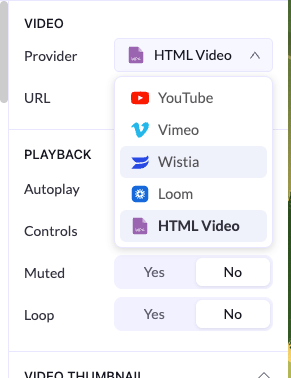
3
Paste the file URL
Paste the link you copied into the URL field.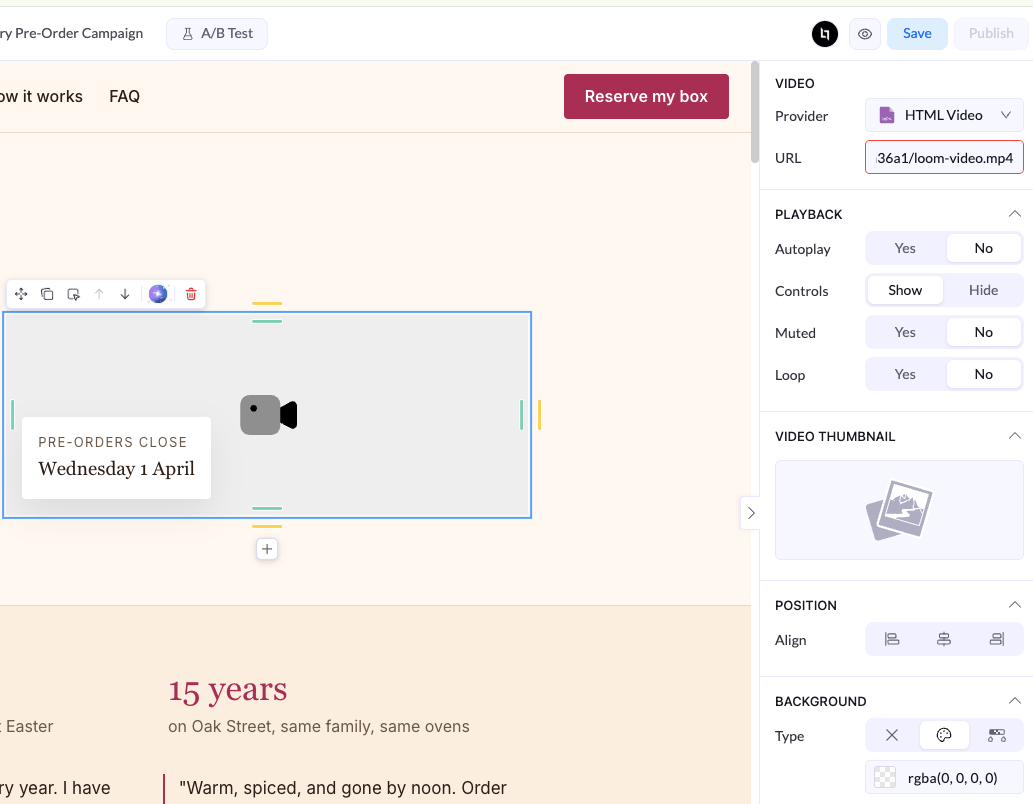
4
Set playback options
Under Playback, choose whether the video should Autoplay, show Controls, start Muted, or Loop. To show an image before the video plays, add a Video Thumbnail.
5
Save and republish
Click Save, then republish the page so the video goes live.
Related
Video element
Embed videos from YouTube, Vimeo, Wistia, Loom, or your own files.
Copy Image URL
Get the direct link of any image on your page.