

1
Open Your Google Account Settings
Go to myaccount.google.com and sign in with the same Google account you use for the integration.
2
Go to Linked Apps
In the left sidebar, click Linked apps.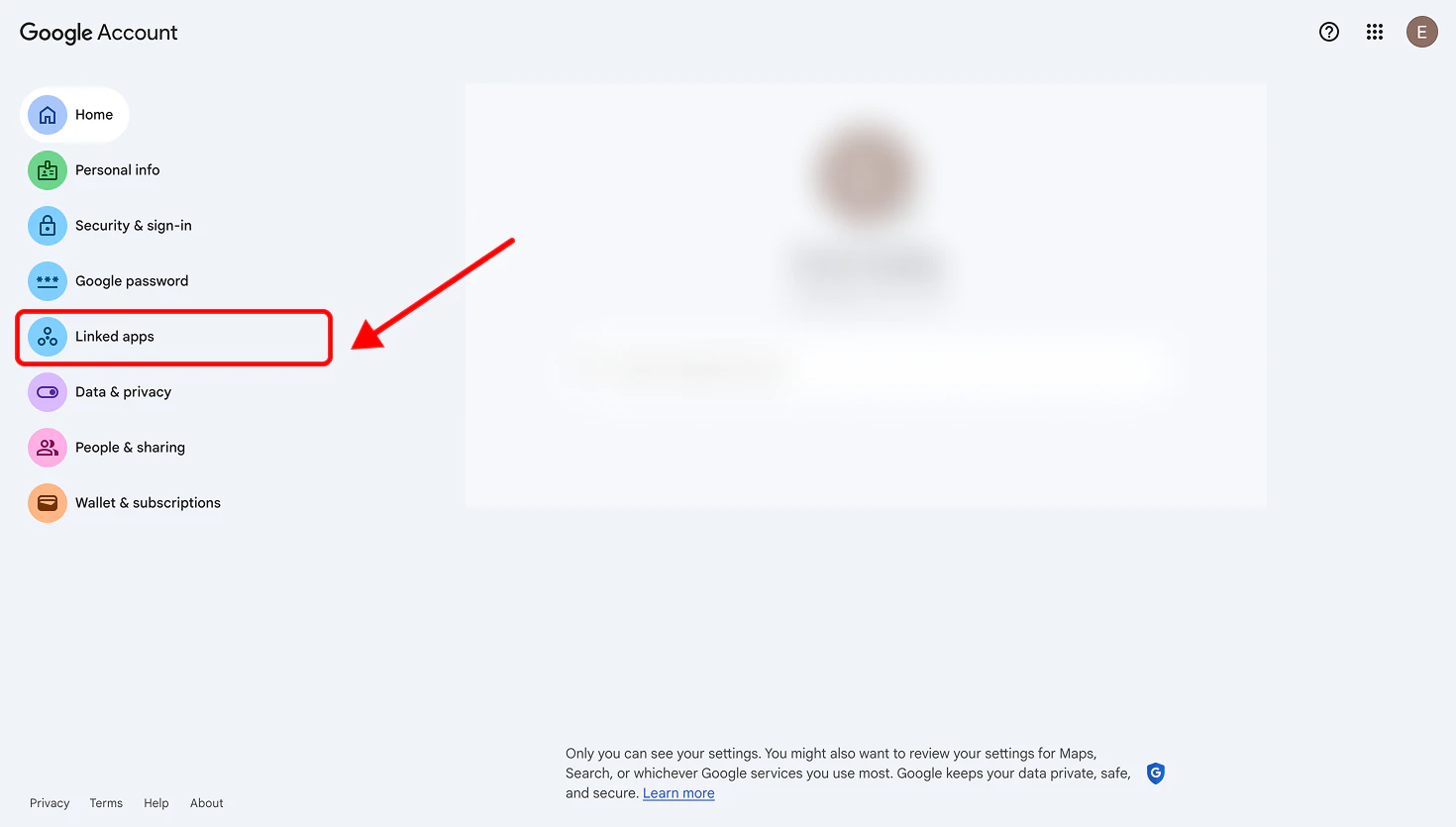
3
Find and Remove LanderLab
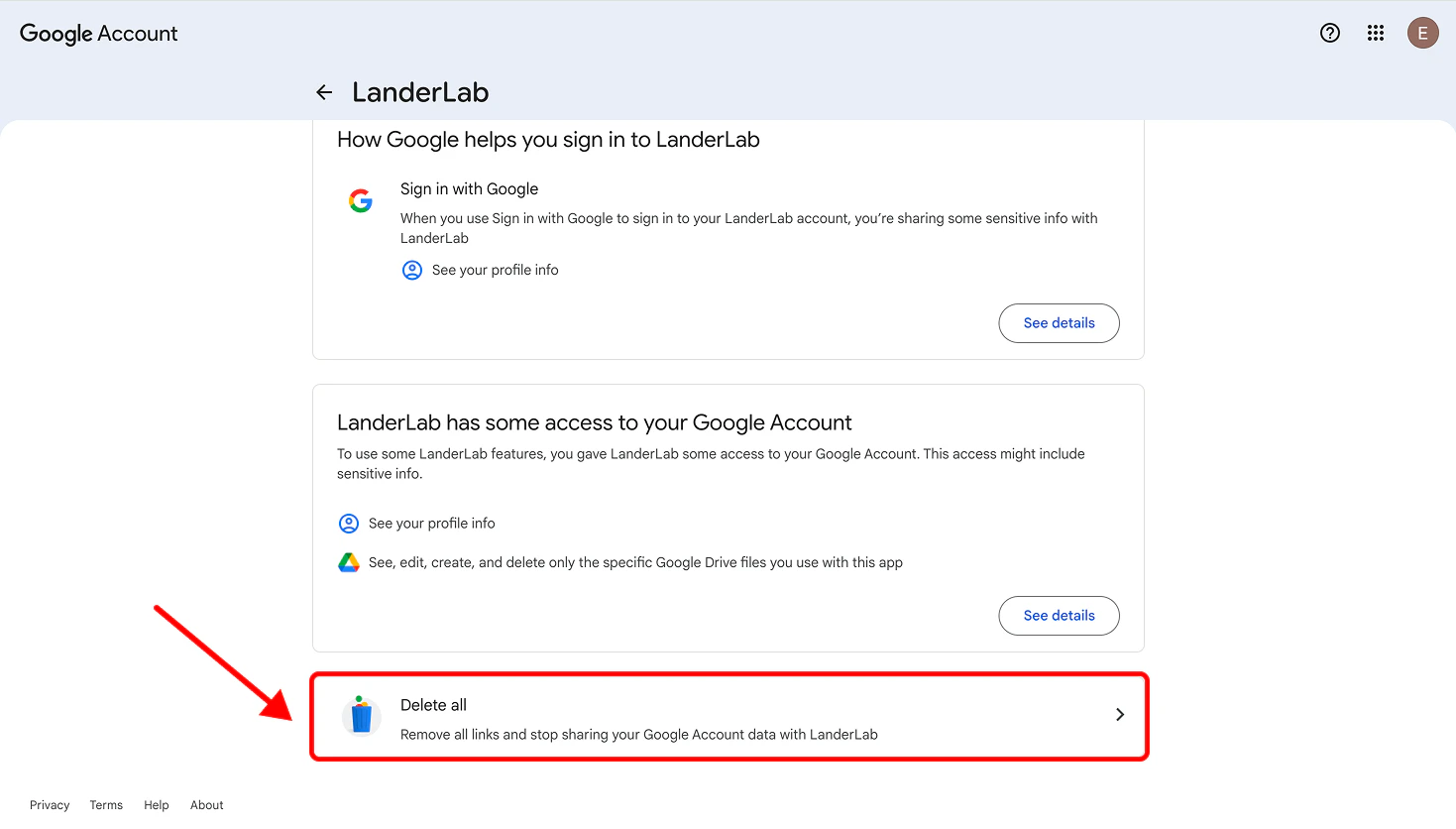
Search for LanderLab (or landerlab.io) in the list. Click on it, then click Delete all connections to remove all permissions. Confirm the removal when prompted.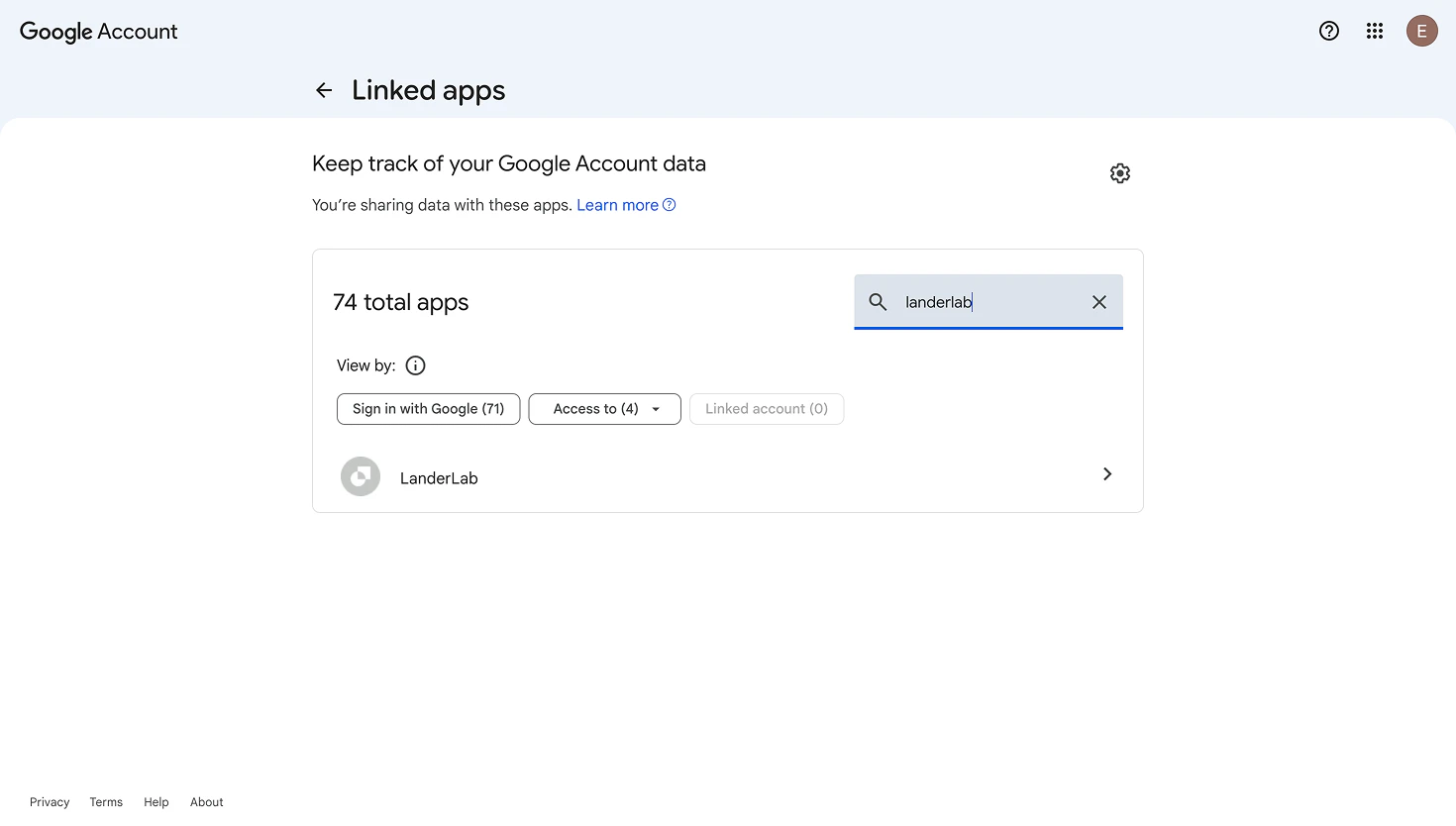
4
Reconnect in LanderLab
Go back to LanderLab, open the integrations panel, and add your Google integration again. You will go through the authentication and permissions flow as if connecting for the first time. This creates a fresh, clean connection.
This applies to any Google integration in LanderLab, including Google Sheets and Google Address Autocomplete.