

Prerequisites
Before you start, make sure you have:- A LanderLab account with at least one published landing page
- A Klaviyo integration already connected in LanderLab
- The Klaviyo list you want leads added to
If you have not connected Klaviyo yet, set it up first. See Connect Klaviyo to LanderLab.
Step 1: Create the Lead trigger
Every workflow starts with a trigger. The Lead trigger fires whenever a new lead is captured.1
Open the workflow canvas
Create a new workflow and give it a name (for example, “Klaviyo”). The canvas opens with a single + button in the center.
2
Add the Lead trigger
Click + and select the Lead trigger. It is added to the canvas and triggered when a new lead is captured.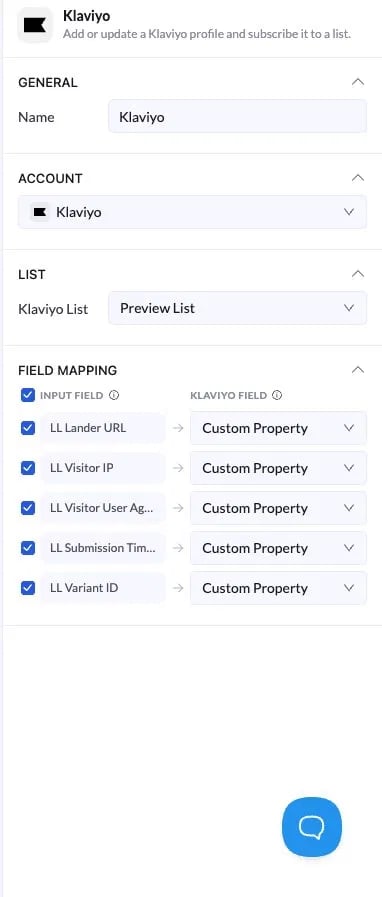
Step 2: Connect a landing page
The workflow will not run until a landing page is linked to the Lead trigger.1
Open the trigger settings
Click the Lead node. Its settings open in the right panel.
2
Add your landing page
Under Landing Page, click Add landing page and select the page that should trigger this workflow on every new lead.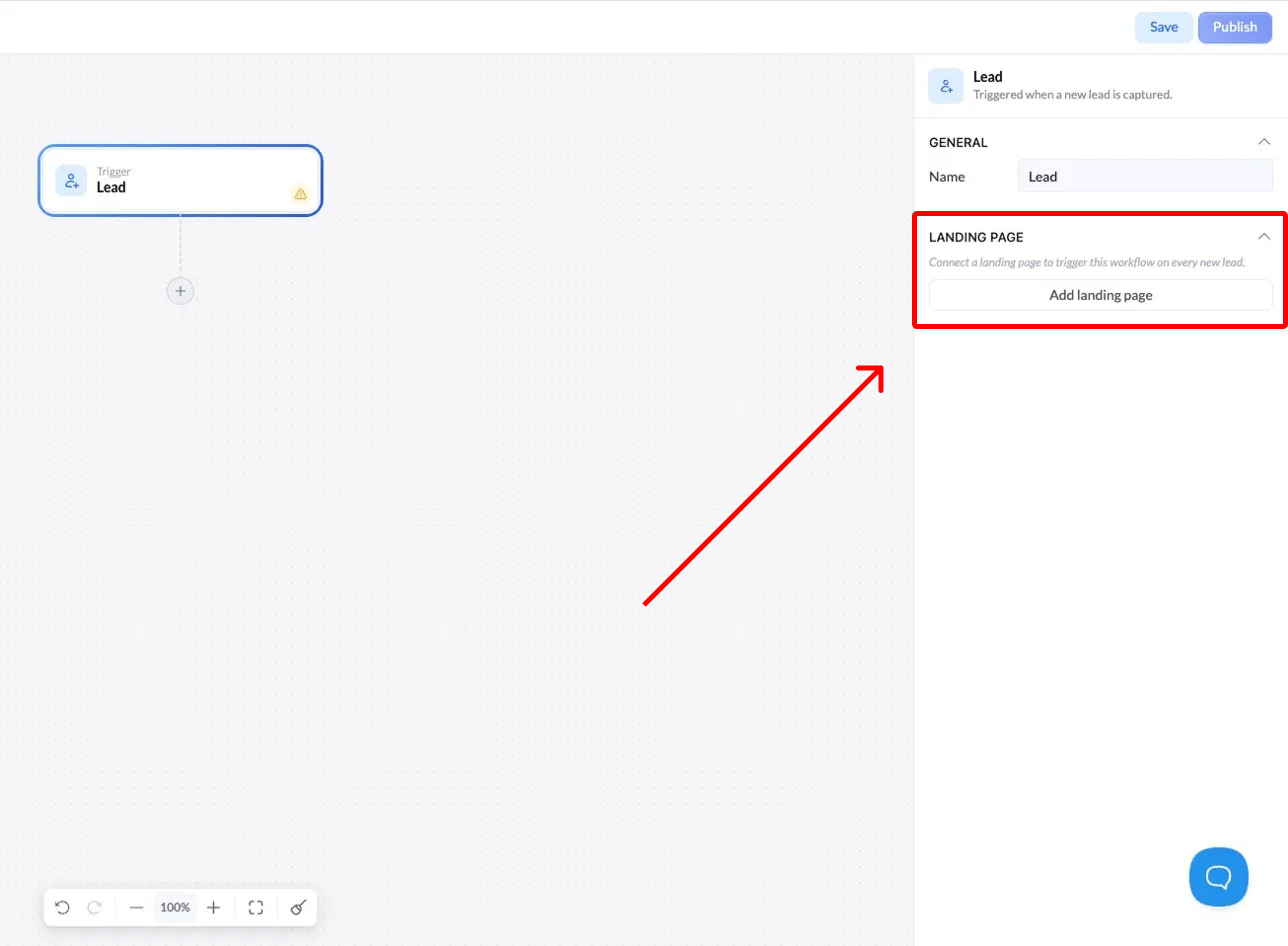
Step 3: Add a node after the trigger
Click the + below the Lead node to add the next step. You will see two groups:- Internal nodes for routing logic: Filter, If, Switch, Delay
- Actions for sending data out, such as HTTP Request, Google Sheets, and Klaviyo
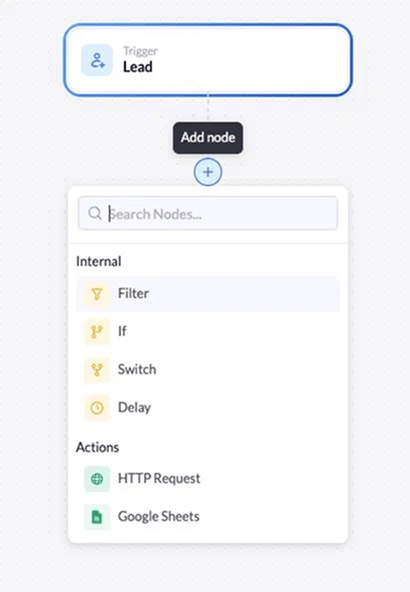
- Send every lead to Klaviyo: add the Klaviyo action directly.
- Send only some leads: add a Filter node first to qualify leads, then add the Klaviyo action after it.
Step 4: Configure the Klaviyo action
Add the Klaviyo action and click it to open its settings in the right panel.1
Name the node
Under General, set a Name to identify this step on the canvas.
2
Select your account
Under Account, choose your connected Klaviyo account.
3
Choose a list
Under List, select the Klaviyo list where leads should be added.
4
Map your fields
Under Field Mapping, check the LanderLab fields you want to send and choose the matching Klaviyo field for each one. Default fields include LL Lander URL, LL Visitor IP, LL Visitor User Agent, LL Submission Time, and LL Variant ID. Any custom form fields appear here too.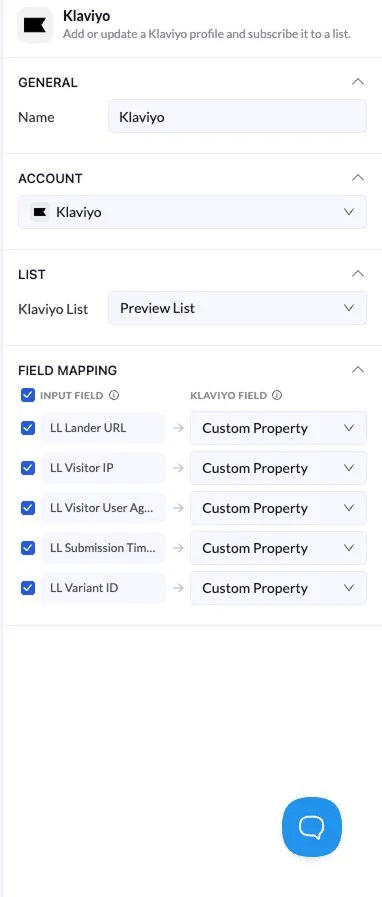
Map the email field so each lead becomes a usable Klaviyo profile. Without it, leads cannot be matched to subscribers.
Step 5: Save and publish
Click Save to store your changes, then click Publish to make the workflow live. Once published, every new lead from your connected landing page is sent to your Klaviyo list in real time.Troubleshooting
The workflow is not running
The workflow is not running
Confirm a landing page is connected in the Lead trigger settings and that the workflow status is Published, not Draft.
Leads are not reaching Klaviyo
Leads are not reaching Klaviyo
Open the Klaviyo action and check that the correct account and list are selected and that at least one field is mapped, including the email field.
Only some leads are being sent
Only some leads are being sent
This is expected when a Filter node sits before the Klaviyo action. Review the filter conditions to confirm which leads pass through.