

Important Requirement
This works only if A/B testing is enabled and you have more than one variant active. If your landing page has only one variant, thevariantId parameter will not be relevant.
How It Works
LanderLab automatically appends thevariantId as a URL parameter.
You just need to make sure your tracking setup (ClickFlare, Voluum, RedTrack, etc.) is configured to capture it.
Step-by-Step Setup
1. Open Your Traffic Source in ClickFlare
- Go to your Traffic Source settings
- Locate the Parameters section
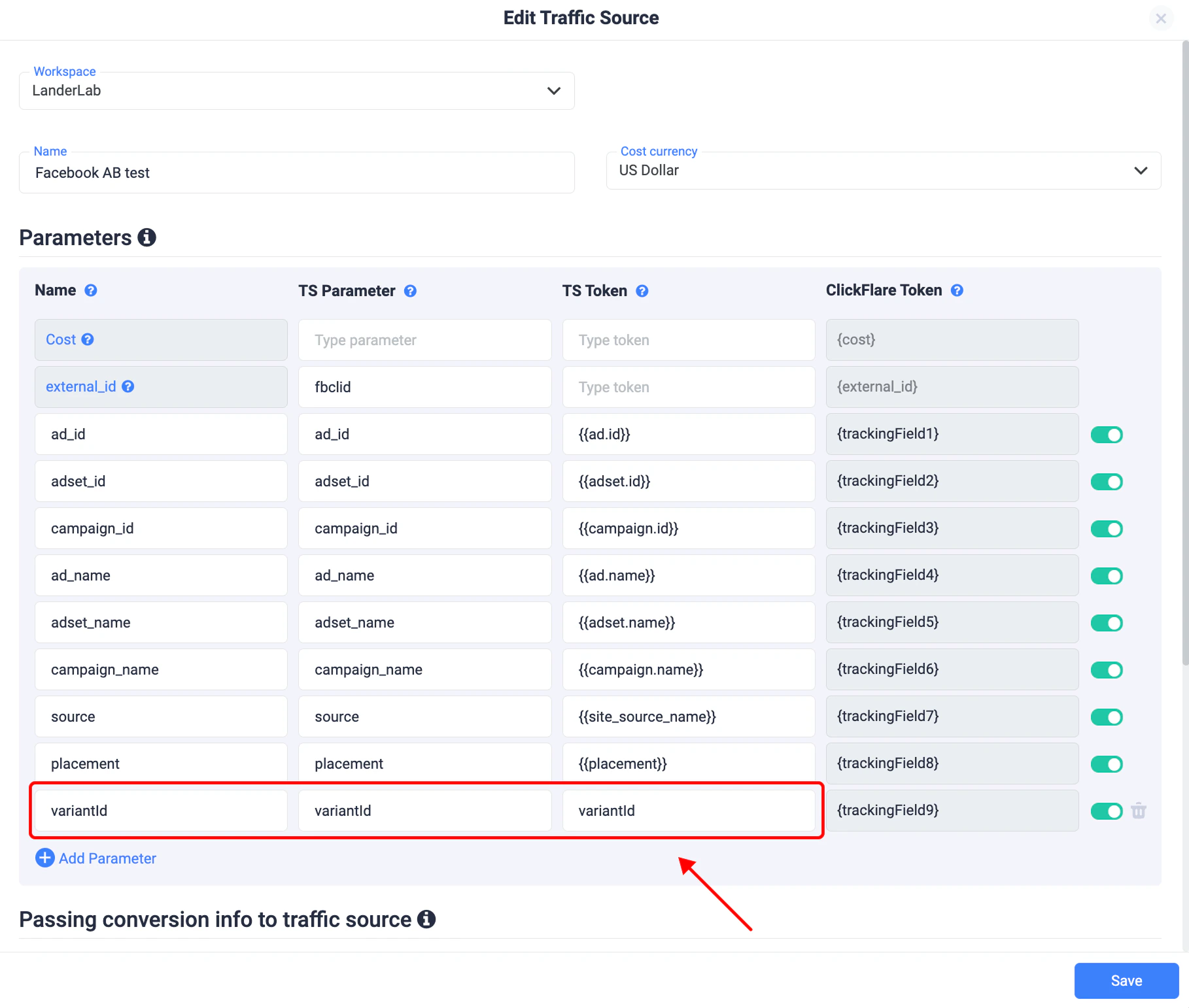
2. Add a New Parameter
Create a new parameter with:- Name:
variantId - TS Parameter:
variantId - TS Token:
variantId(or your platform equivalent)
3. Save Your Settings
- Click Save
- Your traffic source is now ready to receive variant data
What Happens Next
When traffic hits your LanderLab page:- The active variant (A, B, etc.) is automatically added to the URL
- ClickFlare captures it as
variantId - You can analyze performance by variant inside your tracker
Why This Is Useful
- Track conversions by variant
- Optimize campaigns based on real performance data
- Connect downstream events (calls, leads, sales) to specific variants
Important Notes
- No manual setup is needed inside LanderLab - the parameter is passed automatically
- You only need to configure your tracking platform to read it
- Works with any tracker that supports URL parameters