

Your landing page must already have the Meta Pixel base code installed before following this guide. If you have not done that yet, see Set Up Meta Pixel Integration first.
How It Works
LanderLab fires a custom browser event calledll-quiz-submit every time a visitor submits the quiz. The code you will add in this guide listens for that event and tells Meta Pixel to track it as a Lead.
The snippet also includes a guard (typeof fbq === "function") to prevent errors if the Pixel base code has not loaded yet.
Setup
1
Open your quiz in LanderLab
Go to Landing Pages and click the name of the landing page that contains your quiz.Click Edit to open the quiz builder.
2
Open the JS Code tab
Inside the quiz builder, find and click JS Code.If there is any existing code in this field, delete it before pasting the new snippet. Having multiple listeners for the same event is the most common cause of the Lead firing twice.
3
Paste the Lead event snippet
Copy and paste the following code into the JS Code field: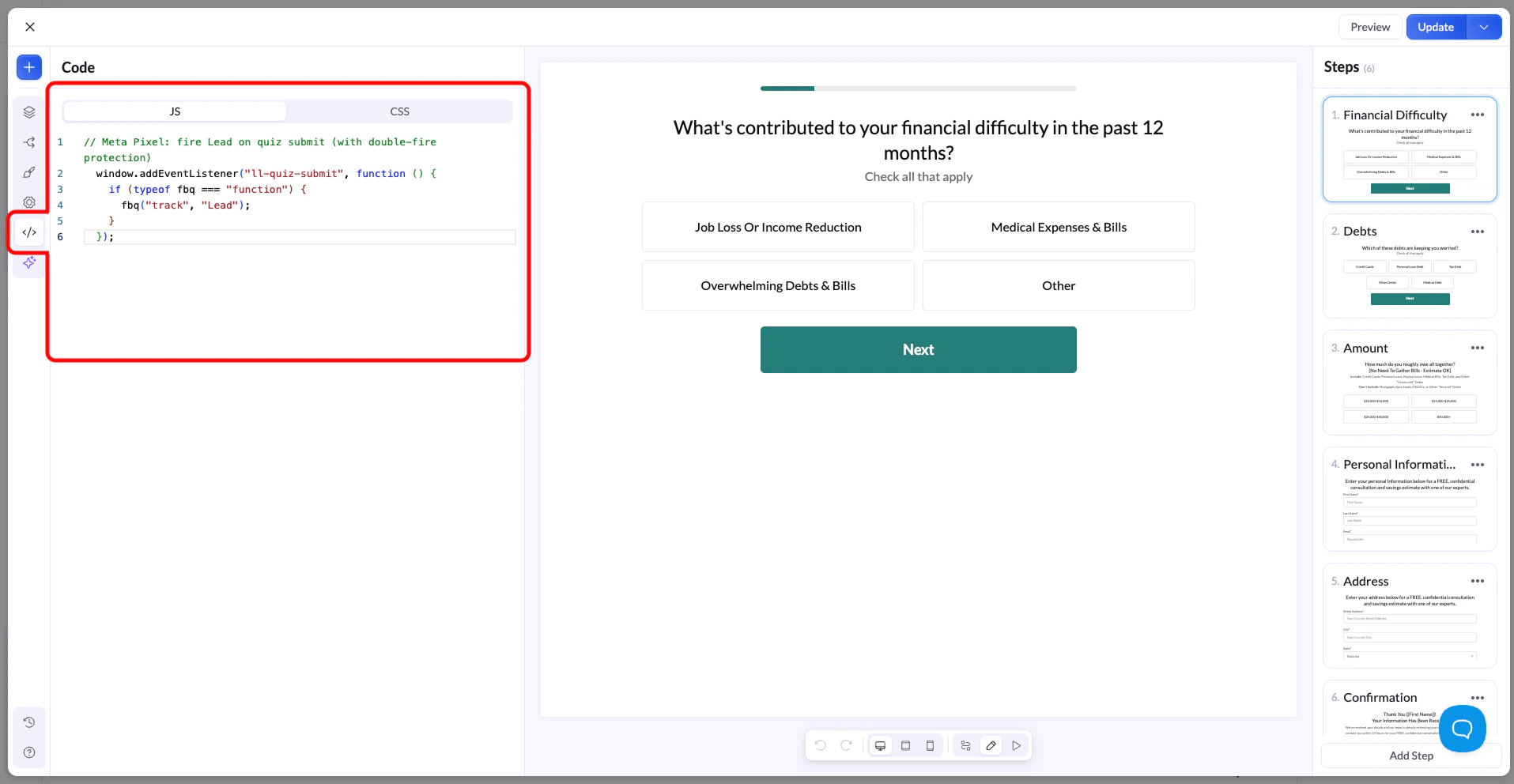
4
Save and publish
Click Update in the top right corner to save your changes.Click Preview and complete the quiz yourself to test before going live. Once you have confirmed it is working, publish your page or funnel as usual.
Verify the Lead Event Is Firing
Choose one of the following methods to confirm Meta Pixel is receiving the Lead event.Option A: Meta Pixel Helper (recommended)
Option A: Meta Pixel Helper (recommended)
- Install the Meta Pixel Helper Chrome extension.
- Open your quiz page in the browser.
- Complete the quiz and submit it.
- Click the Pixel Helper extension icon and confirm a Lead event appears in the list.
Option B: Meta Events Manager
Option B: Meta Events Manager
- Go to Meta Events Manager and select your Pixel.
- Click Test Events.
- Open your quiz page using the test link provided by Meta.
- Submit the quiz.
- Watch the Test Events panel for a Lead event. It may take a few seconds to appear.
Troubleshooting
Lead event is not firing
Lead event is not firing
Check the following:
- Meta Pixel base code is not installed. The
fbqfunction must exist on the page before the snippet can call it. Complete the Meta Pixel setup if you have not already. - Script tags were included. The JS Code field does not accept HTML. Remove any
<script>or</script>tags from the snippet. - Code is in the wrong place. Make sure the snippet is in the quiz builder’s JS Code tab, not in a page header or global script area.
Lead event is firing twice
Lead event is firing twice
This happens when the same listener is registered more than once. Check that the Lead snippet only exists in one place. Common sources of duplication:
- The snippet is in both the quiz JS Code tab and the page header.
- The same snippet was pasted twice inside the JS Code field.
- A global script area on the page also contains the same listener.