Where to Find It
- Select an element (section, container, button, etc.)
- Go to the right panel
- Open the Background section

Background Types
Different elements support different background options.None (X)
- Removes any background
- The element becomes transparent

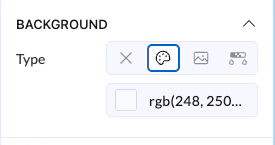
Color
- Apply a solid color
- You can use:
- Color picker
- RGB values
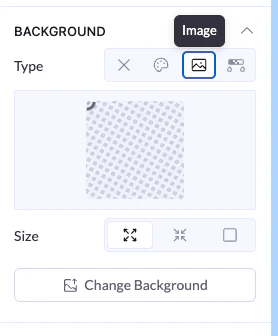
Image
- Set an image as the background
- Available mainly for larger elements like sections or containers
- Upload or change image
- Adjust size (fit, cover, etc.)
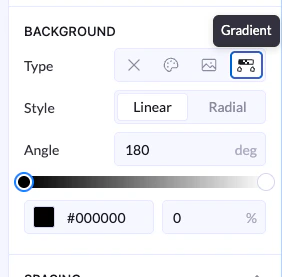
Gradient
- Create a smooth transition between colors
- Linear or Radial style
- Angle control
- Multiple color stops