

Where to Find It
- Select any element (button, image, text, etc.)
- Go to the right panel
- Open the Animation section
- Click + Add or edit an existing animation
Choosing an Animation
Inside the animation panel, you’ll find a large library of animations.- You can scroll to explore all available options
- You can use the search bar to quickly find a specific animation
- Attention Seekers
- Entrances
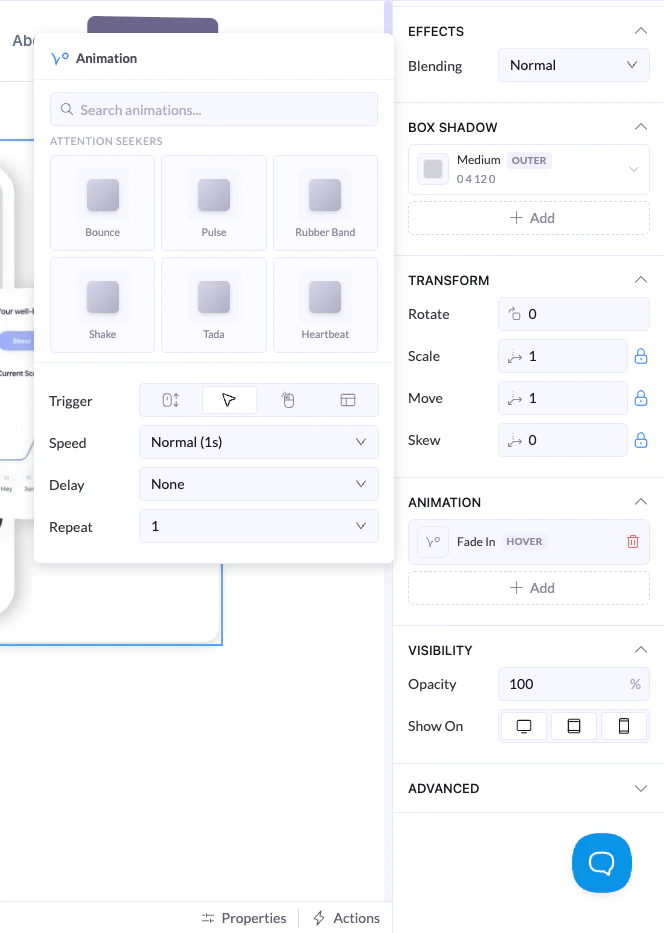
Animation Settings
Trigger
Defines when the animation happens:- On Load → plays when the element appears
- On Hover → plays when the user hovers over it
- On Click → plays when clicked
- On Viewport → plays continuously (if supported)
Speed
- Controls how fast the animation runs
Delay
- Adds a pause before the animation starts
Repeat
- Controls how many times the animation plays
Example
- Animation: Fade In
- Trigger: On Load
- Speed: Normal
- Delay: 0.3s
- Repeat: 1
Best Practices
- Keep animations subtle and purposeful
- Avoid using too many animations at once
- Use entrances to introduce elements smoothly
- Use attention animations only where needed