

How to Access Design Settings
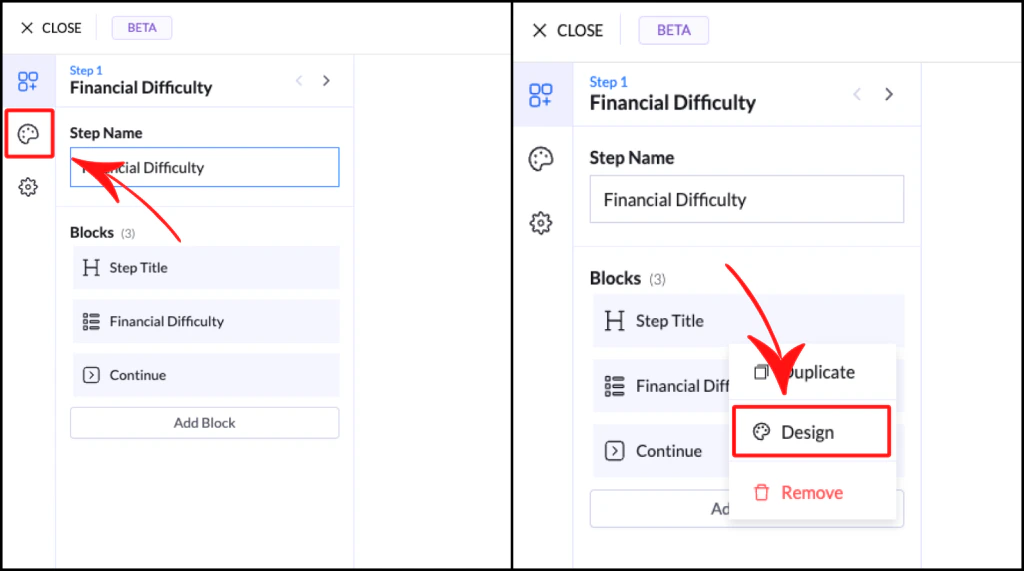
You can open Design in two ways:- Click the color palette icon in the left panel → for global styles
- Click the three dots (•••) on any block and select Design → for direct access
How Design Works
Design settings are shared across your flow using an inheritance system:- Changing styles updates all similar blocks automatically
- Ensures consistency across your entire flow
- Saves time by avoiding repetitive edits
Colors
The Colors panel defines your flow’s visual identity.Main Colors
- Primary Color → Used for buttons, selections, and key actions
- Secondary Color → Used for accents and highlights
Neutral Colors
- Black, white, and gray tones
- Used for text, backgrounds, and structure
Error Color
- Automatically applied to validation errors and invalid inputs
Fonts
Your flow automatically inherits fonts from the landing page it’s placed on.- No need to configure fonts inside the flow
- Keeps everything visually consistent
Presets
Presets are pre-designed styles you can apply instantly to blocks. Instead of building styles from scratch, you can:- Apply a preset
- Adjust it if needed
Example
Applying a preset to a Multiple Choice block will automatically set:- Colors
- Spacing
- Button styles
- Updating one block style updates all similar blocks
Why Use Presets
- Faster setup
- Consistent design
- No design experience needed
Best Practices
- Set colors before building your flow
- Keep styles consistent across all steps
- Avoid over-customizing every block
- Use presets to save time