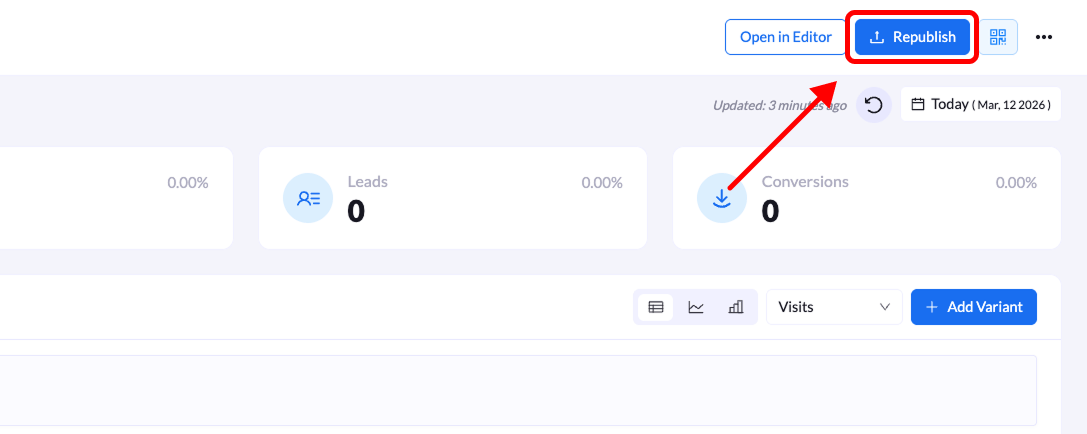
Republishing updates the live version of your landing page with the latest changes you saved in the editor. This replaces the current live version with the updated one.
Step-by-Step Guide
1. Open the landing page overview
From the Landing Pages list, click the title of the page you want to update.
2. Click “Republish”
On the top-right corner of the overview screen, click the Republish button.
If there are unpublished changes, you may see a message indicating “Unpublished changes.”
3. Review the domain and path
A Republish Your Landing Page modal will appear.
The domain and path fields will be pre-filled with the current live URL settings.
Review the settings and update the URL path if needed.
4. Confirm republishing
Click Republish Landing Page to finalize the update.
A confirmation message will appear, and your updated landing page will go live immediately.
Tip: Republishing is required whenever you make changes in the editor and want those updates to appear on the live version of your landing page.