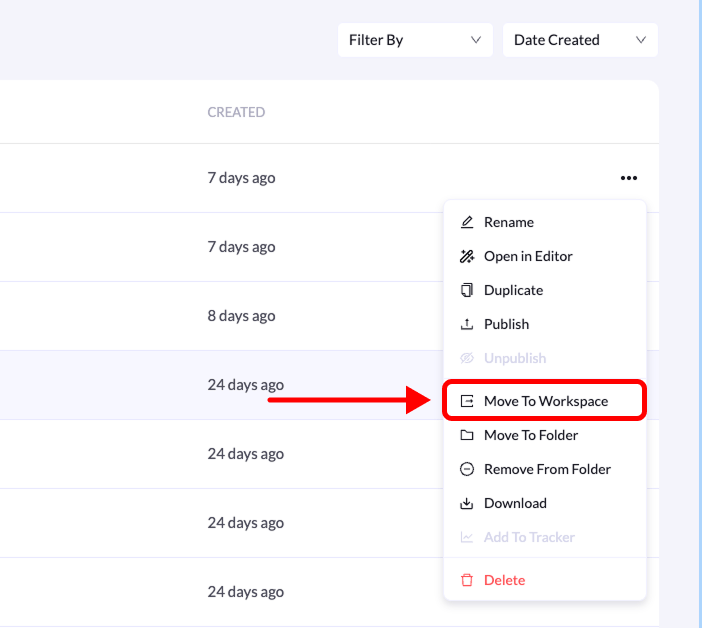
You can move landing pages between different workspaces within your LanderLab organization. This helps keep projects organized and ensures the right teams have access to the pages they need.
Step-by-Step Guide
Follow the steps below to move a landing page to another workspace.
1. Go to Landing Pages
From your LanderLab dashboard, navigate to the Landing Pages section.
2. Find the landing page
Locate the landing page you want to move.
Click the three-dot menu (•••) on the right side of the landing page.
4. Select “Move To Workspace”
From the dropdown menu, click Move To Workspace.
5. Choose the destination workspace
In the modal window that appears, select the workspace where you want to move the landing page.
6. Confirm the action
Click Move Landing Page to complete the process.
After confirming, you will see a success message. The landing page will be removed from the current workspace and will appear in the destination workspace’s landing pages list.
Tip: You must have access to both workspaces in order to move landing pages between them.