The General Page Settings allow you to configure important metadata and visual elements for your landing page. These settings help control how your page appears in the browser and how it is interpreted by browsers and search engines.
In this section, you can configure the following:
| Setting | Description |
|---|
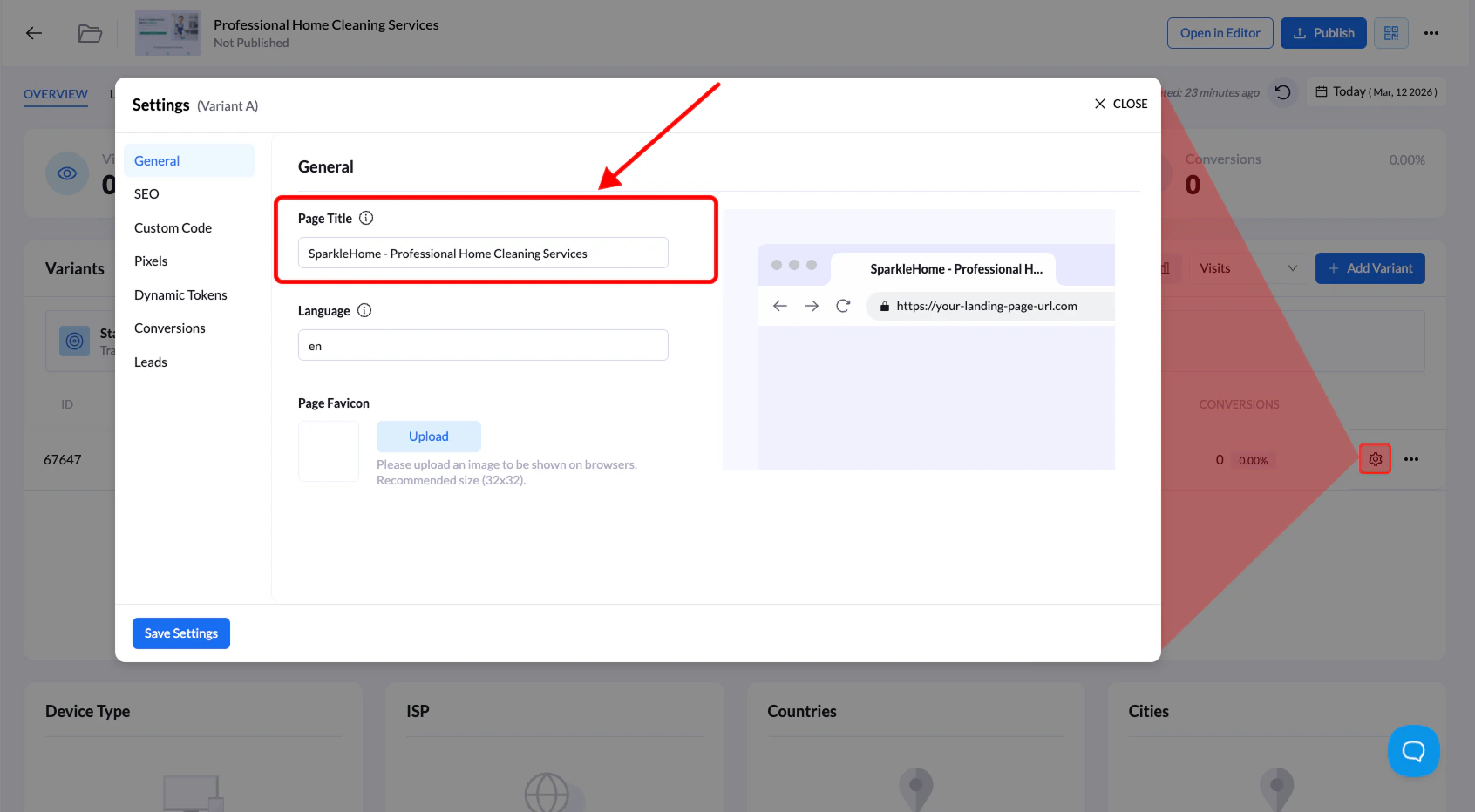
| Page Title | The title displayed in the browser tab. It helps users identify your page when multiple tabs are open. |
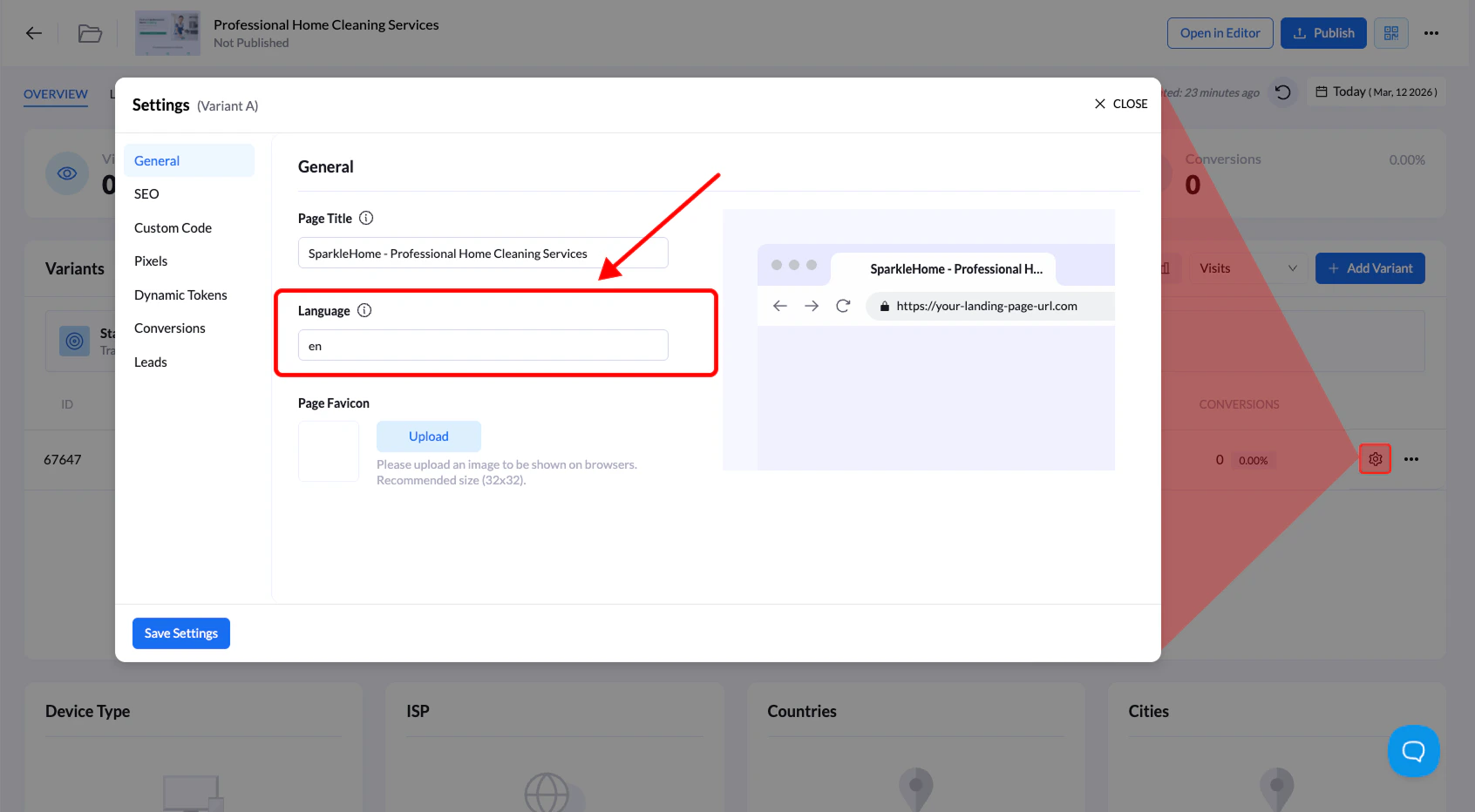
| Page Language | Language metadata that tells browsers and search engines what language your landing page is written in. |
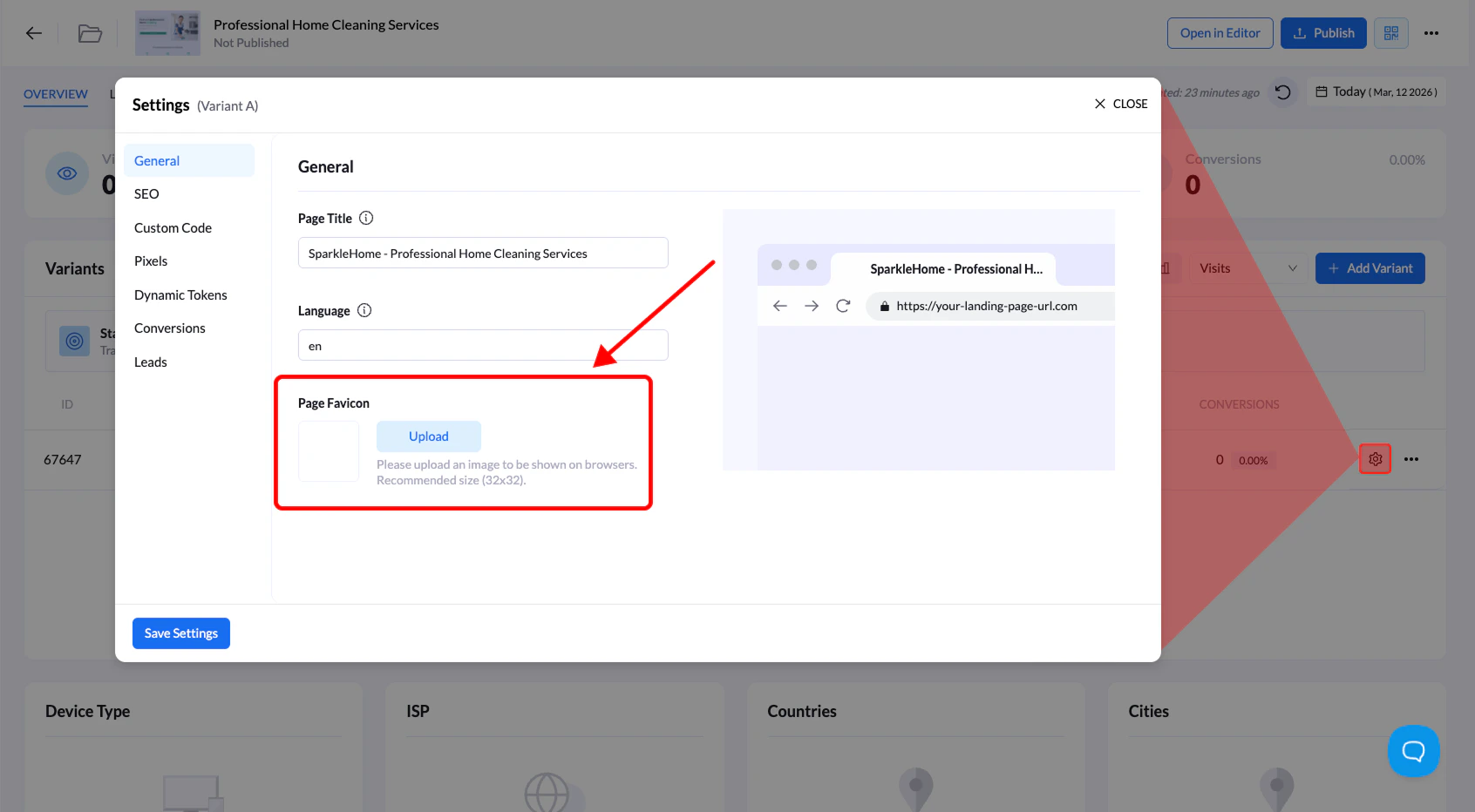
| Favicon | A small icon representing your page or brand that appears in browser tabs. |
Set the Landing Page Title
Follow these steps to update the title of your landing page.
1. Go to Landing Pages
From the Landing Pages section of your dashboard, locate the landing page you want to edit.
2. Open the landing page
Click on the name of the landing page.
3. Open the Settings panel
Click the Settings gear to access the landing page settings.
4. Enter the page title
In the Page Title field under General, enter your desired title.
5. Save your changes
Click Save Changes to apply the update.
Set the Landing Page Language
The page language helps browsers and search engines understand the primary language of your landing page.
Before you begin:
The language field uses ISO 639-1 language codes (for example: en for English, es for Spanish).
Steps
- Go to Landing Pages
- Click the name of the landing page
- Open Settings
- Enter the language code in the Language field under General Page Settings
- Click Save Changes
Set the Landing Page Favicon
A favicon is the small icon displayed next to your page title in browser tabs. It helps users quickly recognize your page.
⚠️ Before you begin:
For best results, your favicon should:
- Use a square aspect ratio (1:1)
- Be 32×32 or 64×64 pixels
- Use PNG or ICO file format
Before you begin:For best results, your favicon should:
- Use a square aspect ratio (1:1)
- Be 32×32 pixels
- Use PNG
Steps
- Go to Landing Pages
- Click the name of the landing page
- Open Settings
- Click Upload and select the favicon from your computer
- Click Save Changes
Your favicon will now appear in the browser tab when the page is published.