

View Landing Page Leads
Follow the steps below to view leads collected from a specific landing page.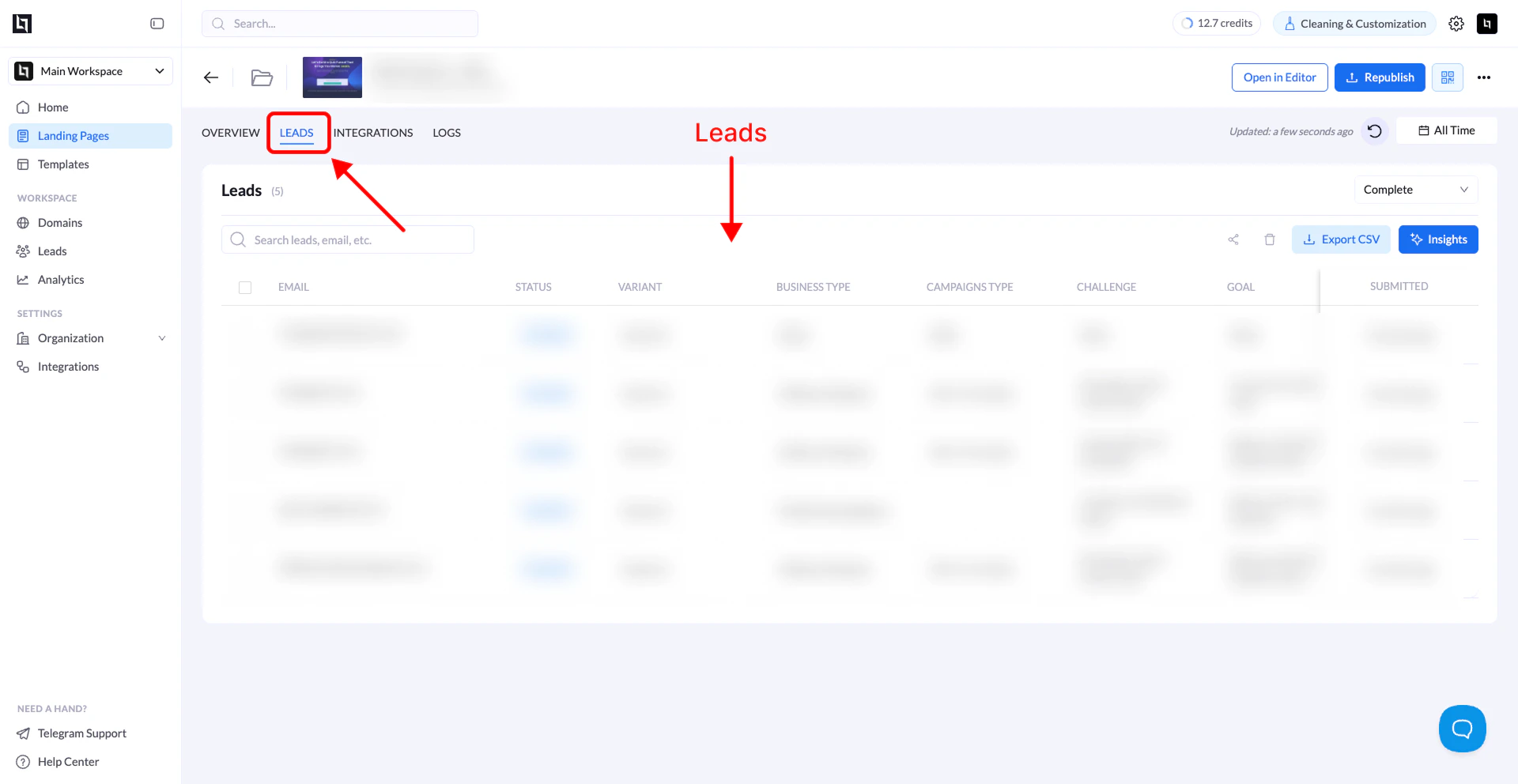
1. Go to Landing Pages
Open the Landing Pages section from your dashboard.2. Select the landing page
Locate the landing page that collects leads and click its name.3. Open the Leads tab
Click the Leads tab. You will now see a table containing all leads collected from that landing page.Filter leads
Inside the leads reporting page, you can filter results by:- Lead opt-in date
- Landing page variant
Export Landing Page Leads
You can export your leads for use in CRM systems, email marketing platforms, or further analysis.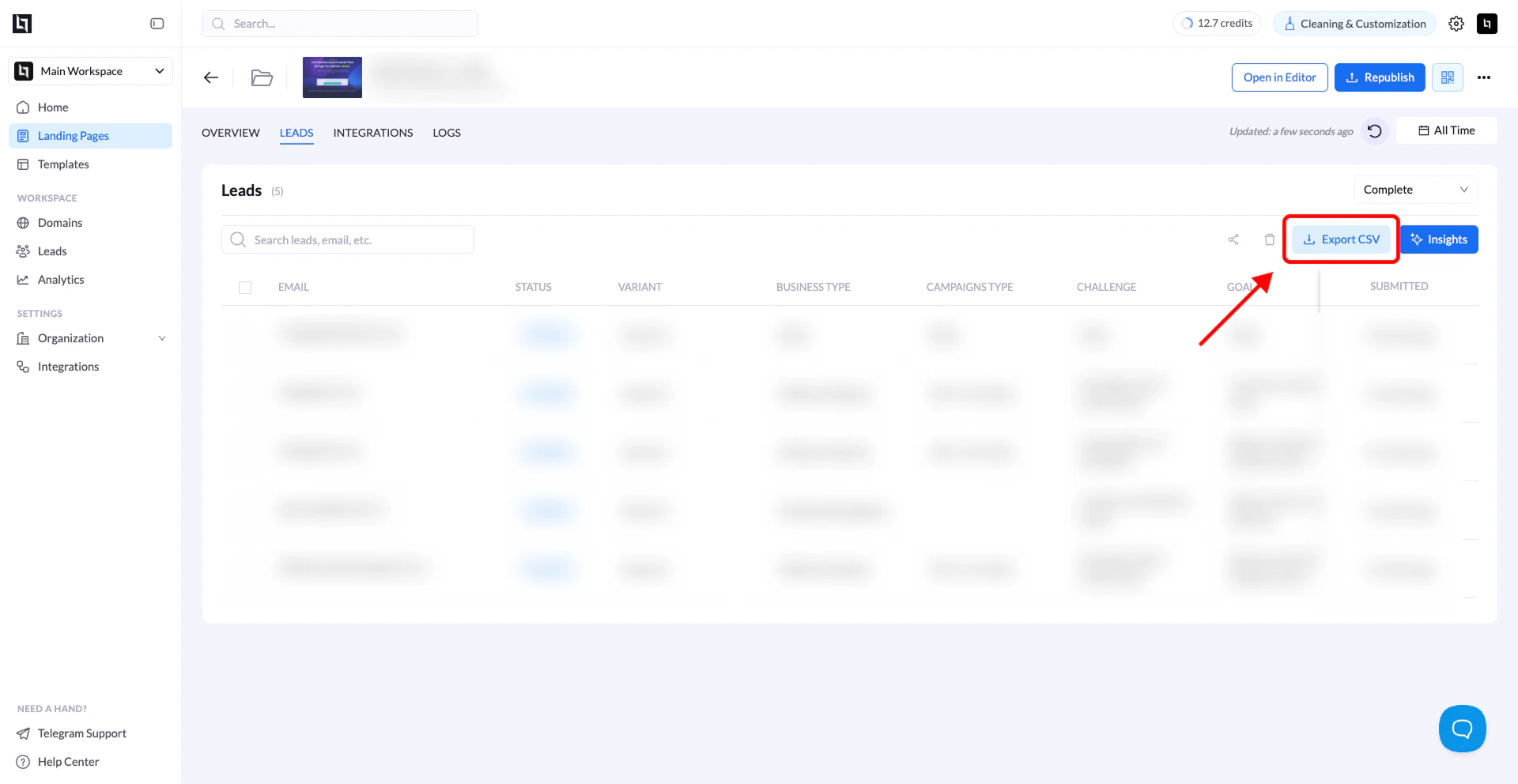
Steps
- Go to Landing Pages
- Click the name of the landing page collecting leads
- Open the Leads tab
- Select the variant (optional)
- Choose a date range
- Click Export
Delete a Lead
If needed, you can remove individual leads from your records.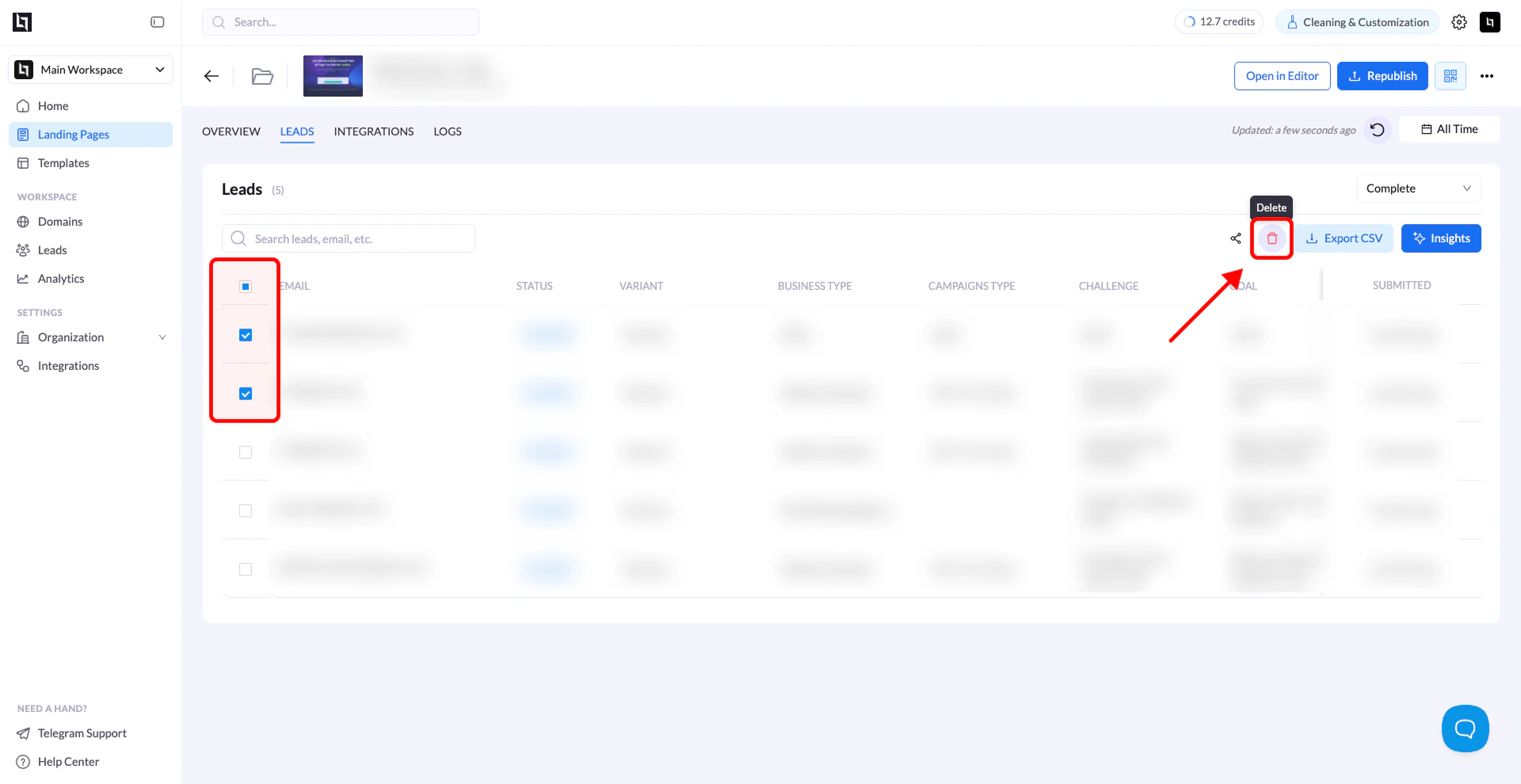
Steps
- Go to Landing Pages
- Click the name of the landing page
- Open the Leads tab
- Select the lead(s) you want to remove
- Click the Delete button in the top-right corner of the leads table
- Confirm the deletion
Important:
Deleting a lead is permanent and cannot be undone.
Deleting a lead is permanent and cannot be undone.