

How It Works
You can define different paths in your flow based on user choices. For example:- If a user selects Yes, send them to a qualified step
- If a user selects No, send them to a different step
Where to Use It
Conditional Navigation is available only on:- Multiple Choice blocks
- Image Choice blocks
How to Add Conditional Navigation
1. Add a Choice Block
- Add a Multiple Choice or Image Choice block
- Create your answer options
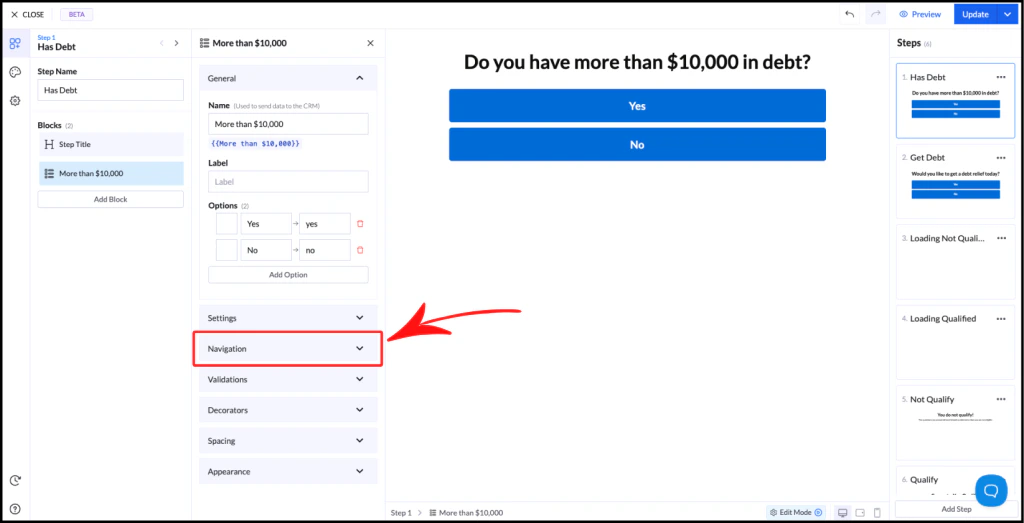
2. Open Navigation Settings
- Select the block
- Scroll to the Navigation section
- Click to open it
Navigation Options
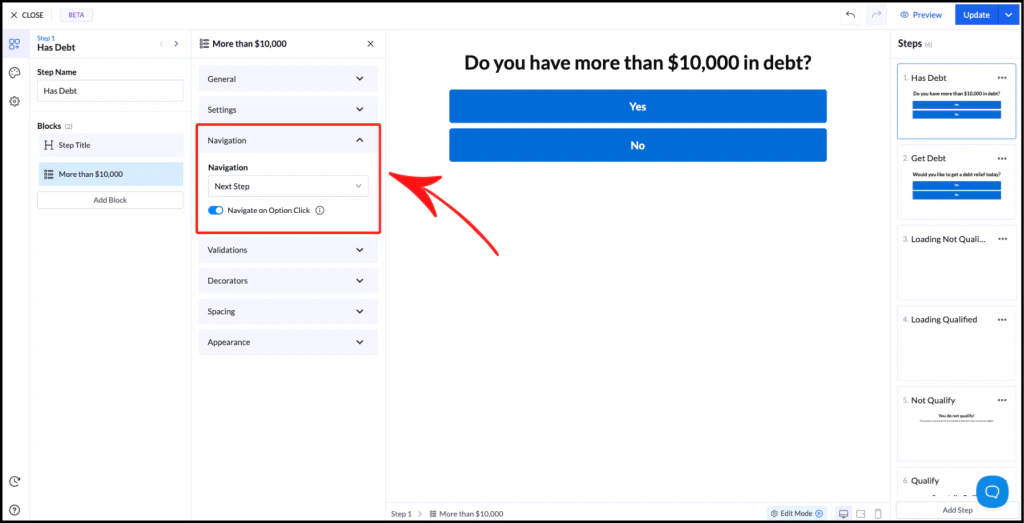
Next Step (Default)
- Sends users to the next step in the flow
- Applies to all answers equally
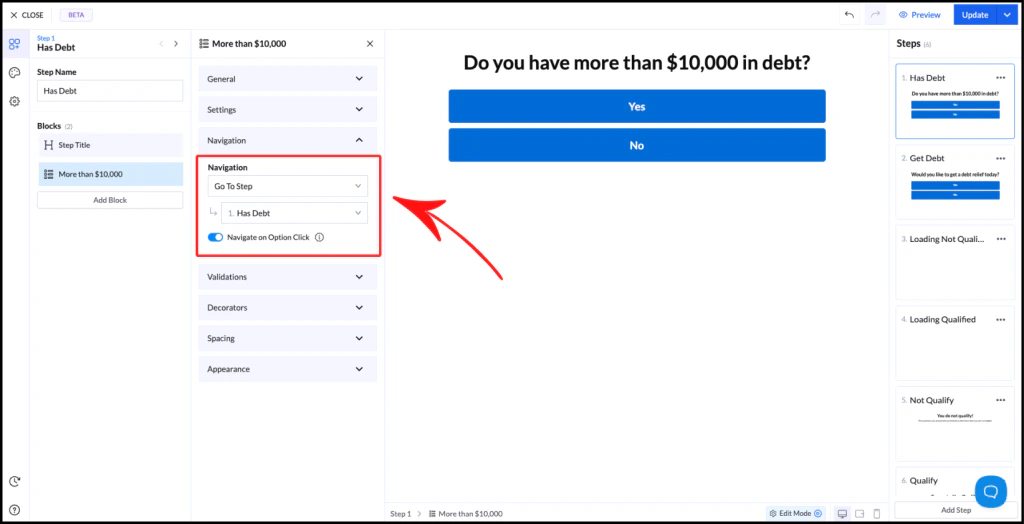
Go to Step
- Sends users to a specific step
- Ignores the default step order
Conditional Navigation
- Allows different paths for each answer
- Each option will have its own step selector
- You can define where each answer leads
- Yes → Step: Qualified
- No → Step: Not Qualified
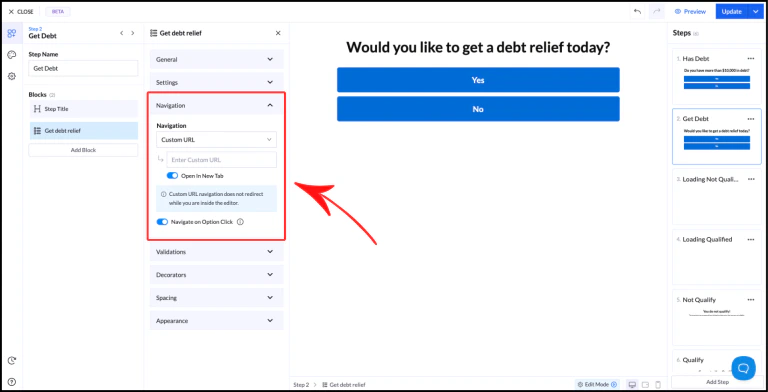
Custom URL
- Redirects users to an external page
- Applies regardless of which option is selected
- External thank-you page
- Offer page
- Different funnel
https://
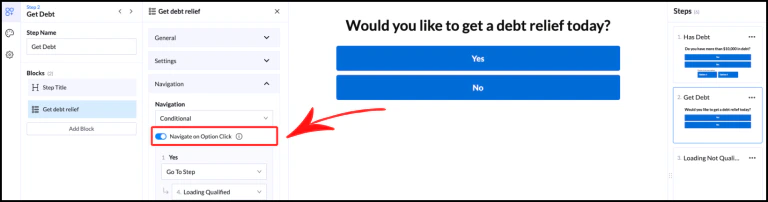
Navigate on Option Click
This setting controls how users move forward:- Enabled → Automatically continues when an option is clicked
- Disabled → Requires user to click a button to continue
Best Practices
- Keep your logic simple and easy to follow
- Use clear step names to avoid confusion
- Test all branches to ensure correct navigation