

- Visiting a specific page
- Submitting a form
- Clicking a link
- Clicking a button
Track Page Visits as Conversions
Steps
- Go to Landing Pages.
- Click the name of the landing page you want to configure.
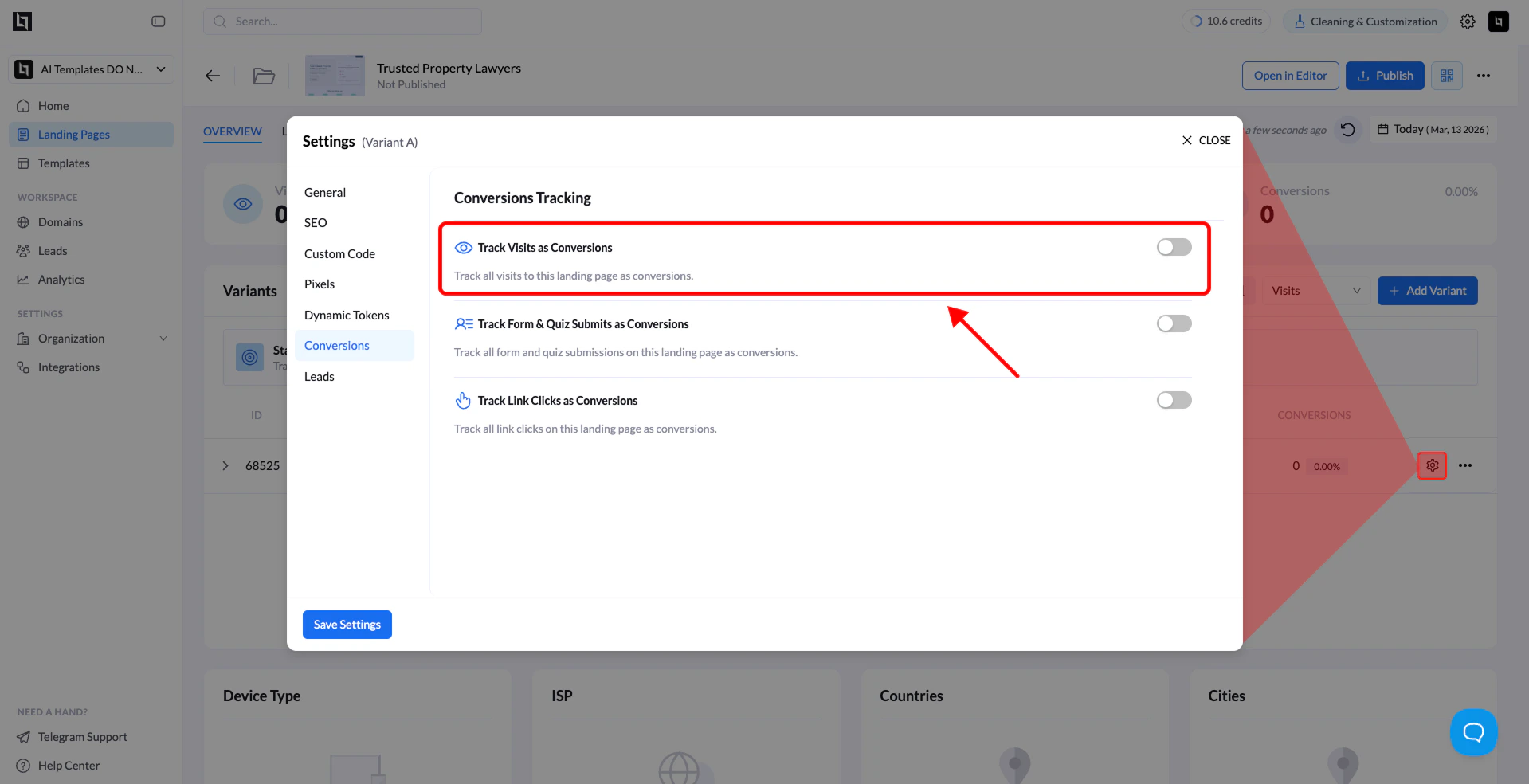
- Open Settings.
- Go to the Conversions tab.
- Enable Track Visits as Conversions.
- Click Save Settings.
Track Form Submissions as Conversions
Form submissions are one of the most common conversion events, allowing you to measure how many visitors submit their contact information.Before you begin:
This option only applies to pages that contain a form element.
This option only applies to pages that contain a form element.
Steps
- Go to Landing Pages.
- Click the landing page name.
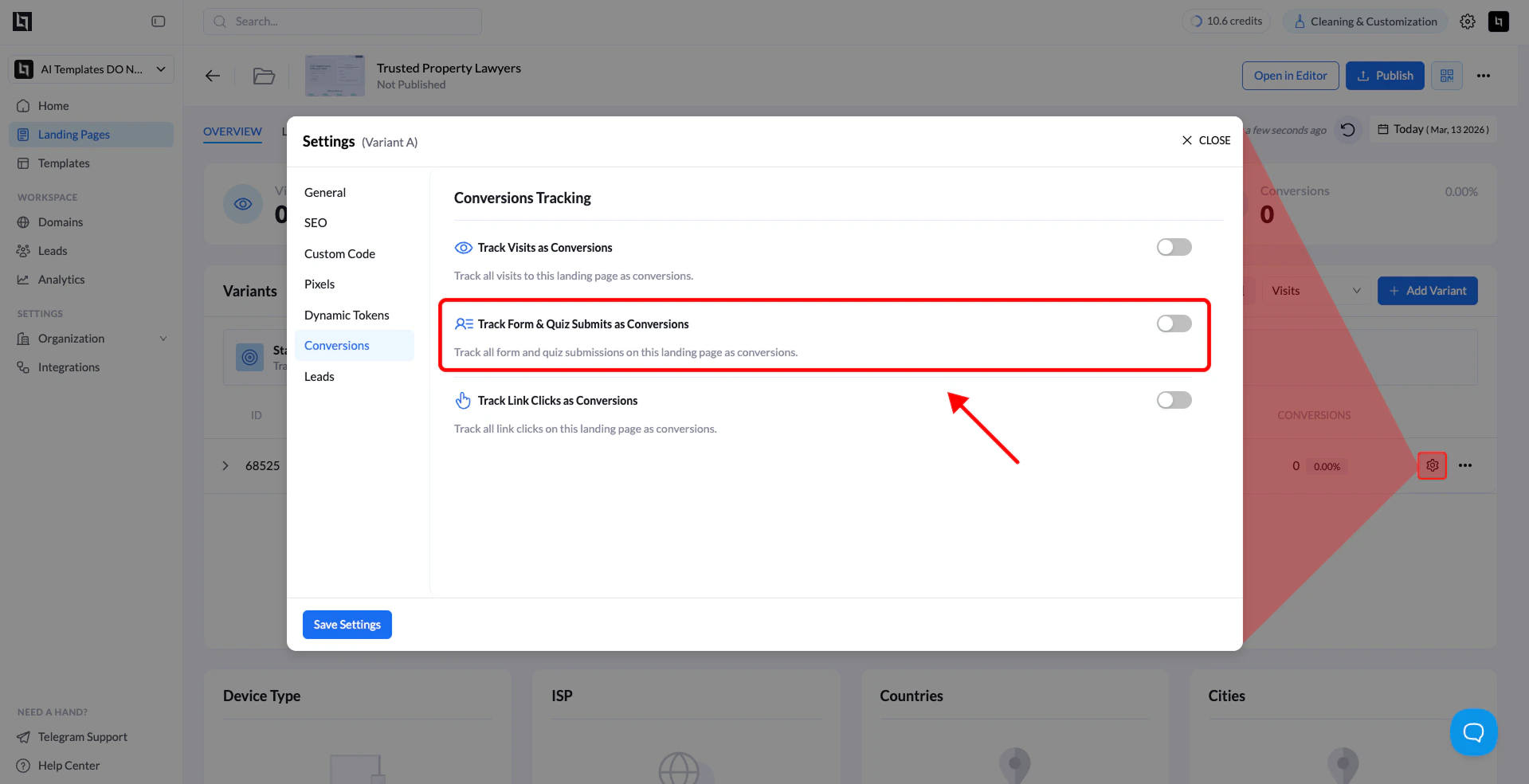
- Open Settings.
- Navigate to the Conversions tab.
- Enable Track Form Submits as Conversions.
- Click Save Settings.
Track Link Clicks as Conversions
If your landing page sends users to another part of your funnel or an external offer, you can track link clicks as pre-conversions. This helps measure how effective your landing page is at driving user intent toward the next step.Steps
- Go to Landing Pages.
- Select the landing page you want to configure.
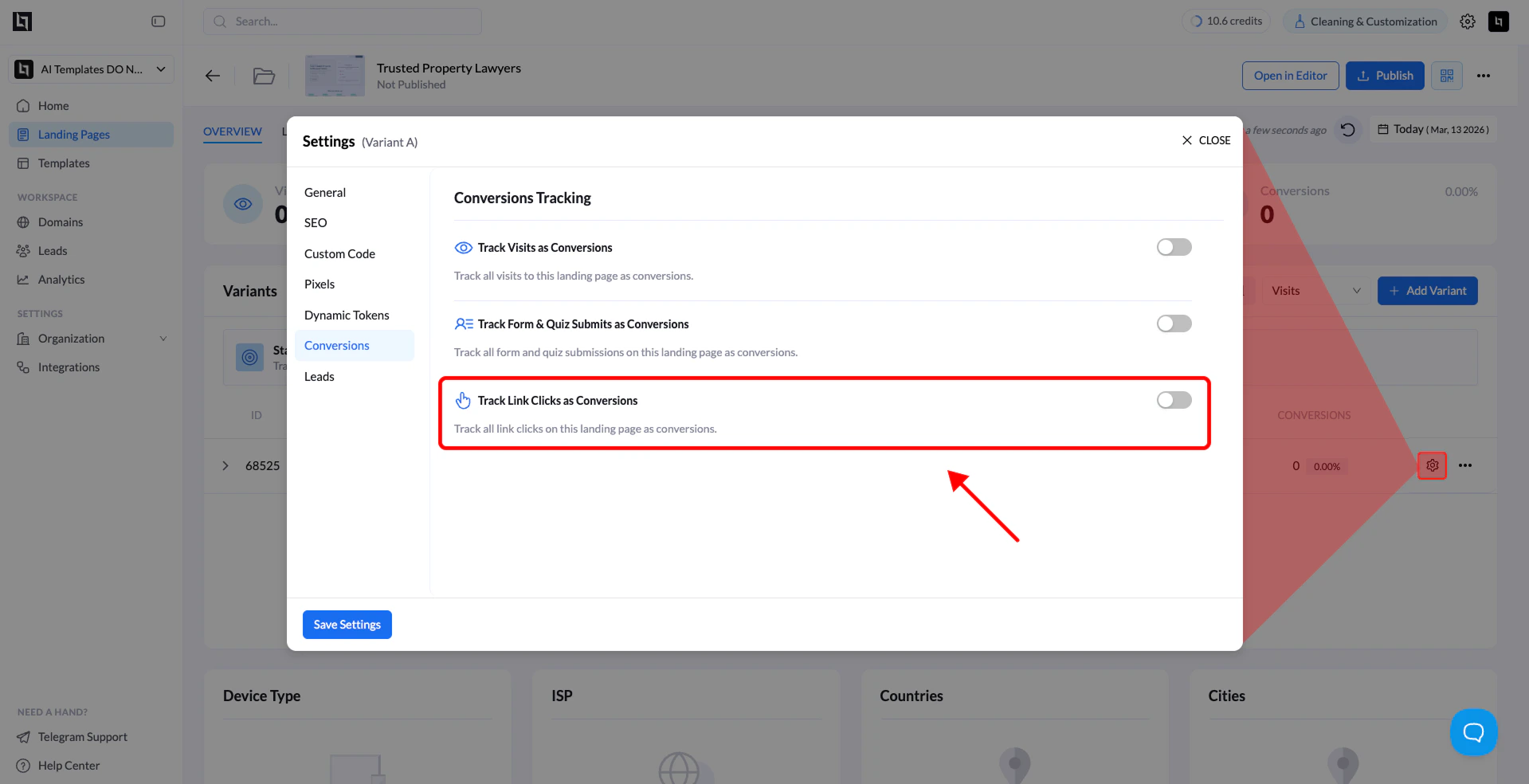
- Open Settings.
- Go to the Conversions tab.
- Enable Track Link Clicks as Conversions.
- Click Save Settings.
Track Button Clicks as Conversions
1. Open the Landing Page Editor
- Go to Landing Pages.
- Click the landing page you want to edit.
- Click Open in Editor.
2. Select the Button
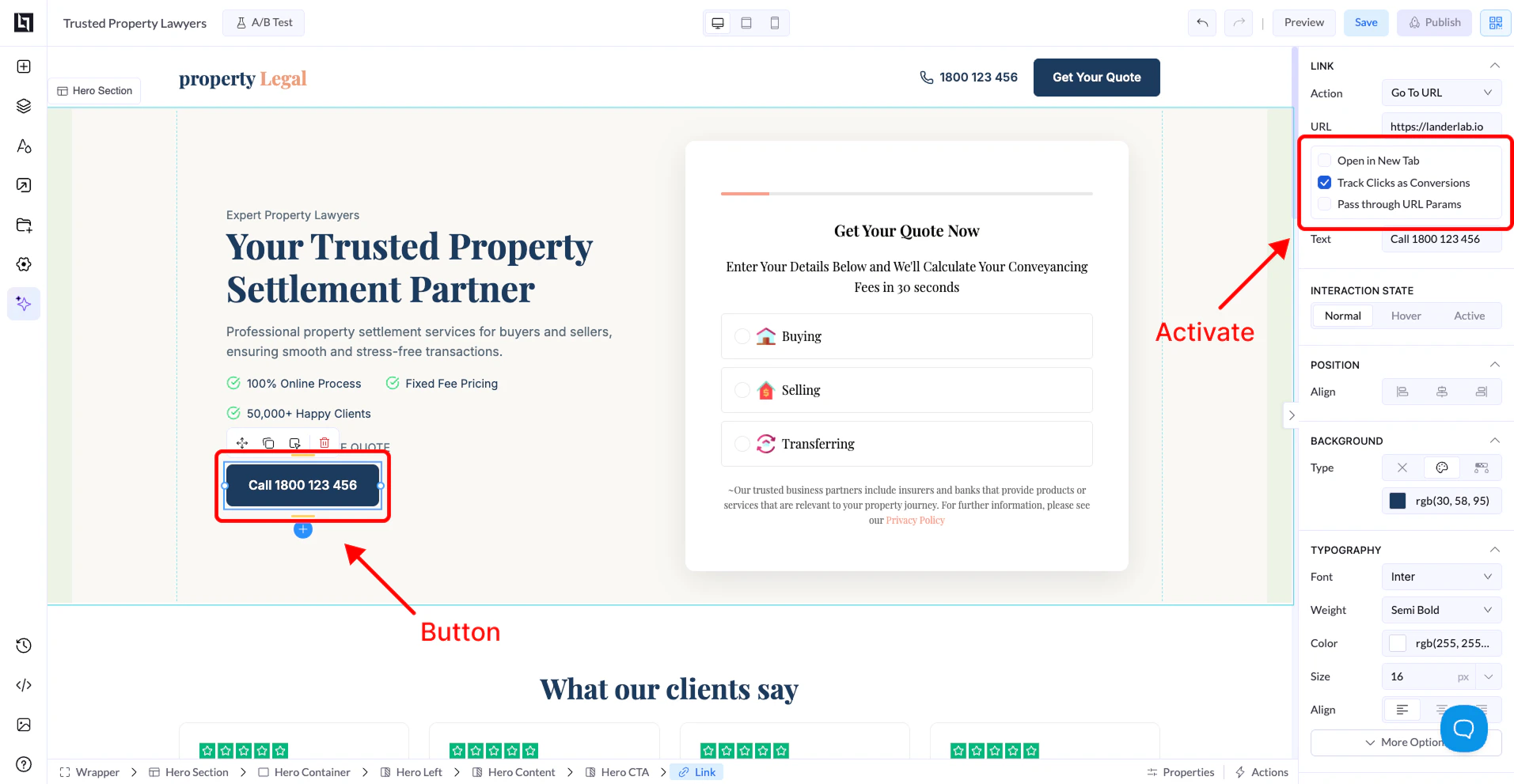
Inside the editor:- Click the button element you want to track.
- The button settings panel will appear on the right side.
3. Enable Conversion Tracking
In the Link settings section:- Locate the option Track Clicks as Conversions.
- Check the box to enable it.
4. Save and Publish
- Click Save.
- Publish or Republish your landing page.
Why Conversion Tracking Matters
Using conversion tracking allows you to:- Measure campaign performance
- Identify high-performing landing pages
- Optimize funnels and CTAs
- Improve conversion rates