

Instead of editing every button or link manually, you can redirect all traffic to a single destination instantly. This is especially useful when working with imported pages or templates.
Where to Find It
- Open your page in the editor
- Click the Actions / Quick Actions panel
- Select Replace Links
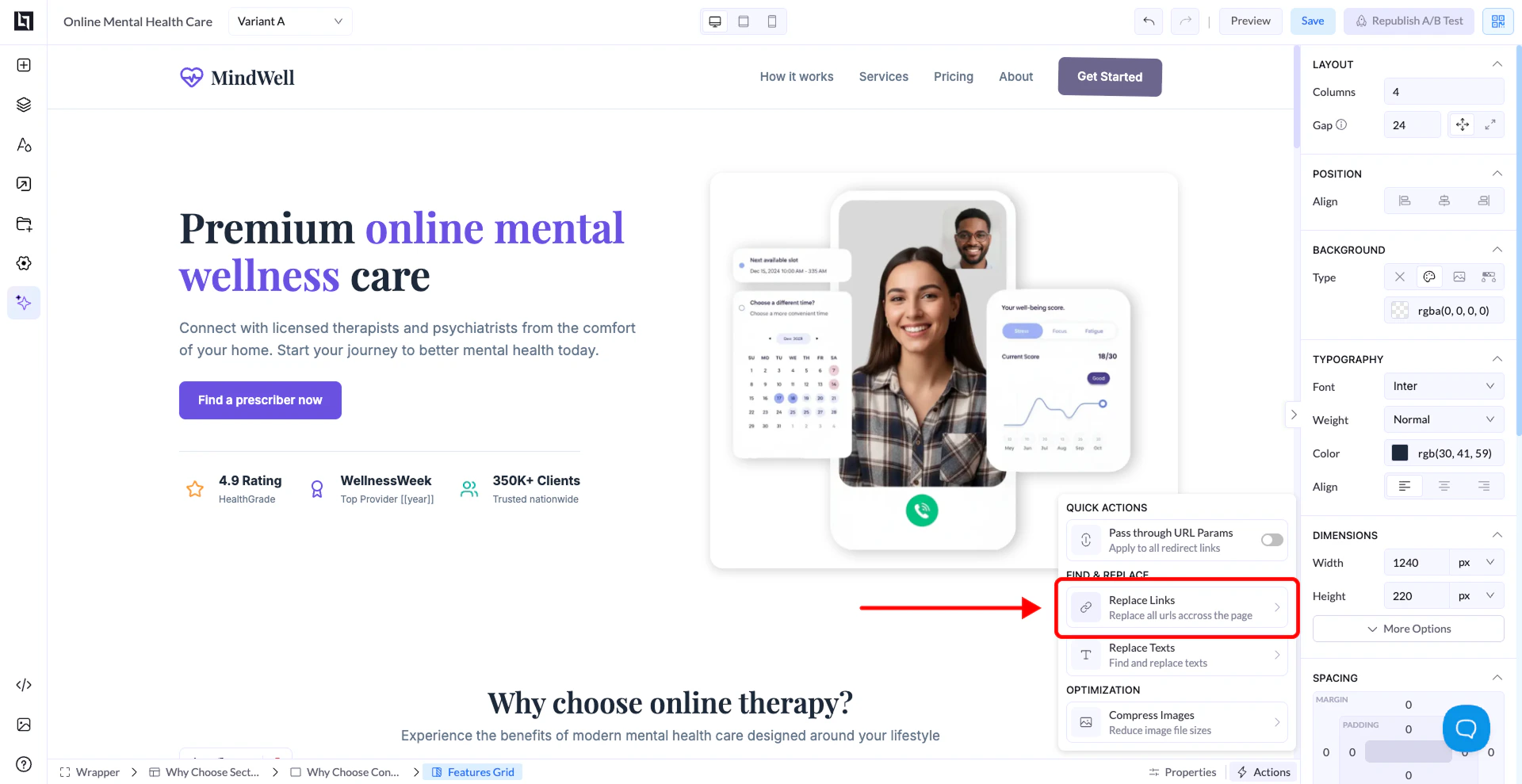
How It Works
A popup will appear where you can choose how links should be replaced.Main Option (Most Used)
Replace all outgoing links
- Replaces every link on the page with your new URL
- This includes:
- Buttons
- Text links
- Images
- Hidden links
How to Use It
- Enable Replace all outgoing links
- Enter your destination URL (offer, funnel, tracking link, etc.)
- Click Replace Links
Other Options (Advanced)
Replace only specific outgoing links
- Lets you target and replace only certain links
- Useful if you want to keep some links unchanged (e.g., social icons)
Replace only outgoing links with specific properties
- Advanced filtering based on link attributes
- Used in very specific cases
Why This Is Important
Fix Hidden Links
Imported pages often contain links in places you don’t easily see👉 This ensures no traffic goes to the wrong destination
Save Time
Instead of editing each element manually, you update everything in secondsKeep Consistency
All buttons and links will point to the same destinationExample
- URL entered:
https://your-offer.com
Best Practices
- Always use this after importing a page
- Double-check your URL before applying
- Test your page after replacing links