

This improves loading speed, performance, and overall user experience.
When to Use It
LanderLab already optimizes images by default (converting them to efficient formats like WebP). However, you should use this feature when:- You import a page via URL
- You upload a ZIP file
- Your images are not optimized (e.g., PNG, JPG with large sizes)
Where to Find It
- Open your page in the editor
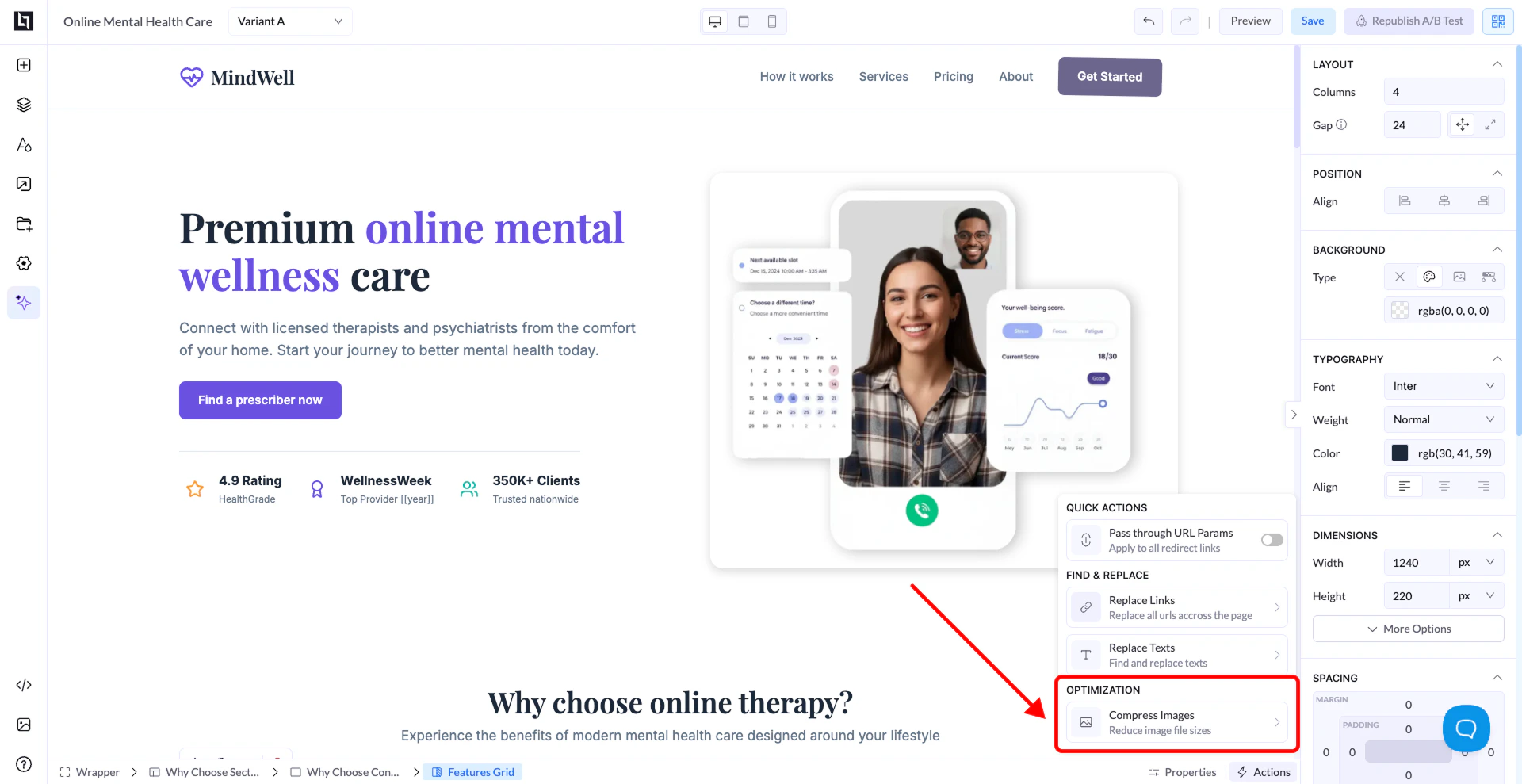
- Click the Actions / Quick Actions panel
- Go to Optimization
- Select Compress Images
Compression Options
Standard
- Strong compression
- Significantly reduces file size
- Best for performance
High Quality
- Lighter compression
- Keeps more image quality
- Slightly larger file size
How to Use It
- Choose your compression type (Standard or High Quality)
- Click Compress
- All images on the page will be optimized automatically
Important Notes
- You must save your page first before compressing
- Compression applies to all images on the page
- This action helps improve page speed and loading times
Why It Matters
- Faster pages = better conversions
- Improved mobile performance
- Better experience for users with slow connections