Connect LanderLab to Codex using MCP. Add the server in the Codex CLI, IDE extension, or desktop app, sign in once, and manage landers, leads, and analytics.
Connect LanderLab to Codex with MCP to manage landing pages, leads, analytics, and A/B tests from your terminal, editor, or desktop app. You add the LanderLab server once and sign in with your LanderLab account. No API key is required.
If Codex does not start the sign-in automatically after adding the server, run:
codex mcp login landerlab
Your browser opens a LanderLab sign-in page. Log in, review the access request, and click Authorize. Return to the terminal once it confirms the login.
1
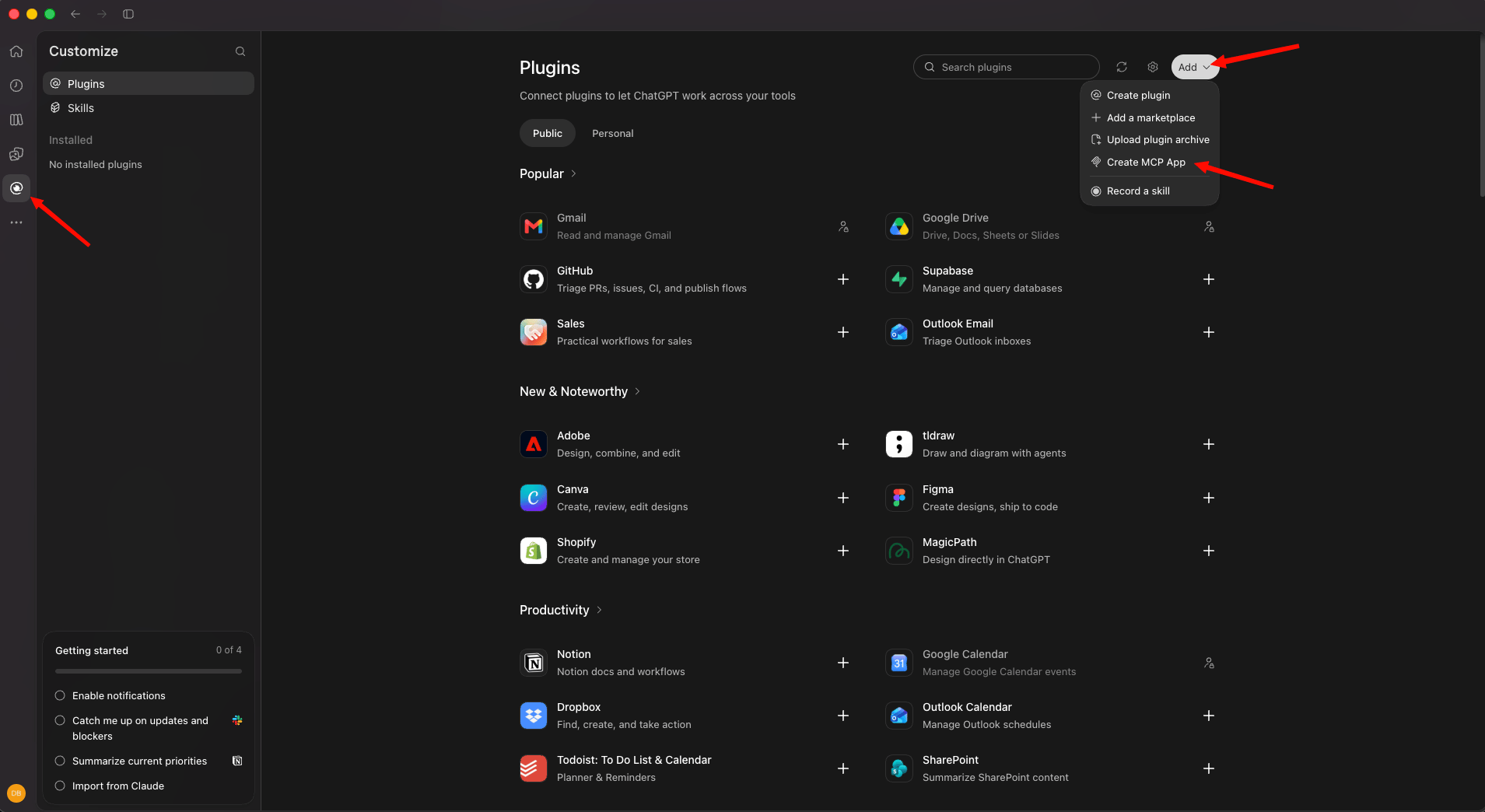
Open Plugins
In the left sidebar, click the Customize icon. The Plugins page opens.
2
Create an MCP app
Click Add in the top-right corner, then select Create MCP App.
3
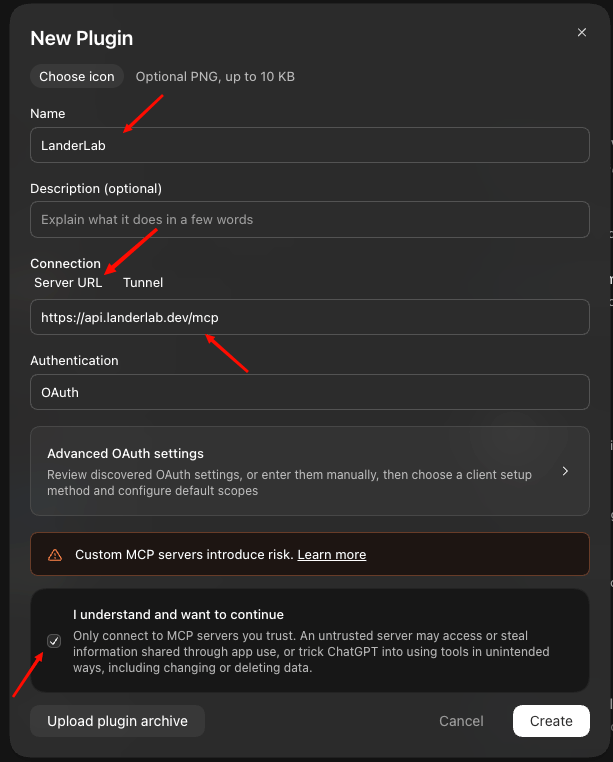
Enter the LanderLab server details
In the New Plugin window, enter LanderLab as the Name. Under Connection, keep Server URL selected and paste https://api.landerlab.dev/mcp. Leave Authentication set to OAuth. You do not need to change Advanced OAuth settings.
4
Confirm and create
Check I understand and want to continue, then click Create.
5
Sign in to LanderLab
Your browser opens a LanderLab sign-in page. Log in, review the access request, and click Authorize.
1
Open config.toml
In the Codex IDE extension, open the gear menu and select MCP settings > Open config.toml. You can also open the file directly at ~/.codex/config.toml.
In a Codex session, type /mcp. The landerlab server should appear in the list of active servers. From the terminal, you can also run codex mcp list to check its status.Then ask:
List my LanderLab workspaces
Codex calls workspaces_list and returns your results.
Your connection stays active until you revoke it. To disconnect, run codex mcp logout landerlab in your terminal, or open Settings > Connected Apps in LanderLab and revoke access there. To remove the server from Codex completely, run codex mcp remove landerlab.
“OAuth authorization endpoint origin does not match the authorization server origin without issuer-bound callbacks” - Some Codex versions stop the LanderLab sign-in before the browser opens. Connect through the mcp-remote bridge instead, which handles sign-in outside Codex. It requires Node.js. Replace the landerlab block in ~/.codex/config.toml with:
Restart Codex. The first time the server starts, your browser opens the LanderLab sign-in page.LanderLab tools not available - Check that config.toml is valid TOML and uses [mcp_servers.landerlab], not mcpServers. Restart Codex after any change.Server listed but not logged in - Run codex mcp login landerlab again. If the browser does not open, copy the URL printed in the terminal and open it manually.401 Unauthorized - Your session expired or access was revoked in LanderLab. Run codex mcp logout landerlab, then codex mcp login landerlab.Server added to a project but not loading - Codex only reads a project-level .codex/config.toml in trusted projects. Trust the project or add the server to ~/.codex/config.toml instead.Migrating from the API key setup - Remove the http_headers, env_http_headers, or bearer_token_env_var line and the old url value from the landerlab block, then follow the steps above.