

How to Save a Component
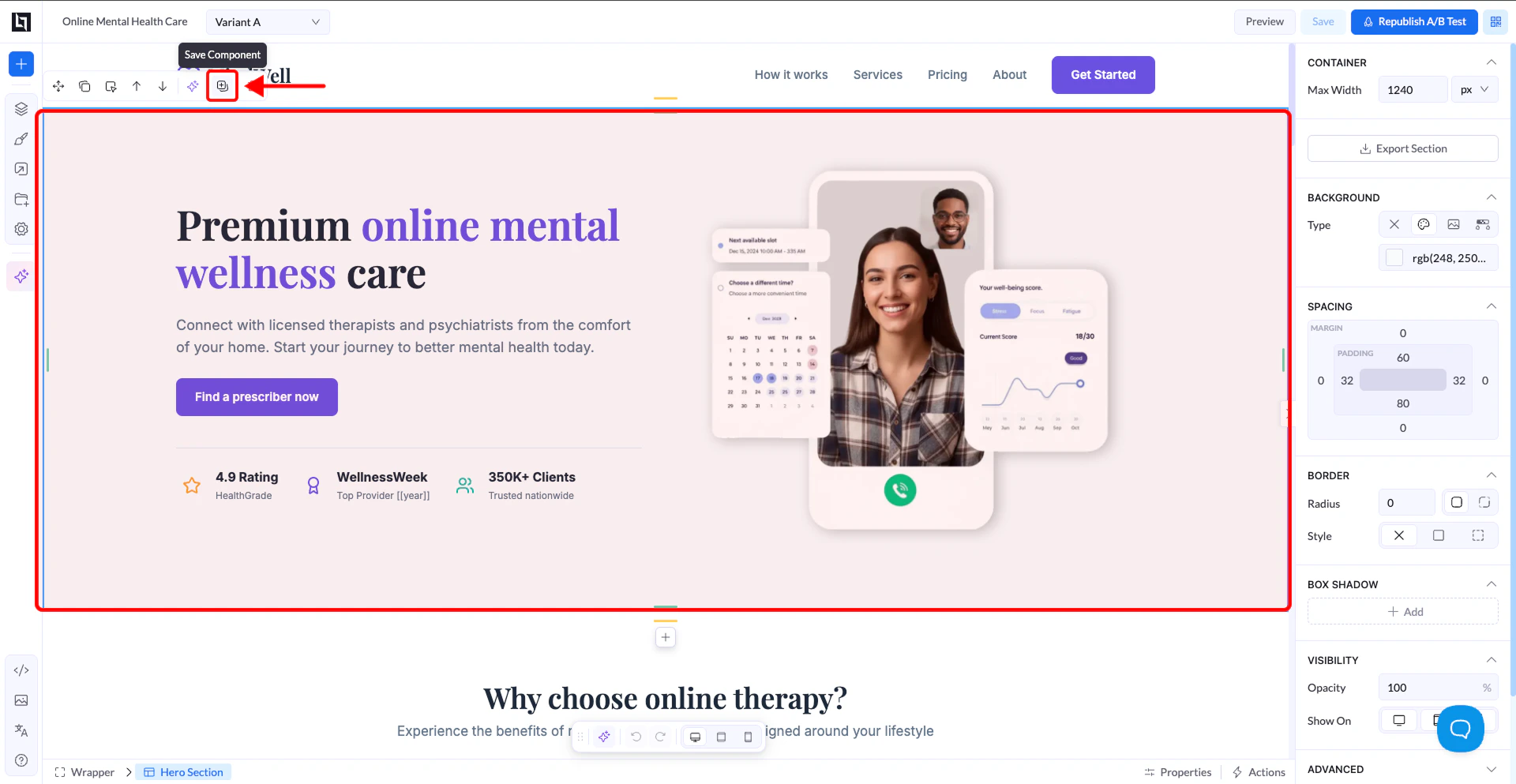
- Select the element you want to save (usually a section or box)
- Right-click on it or use the toolbar that appears on hover
- Click Save as Component
- Enter a name and save
Where to Find Saved Components
- Open the left sidebar
- Click the + (Add Elements) button
- Go to the Sections tab
- Go to My Sections

How It Works
Saved components include:- Layout
- Styles
- Content
- Links
They act as reusable building blocks for faster page creation.
Important Notes
When to Use It
- Reusing hero sections
- Reusing CTA blocks
- Reusing layouts across campaigns
- Speeding up page creation
Warning (Imported Pages)
If you save components from pages imported via URL:- The structure may not be clean
- This can sometimes cause layout issues when reused
Best Practice
- Save clean, well-structured sections
- Use clear names for easy reuse
- Treat saved components as templates, not synced components