> ## Documentation Index
> Fetch the complete documentation index at: https://docs.landerlab.io/llms.txt
> Use this file to discover all available pages before exploring further.
# 设置 Pipedrive 集成
> 用 API Token 将 Pipedrive 连接到 LanderLab,把每条落地页线索实时保存为 Pipedrive 联系人,并自动创建一条线索。
 将 Pipedrive 连接到 LanderLab,即可在有人提交表单的那一刻,自动将每条新线索发送到你的 Pipedrive 账户。无需手动导出,没有任何延迟。
## 什么是 Pipedrive?为什么要使用这个集成?
Pipedrive 是一个 CRM 和销售管道工具,用于在同一个地方管理联系人、交易和跟进。当你将 Pipedrive 连接到 LanderLab 落地页后,每一个提交表单的线索都会在 Pipedrive 中保存为一个 **person**(联系人),并自动为该联系人创建一条 **lead**(线索)。
Pipedrive 使用 **API Token** 进行连接。你只需从 Pipedrive 账户中复制 token,并在 LanderLab 中粘贴一次。之后,映射你的表单字段即可上线。
Pipedrive 集成**会全局保存在你的账户中**。连接 Pipedrive 账户后,你可以在多个落地页中重复使用,无需再次输入 API token。你还可以在同一界面中添加多个 Pipedrive 账户。
## 前提条件
开始之前,请确保你已具备:
* 一个 LanderLab 账户,且至少有一个包含邮箱字段的落地页
* 一个 Pipedrive 账户
* 你的 Pipedrive **personal API Token**
## 第 1 步:获取你的 Pipedrive API Token
登录 Pipedrive,点击右上角的**个人头像图标**,然后进入 **Company settings**。
在左侧边栏中点击 **Personal preferences**,然后打开 **API** 标签页。
复制你的 **personal API token**,并妥善保存以便下一步使用。
如果你看不到 API 标签页,说明你的用户角色未启用 API 访问权限。请联系你的 Pipedrive 管理员,为你的权限集开启该权限。
## 第 2 步:连接你的 Pipedrive 账户
在 LanderLab 中,前往 **Landing Pages**,打开你想添加 Pipedrive 的落地页。
点击 **Add Integration** 打开集成面板。
搜索 **Pipedrive** 或打开 **CRM** 分类,然后点击 **Pipedrive**。
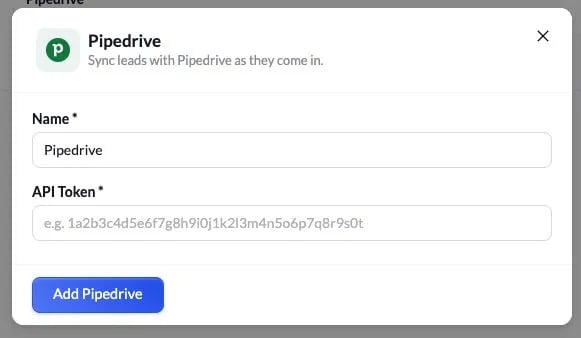
填写以下字段:
* **Name** - 该账户的标签(例如“Pipedrive”)。仅用于在 LanderLab 内识别该账户。
* **API Token** - 粘贴你从 Pipedrive 复制的 personal API token。
点击 **Add Pipedrive** 保存该账户。
将 Pipedrive 连接到 LanderLab,即可在有人提交表单的那一刻,自动将每条新线索发送到你的 Pipedrive 账户。无需手动导出,没有任何延迟。
## 什么是 Pipedrive?为什么要使用这个集成?
Pipedrive 是一个 CRM 和销售管道工具,用于在同一个地方管理联系人、交易和跟进。当你将 Pipedrive 连接到 LanderLab 落地页后,每一个提交表单的线索都会在 Pipedrive 中保存为一个 **person**(联系人),并自动为该联系人创建一条 **lead**(线索)。
Pipedrive 使用 **API Token** 进行连接。你只需从 Pipedrive 账户中复制 token,并在 LanderLab 中粘贴一次。之后,映射你的表单字段即可上线。
Pipedrive 集成**会全局保存在你的账户中**。连接 Pipedrive 账户后,你可以在多个落地页中重复使用,无需再次输入 API token。你还可以在同一界面中添加多个 Pipedrive 账户。
## 前提条件
开始之前,请确保你已具备:
* 一个 LanderLab 账户,且至少有一个包含邮箱字段的落地页
* 一个 Pipedrive 账户
* 你的 Pipedrive **personal API Token**
## 第 1 步:获取你的 Pipedrive API Token
登录 Pipedrive,点击右上角的**个人头像图标**,然后进入 **Company settings**。
在左侧边栏中点击 **Personal preferences**,然后打开 **API** 标签页。
复制你的 **personal API token**,并妥善保存以便下一步使用。
如果你看不到 API 标签页,说明你的用户角色未启用 API 访问权限。请联系你的 Pipedrive 管理员,为你的权限集开启该权限。
## 第 2 步:连接你的 Pipedrive 账户
在 LanderLab 中,前往 **Landing Pages**,打开你想添加 Pipedrive 的落地页。
点击 **Add Integration** 打开集成面板。
搜索 **Pipedrive** 或打开 **CRM** 分类,然后点击 **Pipedrive**。
填写以下字段:
* **Name** - 该账户的标签(例如“Pipedrive”)。仅用于在 LanderLab 内识别该账户。
* **API Token** - 粘贴你从 Pipedrive 复制的 personal API token。
点击 **Add Pipedrive** 保存该账户。
 ## 第 3 步:配置集成
保存账户后,会打开一个设置向导。它包含三个步骤:为集成命名、映射字段,然后审核并连接。
### 为集成命名
为该集成设置一个容易识别的名称(例如“Pipedrive - Auto Leads”),方便你在落地页的集成列表中找到它。
点击 **Continue** 进入字段映射。
### 映射你的字段
LanderLab 会在左侧显示你的表单字段,右侧有一个下拉菜单,用于选择对应的 **Pipedrive field**。
Pipedrive 需要 **Name** 才能创建联系人。你必须将一个字段映射到 **Name**,否则集成无法创建记录,并且你会看到“Map a field to Name so Pipedrive can create the person”提示。
将你表单的 **email** 字段映射到 Pipedrive 的 **Email** 字段。
将一个字段映射到 **Name**,此项为必填。如果你的表单收集了姓名,就使用该字段;否则请映射其他值,以便 Pipedrive 有名称可用来创建联系人。
## 第 3 步:配置集成
保存账户后,会打开一个设置向导。它包含三个步骤:为集成命名、映射字段,然后审核并连接。
### 为集成命名
为该集成设置一个容易识别的名称(例如“Pipedrive - Auto Leads”),方便你在落地页的集成列表中找到它。
点击 **Continue** 进入字段映射。
### 映射你的字段
LanderLab 会在左侧显示你的表单字段,右侧有一个下拉菜单,用于选择对应的 **Pipedrive field**。
Pipedrive 需要 **Name** 才能创建联系人。你必须将一个字段映射到 **Name**,否则集成无法创建记录,并且你会看到“Map a field to Name so Pipedrive can create the person”提示。
将你表单的 **email** 字段映射到 Pipedrive 的 **Email** 字段。
将一个字段映射到 **Name**,此项为必填。如果你的表单收集了姓名,就使用该字段;否则请映射其他值,以便 Pipedrive 有名称可用来创建联系人。
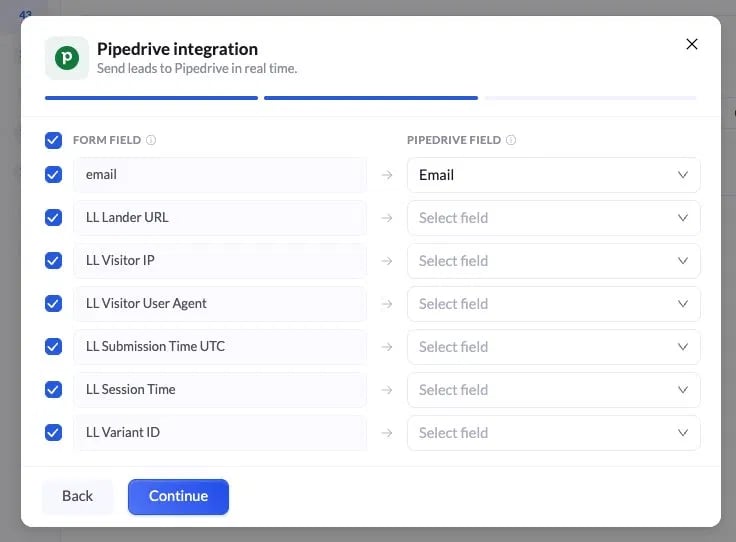 映射你想发送的任何其他字段。LanderLab 还提供了可以一并传递的跟踪字段:
* LL Lander URL
* LL Visitor IP
* LL Visitor User Agent
* LL Submission Time UTC
* LL Session Time
* LL Variant ID
未映射的字段不会被发送到 Pipedrive。
点击 **Continue** 进入审核步骤。
### 审核并连接
最后一步会显示每条线索将发送到 Pipedrive 的所有内容,包括每个已映射字段。请仔细检查。如果有任何问题,点击 **Back** 进行修改。
点击 **Connect Pipedrive** 保存并启用集成。从现在起,在该落地页上提交的每一条线索都会实时以联系人形式发送到 Pipedrive,并为其创建一条线索。
## Pipedrive 集成使用技巧
* **Name 为必填** - 没有 Name,Pipedrive 就无法创建联系人。连接前请务必将一个字段映射到 Name。
* **复用你的账户** - 由于 Pipedrive 是全局保存的,你只需输入一次 API token。点几下就能将同一账户连接到其他落地页。
* **传递跟踪数据** - 映射 LL Lander URL 和 LL Variant ID 等字段,即可看到每条线索来自哪个页面和变体。
* **用真实提交进行测试** - 连接完成后,提交一条测试线索,并确认联系人和线索在几秒钟内出现在 Pipedrive 中。
## 问题排查
Pipedrive 需要 Name 才能创建记录。请返回字段映射步骤,将你的一个表单字段映射到 **Name** 字段,然后继续。
请确认该集成已在你的落地页上启用,并且已映射 **Name**。同时检查你的 API token 在 Pipedrive 中是否仍然有效,因为生成新 token 会使旧 token 失效。
请确保你从 **Company settings > Personal preferences > API** 中复制了完整的 **personal API token**。如果你最近在 Pipedrive 中重新生成了 token,请在 LanderLab 中同步更新。
你的用户角色没有 API 访问权限。请联系你的 Pipedrive 管理员,为你的权限集启用 API 访问,然后重新复制 token。
This documentation is built and hosted on [Mintlify](https://mintlify.com), a developer documentation platform.
映射你想发送的任何其他字段。LanderLab 还提供了可以一并传递的跟踪字段:
* LL Lander URL
* LL Visitor IP
* LL Visitor User Agent
* LL Submission Time UTC
* LL Session Time
* LL Variant ID
未映射的字段不会被发送到 Pipedrive。
点击 **Continue** 进入审核步骤。
### 审核并连接
最后一步会显示每条线索将发送到 Pipedrive 的所有内容,包括每个已映射字段。请仔细检查。如果有任何问题,点击 **Back** 进行修改。
点击 **Connect Pipedrive** 保存并启用集成。从现在起,在该落地页上提交的每一条线索都会实时以联系人形式发送到 Pipedrive,并为其创建一条线索。
## Pipedrive 集成使用技巧
* **Name 为必填** - 没有 Name,Pipedrive 就无法创建联系人。连接前请务必将一个字段映射到 Name。
* **复用你的账户** - 由于 Pipedrive 是全局保存的,你只需输入一次 API token。点几下就能将同一账户连接到其他落地页。
* **传递跟踪数据** - 映射 LL Lander URL 和 LL Variant ID 等字段,即可看到每条线索来自哪个页面和变体。
* **用真实提交进行测试** - 连接完成后,提交一条测试线索,并确认联系人和线索在几秒钟内出现在 Pipedrive 中。
## 问题排查
Pipedrive 需要 Name 才能创建记录。请返回字段映射步骤,将你的一个表单字段映射到 **Name** 字段,然后继续。
请确认该集成已在你的落地页上启用,并且已映射 **Name**。同时检查你的 API token 在 Pipedrive 中是否仍然有效,因为生成新 token 会使旧 token 失效。
请确保你从 **Company settings > Personal preferences > API** 中复制了完整的 **personal API token**。如果你最近在 Pipedrive 中重新生成了 token,请在 LanderLab 中同步更新。
你的用户角色没有 API 访问权限。请联系你的 Pipedrive 管理员,为你的权限集启用 API 访问,然后重新复制 token。
This documentation is built and hosted on [Mintlify](https://mintlify.com), a developer documentation platform.