> ## Documentation Index
> Fetch the complete documentation index at: https://docs.landerlab.io/llms.txt
> Use this file to discover all available pages before exploring further.
# 把落地页移动到文件夹
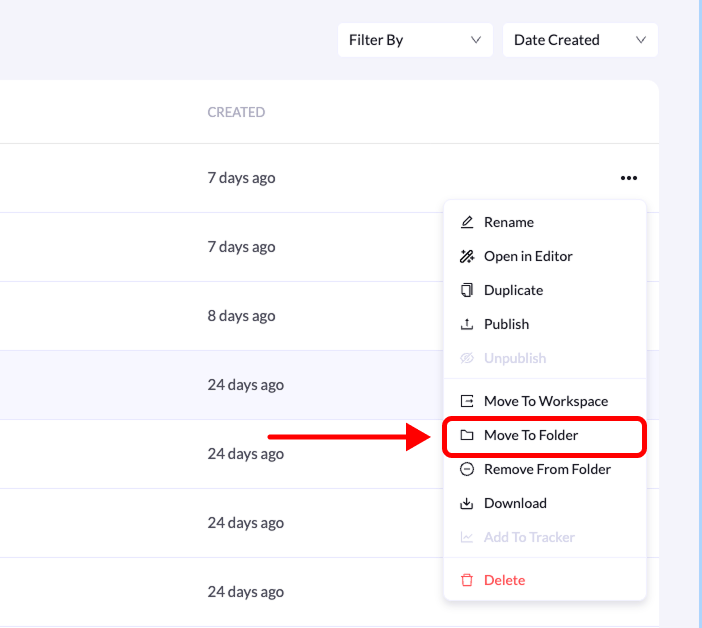
> 把已有落地页移动到文件夹:在页面右侧的三点菜单中选择 Move to Folder,再选目标文件夹,即可重新归类活动页面。
你可以把已有的落地页移动到文件夹中,让项目保持整齐。重新整理活动或把相关页面归类时尤其有用。
按以下步骤把落地页移动到指定文件夹。
 ## 分步说明
### 1. 进入 Landing Pages
在**左侧菜单**中点击 **Landing Pages**。
### 2. 找到落地页
找到你要移动的落地页。
### 3. 打开页面菜单
点击落地页右侧的**三点菜单(•••)**。
### 4. 选择 Move to Folder
在选项列表中点击 **Move to Folder**。
### 5. 选择文件夹
选择要把落地页移动到的文件夹。
### 6. 确认操作
点击 **Move Landing Page** 完成。
落地页现在会出现在所选文件夹内。
This documentation is built and hosted on [Mintlify](https://mintlify.com), a developer documentation platform.
## 分步说明
### 1. 进入 Landing Pages
在**左侧菜单**中点击 **Landing Pages**。
### 2. 找到落地页
找到你要移动的落地页。
### 3. 打开页面菜单
点击落地页右侧的**三点菜单(•••)**。
### 4. 选择 Move to Folder
在选项列表中点击 **Move to Folder**。
### 5. 选择文件夹
选择要把落地页移动到的文件夹。
### 6. 确认操作
点击 **Move Landing Page** 完成。
落地页现在会出现在所选文件夹内。
This documentation is built and hosted on [Mintlify](https://mintlify.com), a developer documentation platform.