> ## Documentation Index
> Fetch the complete documentation index at: https://docs.landerlab.io/llms.txt
> Use this file to discover all available pages before exploring further.
# 管理全局字体和排版
> 在 Theme 面板设置落地页全局字体,分别为 Headings 和正文(Page)选择字体,并通过 Manage Fonts 浏览、搜索和添加新字体。
字体决定了整个页面上文字的外观。
只需设置一次,就能确保所有地方的设计一致且专业。
## 在哪里找到
1. 打开 **Theme panel**
2. 进入 **Fonts section**
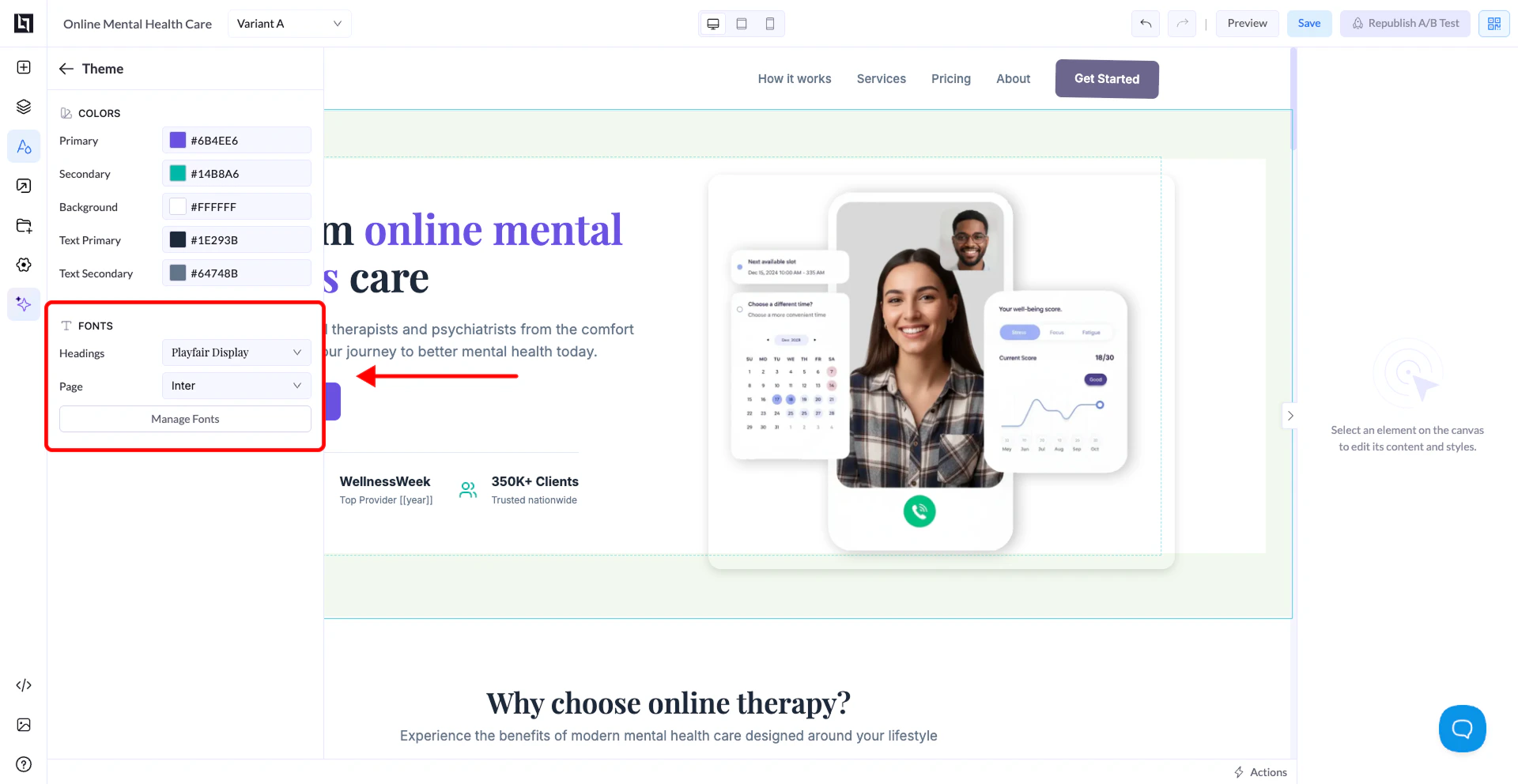 你会看到两个主要选项:
* **Headings** → 用于标题和大号文字
* **Page** → 用于段落和普通文字
## 字体如何生效
* 这里设置的字体会**全局**应用到你的页面
* 所有文本元素会自动继承这些字体
* 你无需逐个设置每个区块的样式
💡 提示:保持字体一致可以提升可读性和设计质量。
## 管理字体
点击 **Manage Fonts** 打开字体库。
你会看到两个主要选项:
* **Headings** → 用于标题和大号文字
* **Page** → 用于段落和普通文字
## 字体如何生效
* 这里设置的字体会**全局**应用到你的页面
* 所有文本元素会自动继承这些字体
* 你无需逐个设置每个区块的样式
💡 提示:保持字体一致可以提升可读性和设计质量。
## 管理字体
点击 **Manage Fonts** 打开字体库。
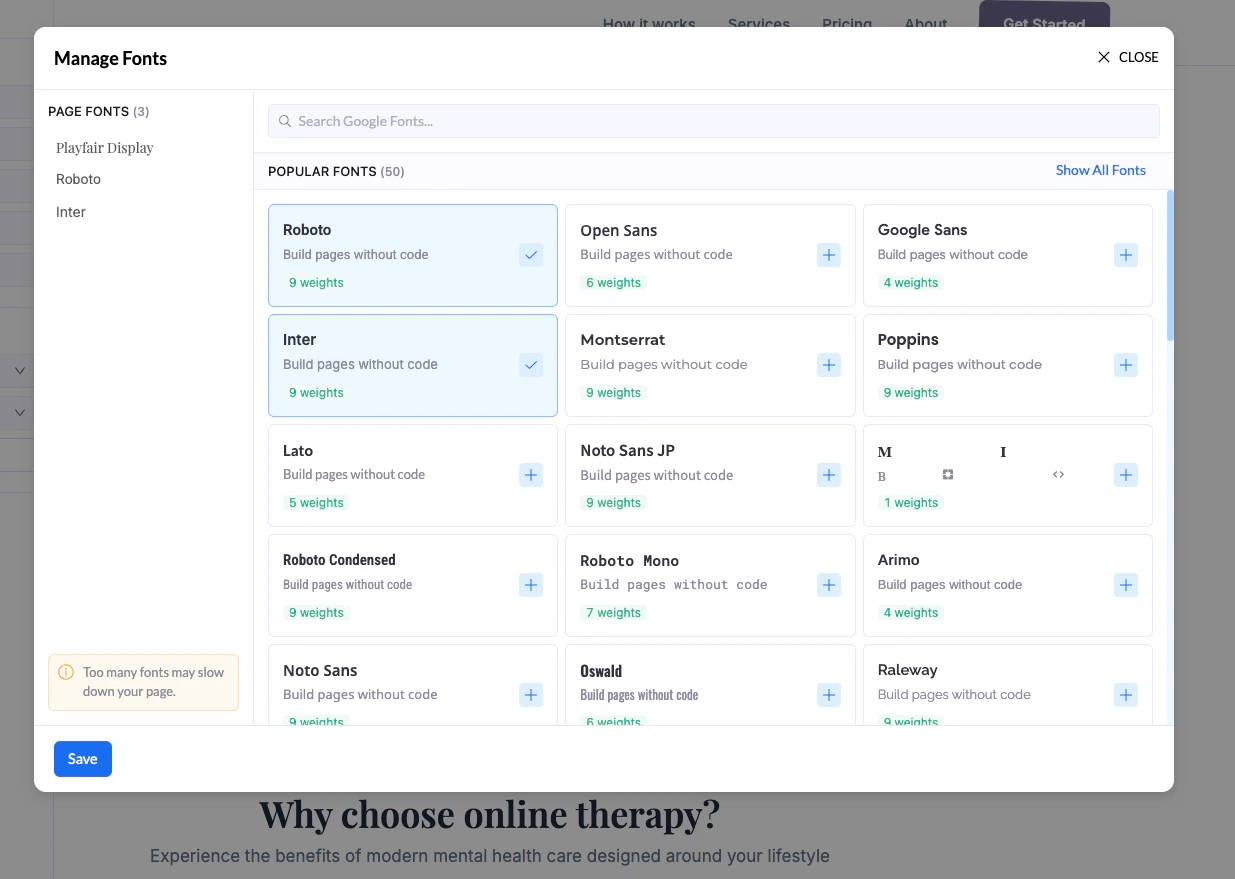 在这里你可以:
* 浏览可用字体
* 搜索特定字体
* 将新字体添加到你的项目
* 查看每种字体包含多少种字重
添加后,这些字体就会出现在你的 Theme 设置中。
## 注意事项
* 添加太多字体会**拖慢页面速度**
* 为了获得最佳性能,**最多使用 1–2 种字体**
* 选择在所有设备上都易于阅读的字体
## 最佳实践
* **Headings** 使用一种字体
* **正文(Page)** 使用一种字体
* 保持简洁一致
This documentation is built and hosted on [Mintlify](https://mintlify.com), a developer documentation platform.
在这里你可以:
* 浏览可用字体
* 搜索特定字体
* 将新字体添加到你的项目
* 查看每种字体包含多少种字重
添加后,这些字体就会出现在你的 Theme 设置中。
## 注意事项
* 添加太多字体会**拖慢页面速度**
* 为了获得最佳性能,**最多使用 1–2 种字体**
* 选择在所有设备上都易于阅读的字体
## 最佳实践
* **Headings** 使用一种字体
* **正文(Page)** 使用一种字体
* 保持简洁一致
This documentation is built and hosted on [Mintlify](https://mintlify.com), a developer documentation platform.